This tutorial applies only to users equipped with a Netflix 4K–compatible R_volution player, such as the R_volution PlayerPro 8K TV.
Since late March 2026, Autoframerate has been introduced on the Android TV system of R_volution players, allowing Netflix to play at 23.976Hz. However, it is still required to force Android TV to 59.94Hz in order to access Netflix in 4K (the switch from 59.94Hz to 23.976Hz occurs automatically during playback). Autoframerate is made possible thanks to Android TV 14, which replaces version 11 originally installed on the player at launch.
Note that while Netflix supports Autoframerate for 4K playback, many applications do not. Only apps that use the Android Frame Rate API can take advantage of this feature. Autoframerate may eventually be added to other apps through future updates.
To configure Autoframerate on Android TV, follow these steps:
On Android TV, click the Settings icon located on the right side (indicated by the red arrow in the diagram below). To do this, use the right arrow on the remote control to navigate to the Settings icon, represented by a “Gear” symbol.
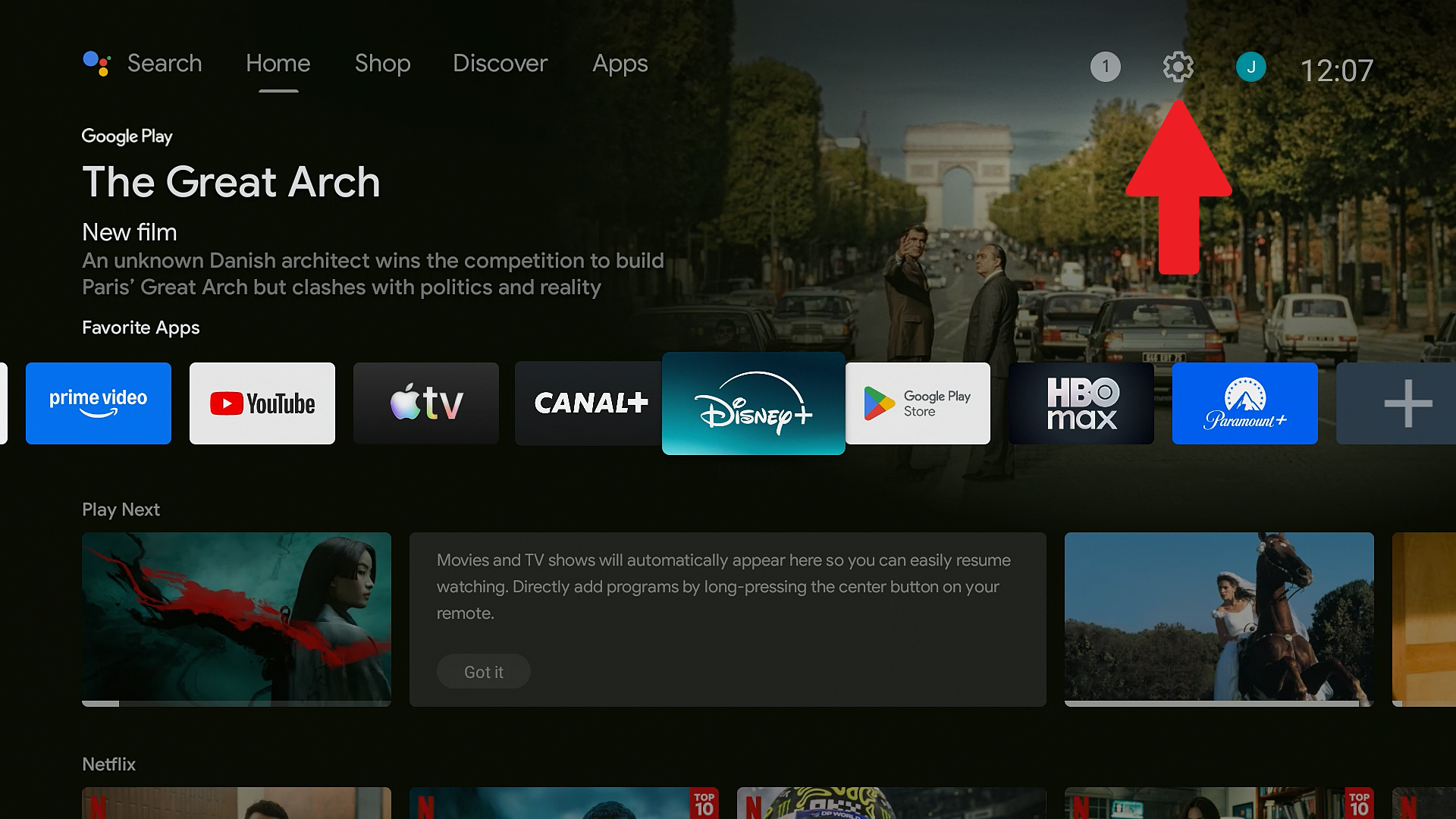
Make sure that the selector is positioned on the icon illustrated with a "gear" (Settings). Then, click on the Settings icon.
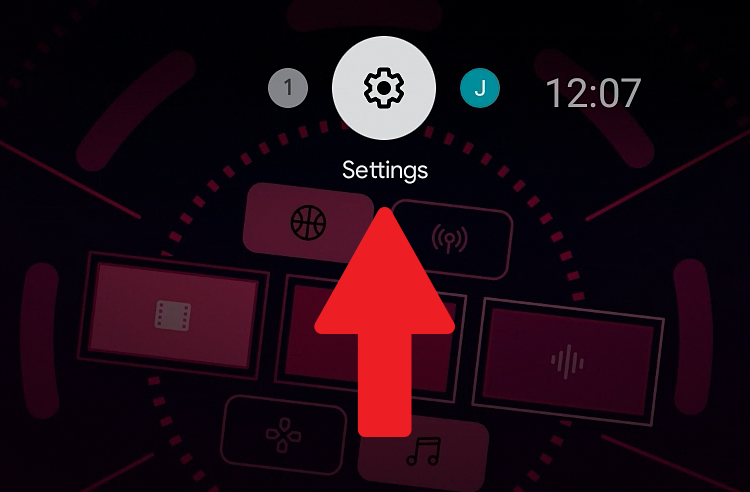
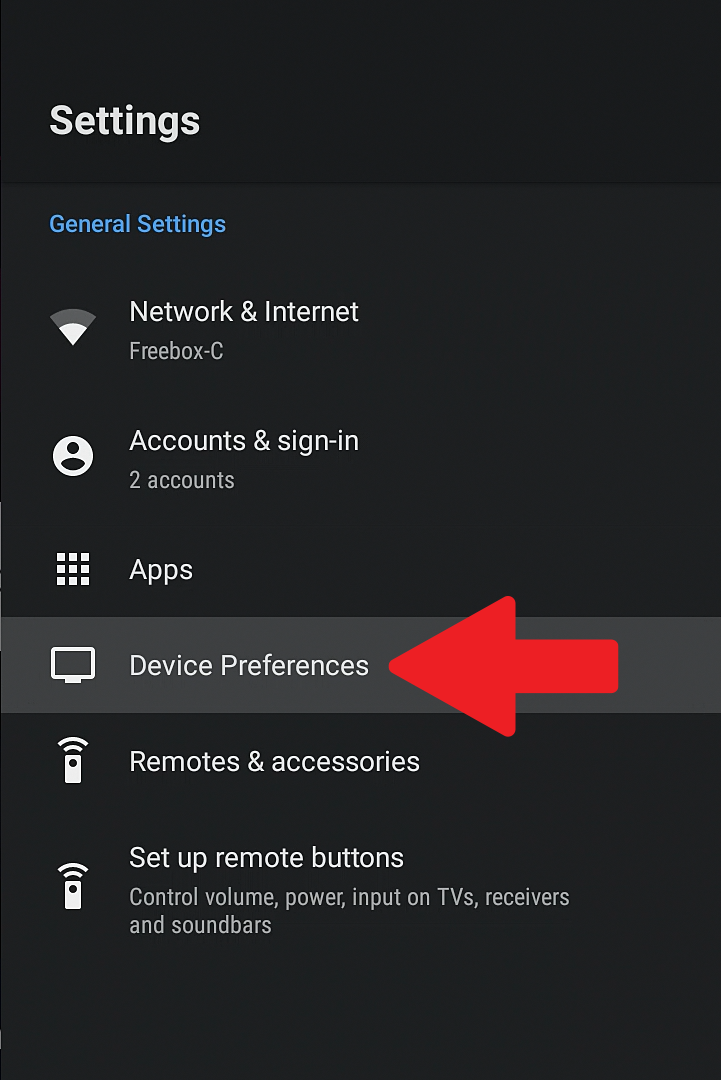
Use the DOWN arrow on your remote control to move the selector to the 'Device Preferences' line.
Then, click on 'Display and sound'.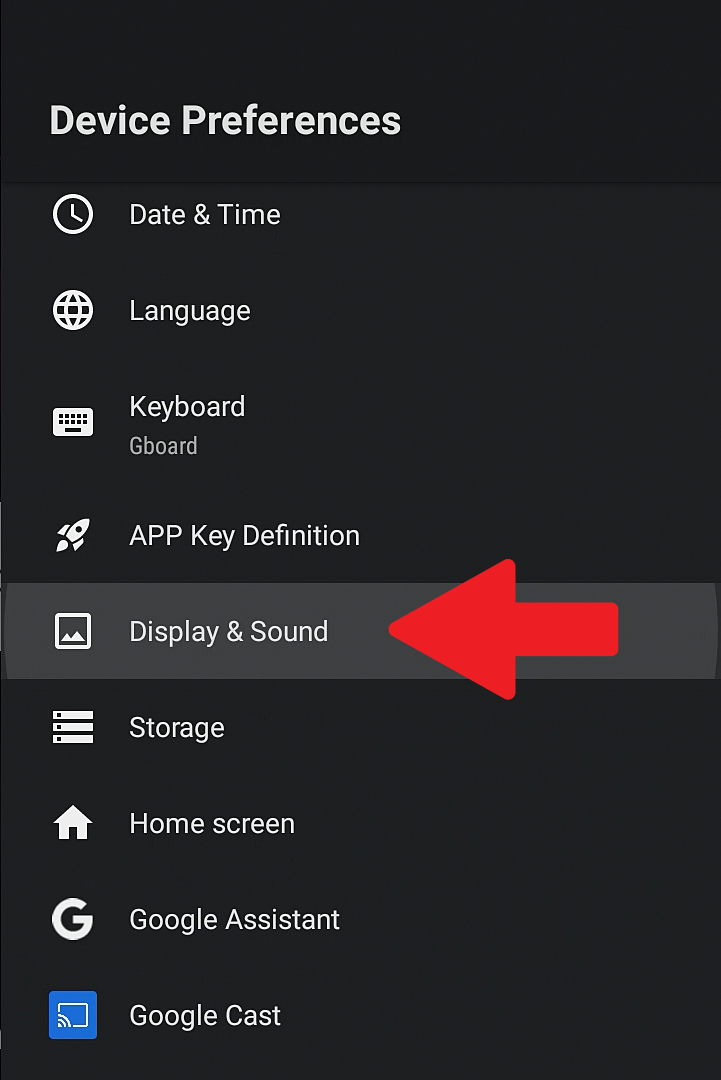
Then, click on 'Screen resolution'.
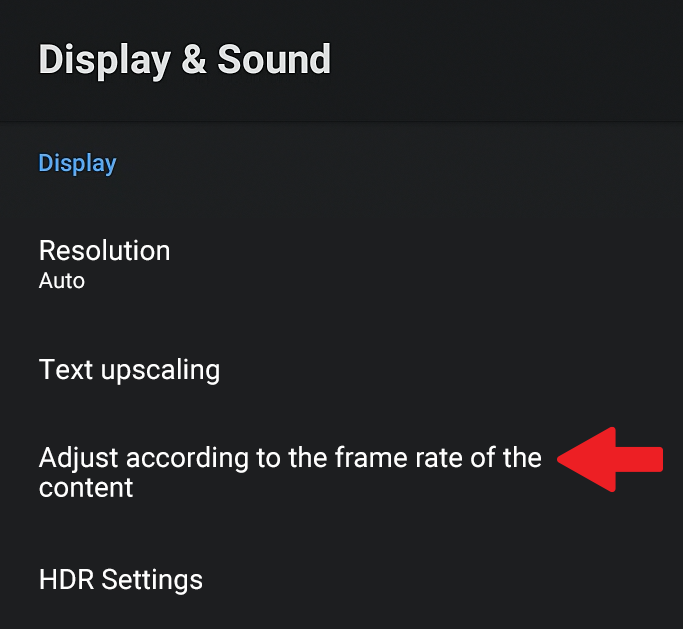
Then validate the option via the dedicated radio button. The autoframerate will automatically adjust the player's frame rate according to the video being played on Netflix. For example, if you are watching an American movie, it will be displayed automatically at 23.976Hz. If you are watching a French series, the image will be adjusted to 50Hz or 25Hz.
Next, you must select the Auto mode for the resolution setting by proceeding as follows:
Still in the Display section, click on Screen resolution.
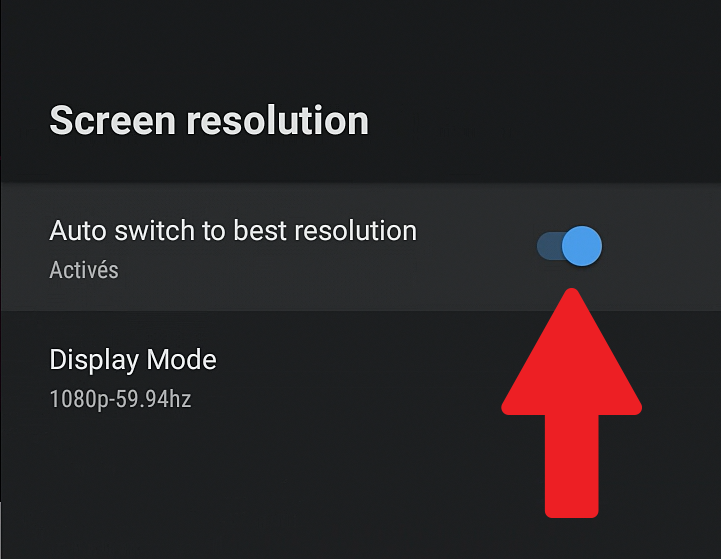
If the radio button was set to OFF and you activate it, a display mode validation window will appear after a brief black screen. Click the OK button to confirm.
Then, click on 'Display Mode'.
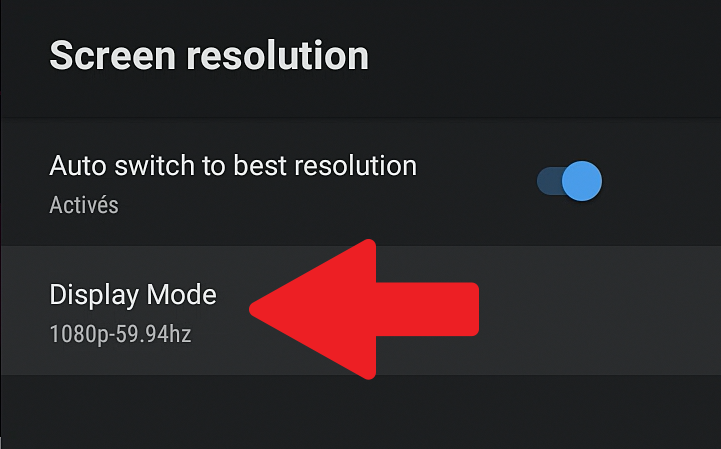
In the list of modes, select Auto (it works also in '4k2k-59.94hz') and confirm using the OK button on the remote control.
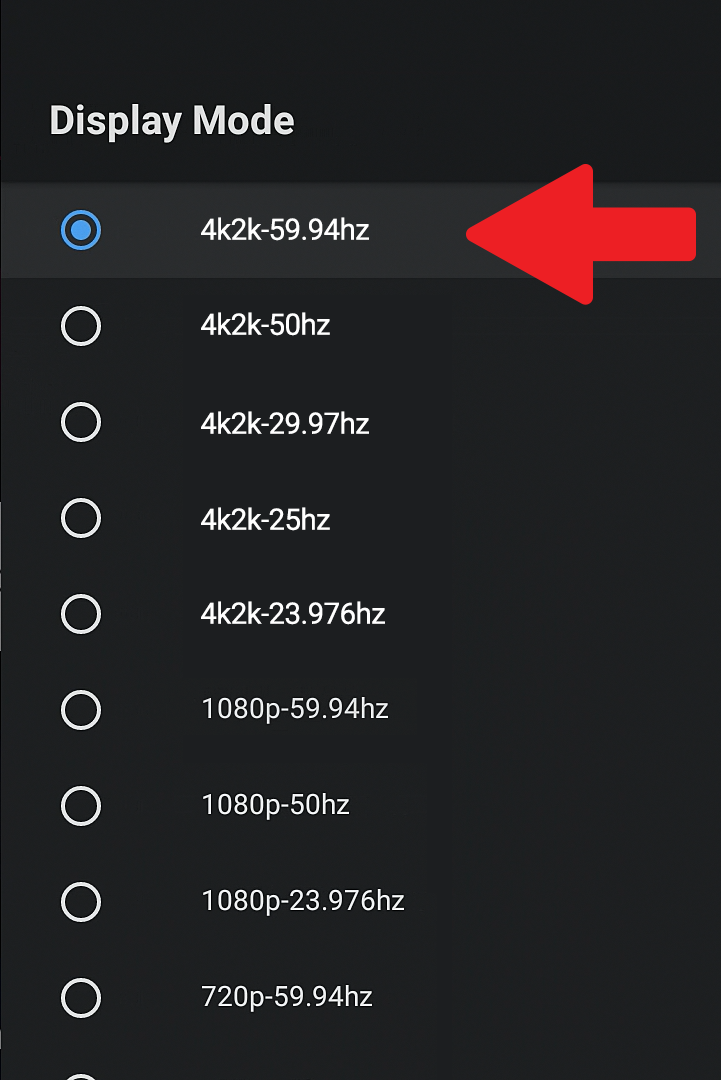
Now, Netflix will be displayed in 4K on your UHD TV and the frequency will automatically adjusted.
Was this article helpful?
That’s Great!
Thank you for your feedback
Sorry! We couldn't be helpful
Thank you for your feedback
Feedback sent
We appreciate your effort and will try to fix the article