This tutorial only concerns users of R_volution players integrating Android TV and Netflix 4K + Dolby Atmos compatibility.
To adjust the audio output for the Android TV part, proceed as follows:
Go to Apps > Android TV. Then press the RIGHT ARROW key on the main remote control to go to the icon illustrated with a gear icon, located at the top right of the Android TV interface.
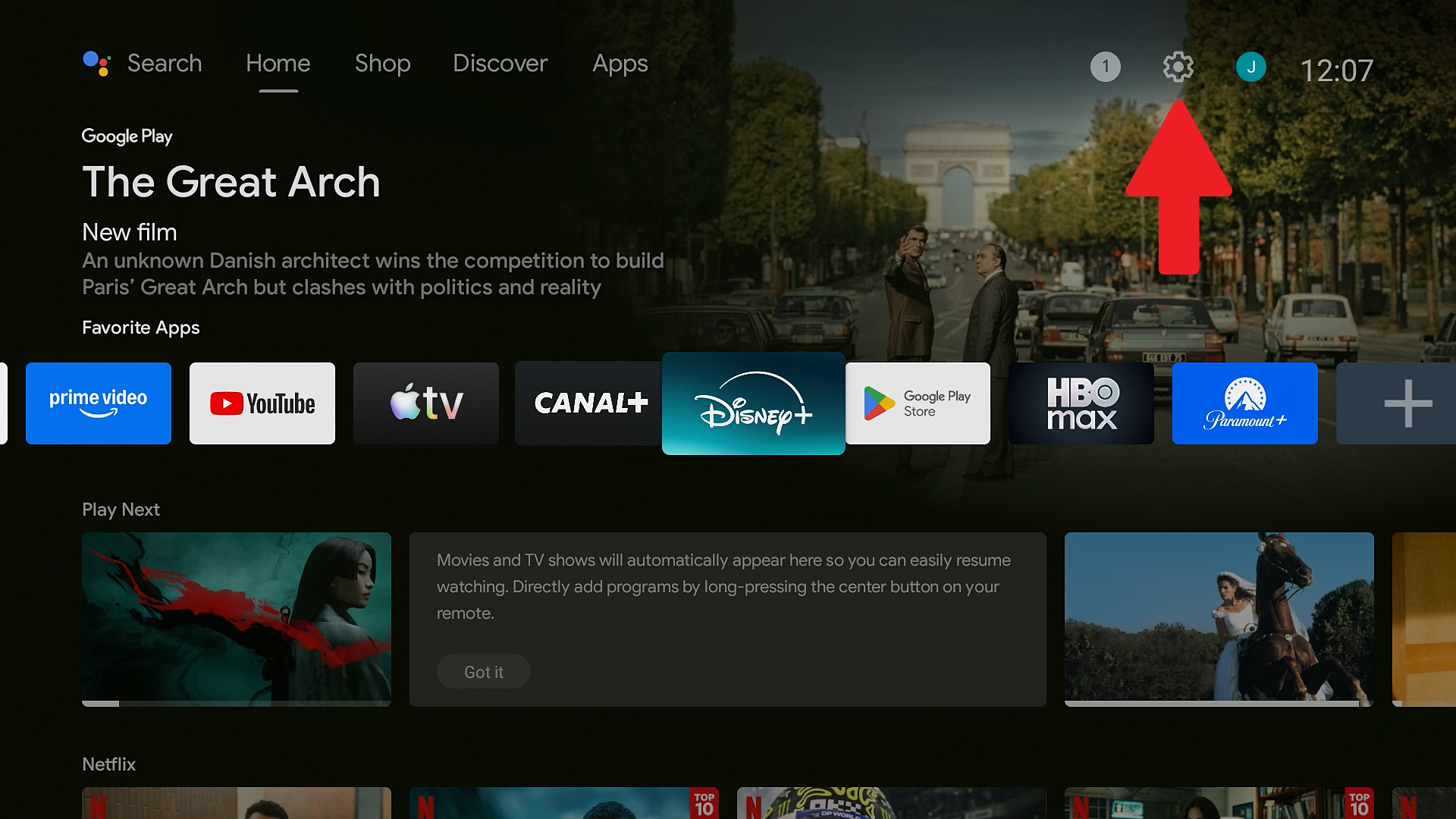
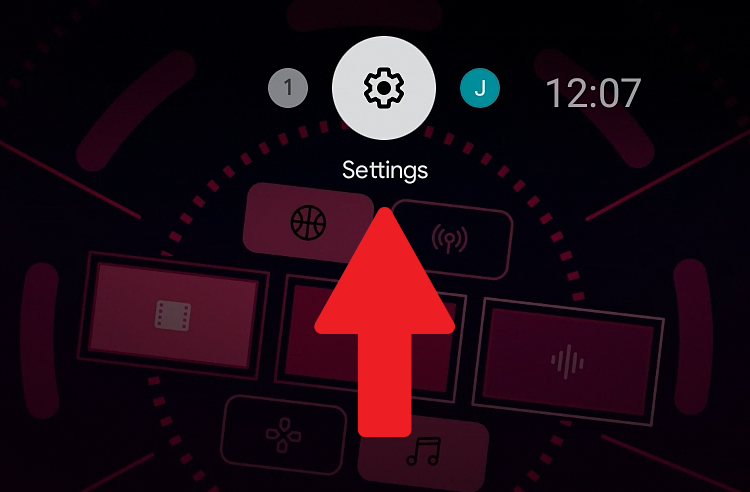
Make sure that the selector is positioned on the icon illustrated with a "gear" (Settings).
Then, click on the Settings icon.
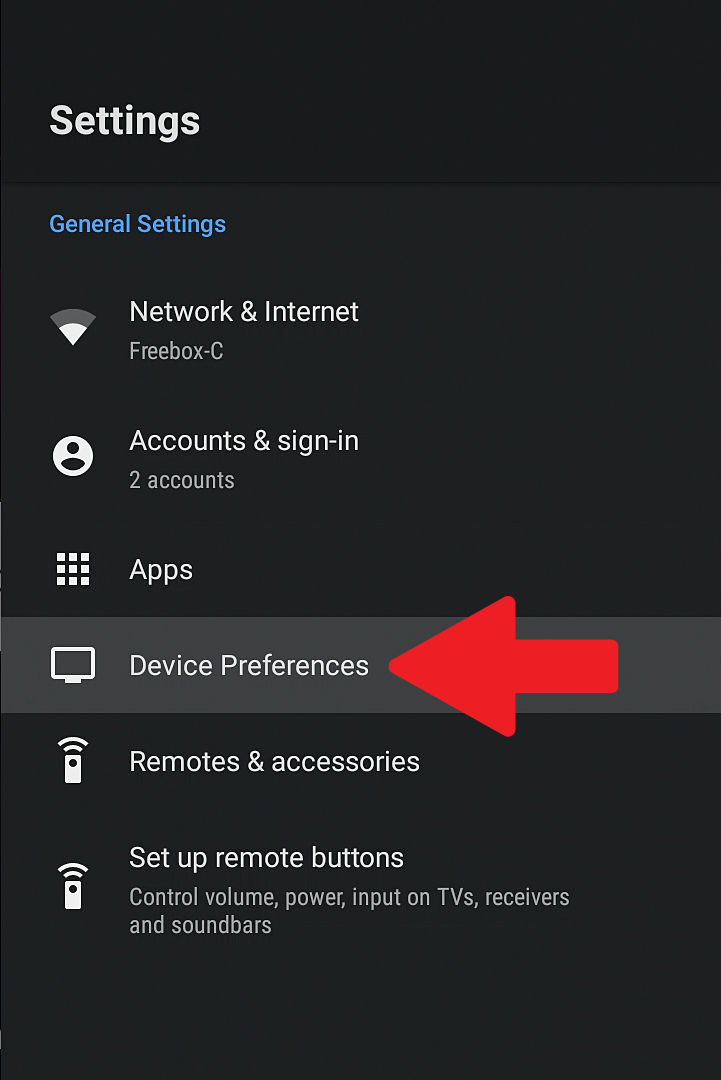
Use the DOWN arrow on your remote control to move the selector to the 'Device Preferences' line.
Then, click on 'Display and sound'.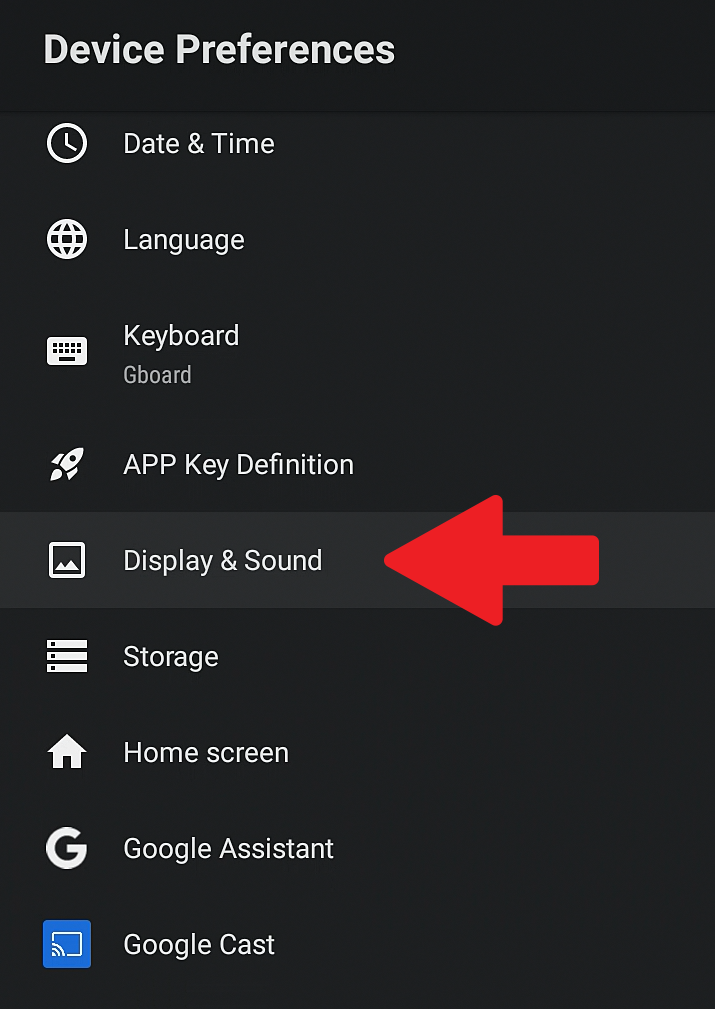
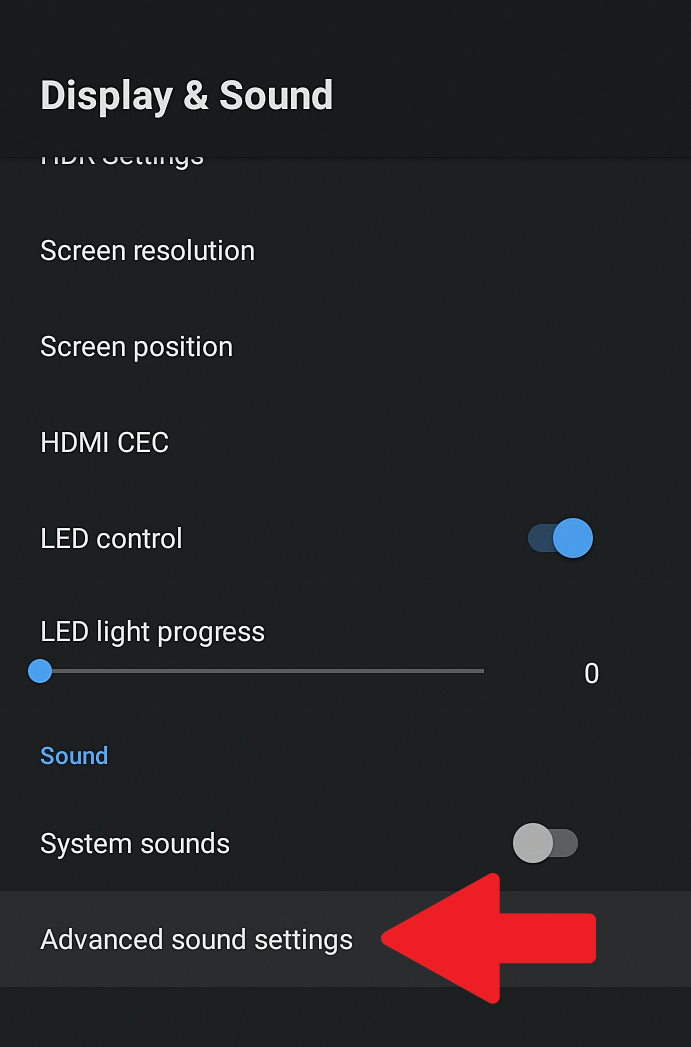
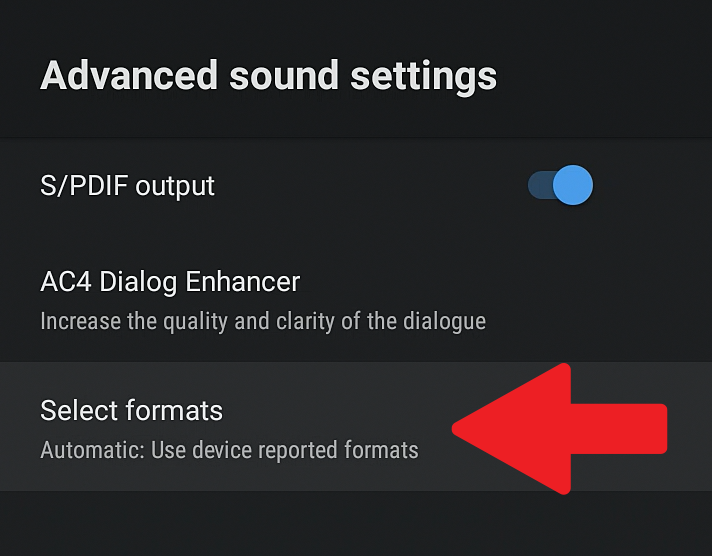
Then, using the DOWN ARROW button on your remote control, scroll down to the 'Advanced Audio Settings' button, then click on it using the OK button on your remote control.
If you want to activate the S/PDIF optical or coaxial audio output, operate the dedicated radio button. When the button's circle is positioned to the left, the option is disabled (grayed out). When the button's circle is positioned to the right, the option is enabled (the button turns blue).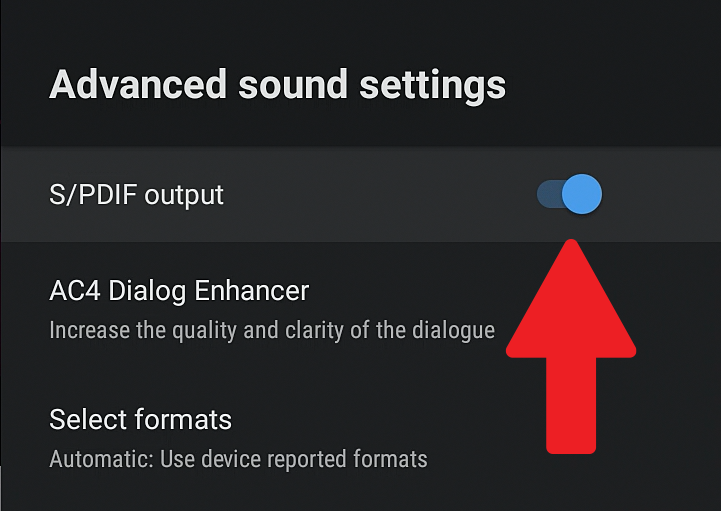
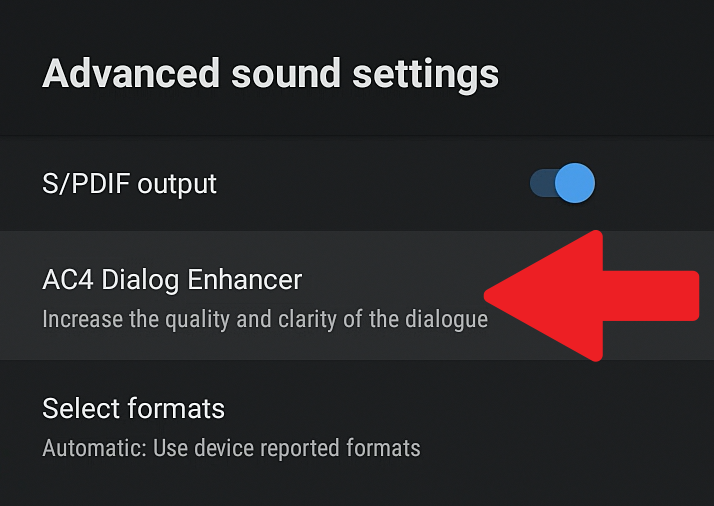
The second option AC4 Dialog Enhancer allows you to increase the sound level of the dialogues. To access this option, click on it using the OK button on your remote control.
Several adjustment levels are offered for this option: low, medium, and high. To disable the option, click on Off.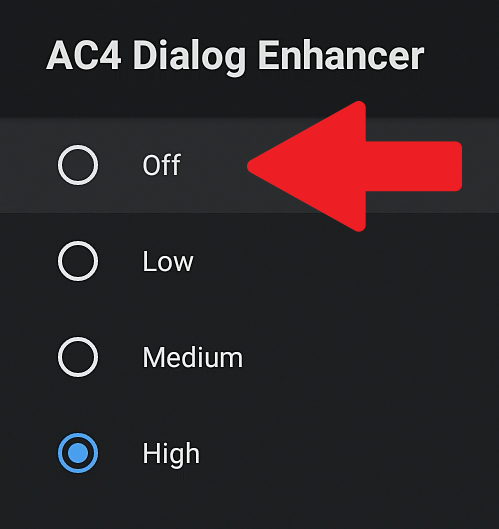
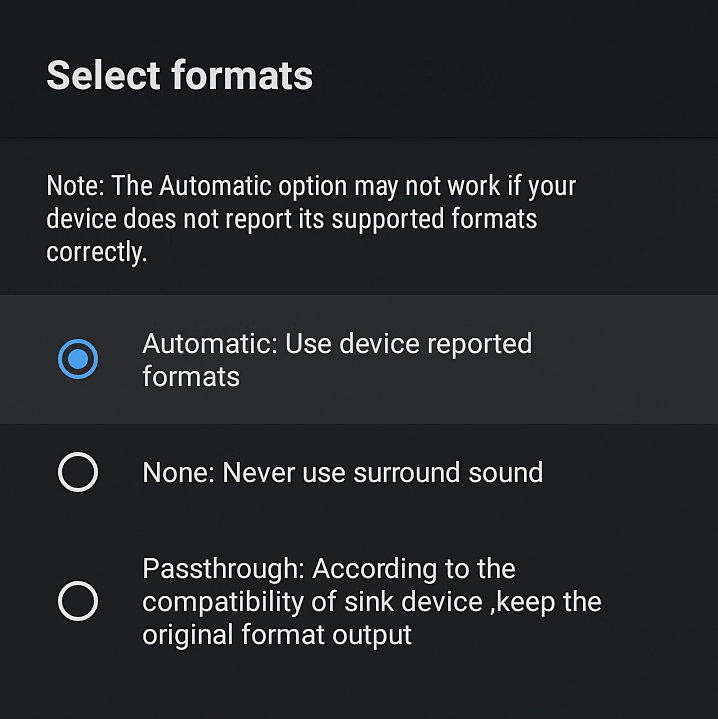
In the previous menu (Advanced Audio Settings), the third option titled "Selected Formats" allows you to adjust the audio output (PCM decoding or bitstream). To configure these options, click on the dedicated button.
Three options are offered.
- The first option allows you to automatically choose the correct format based on your TV or amplifier.
- The second option allows decoding all audio formats and outputting them in PCM 2.0 format.
- The third option allows forcing the digital audio output in bitstream.
Was this article helpful?
That’s Great!
Thank you for your feedback
Sorry! We couldn't be helpful
Thank you for your feedback
Feedback sent
We appreciate your effort and will try to fix the article