If your Android TV system (R_volution TV models only) is not running version 14, you can update it manually by following this procedure.
WARNING! This update applies only to Android TV and not to the file‑playback system, which runs on Android 11 for stability reasons.
Launch Android TV by clicking on its dedicated icon in the Apps section.
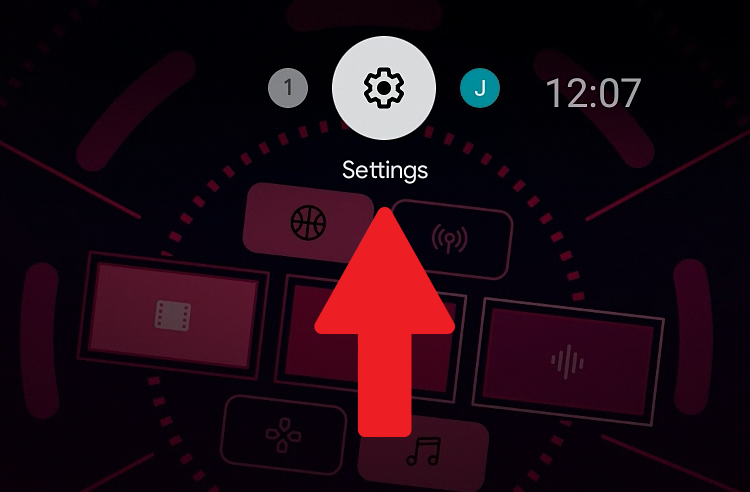
Once in Android TV, click on the Settings icon located at the top right of the screen (indicated by the red arrow in the diagram below). To do this, use the right arrow on the remote control to navigate to the Settings icon, represented by a gear symbol.
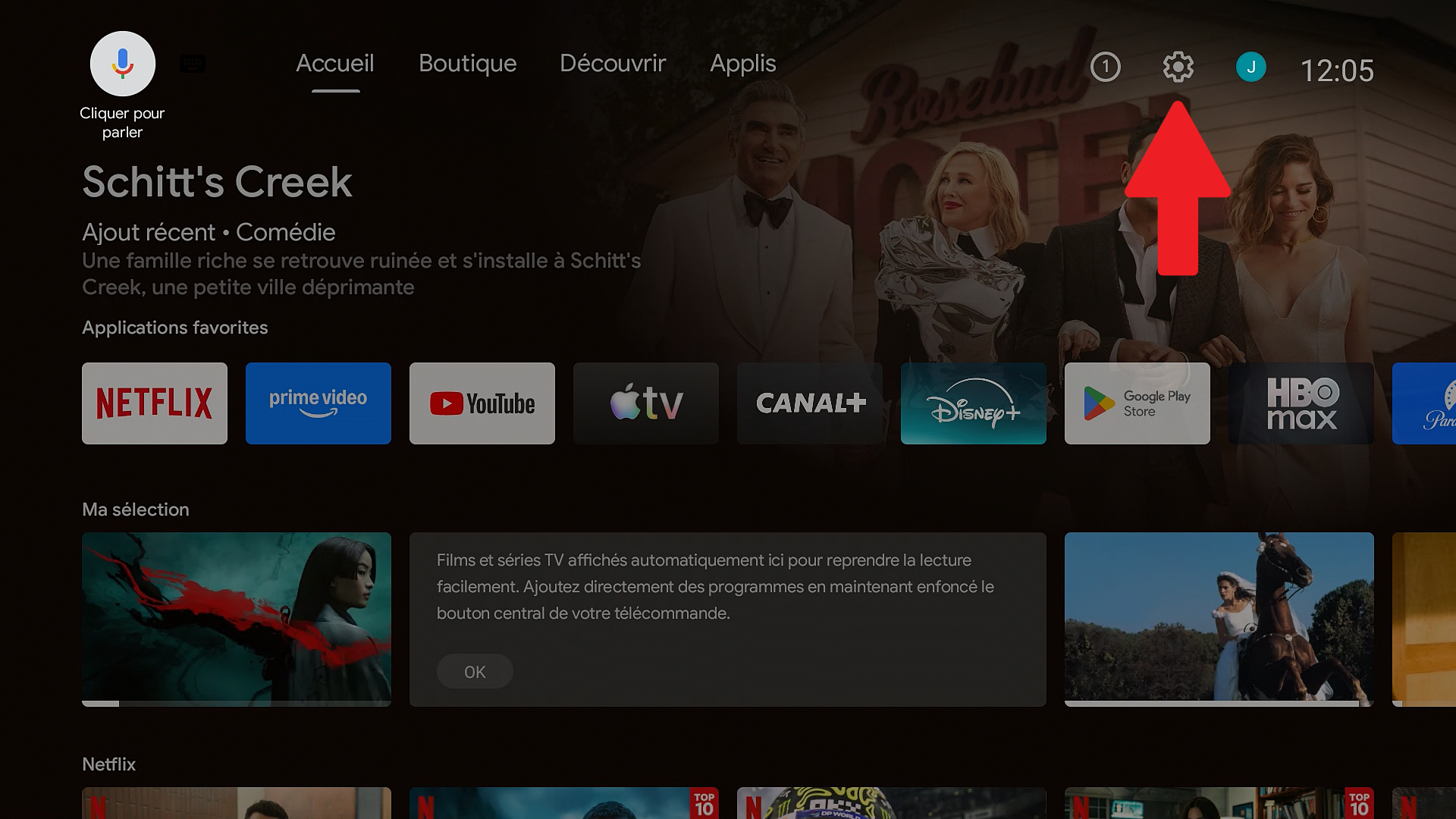
Make sure the selector is positioned on the icon with the gear symbol (Settings). Then click the Settings icon.
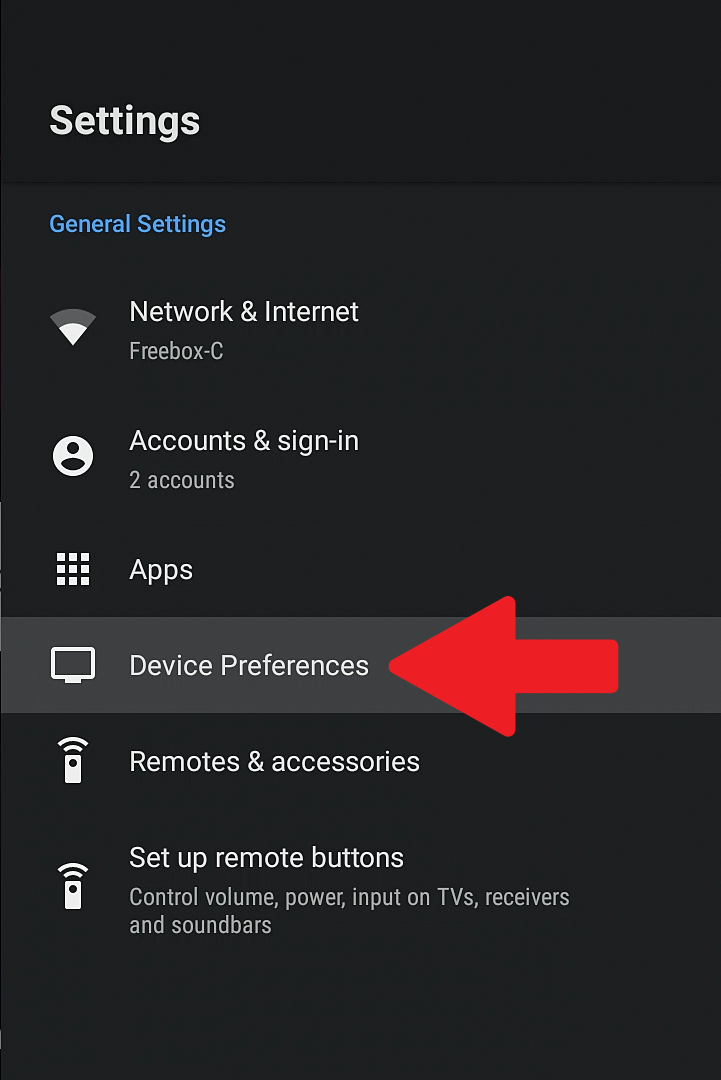
Use the DOWN arrow on your remote to move the selector to the “Device Preferences” line.
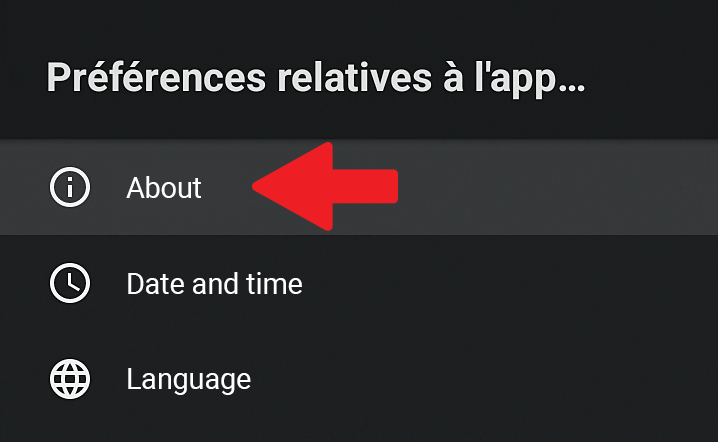
Then click “About”.
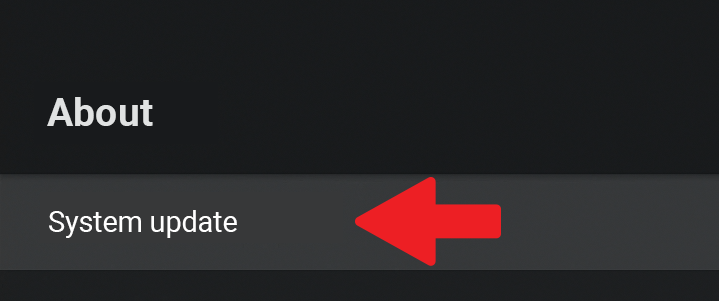
Then click “System Update”.
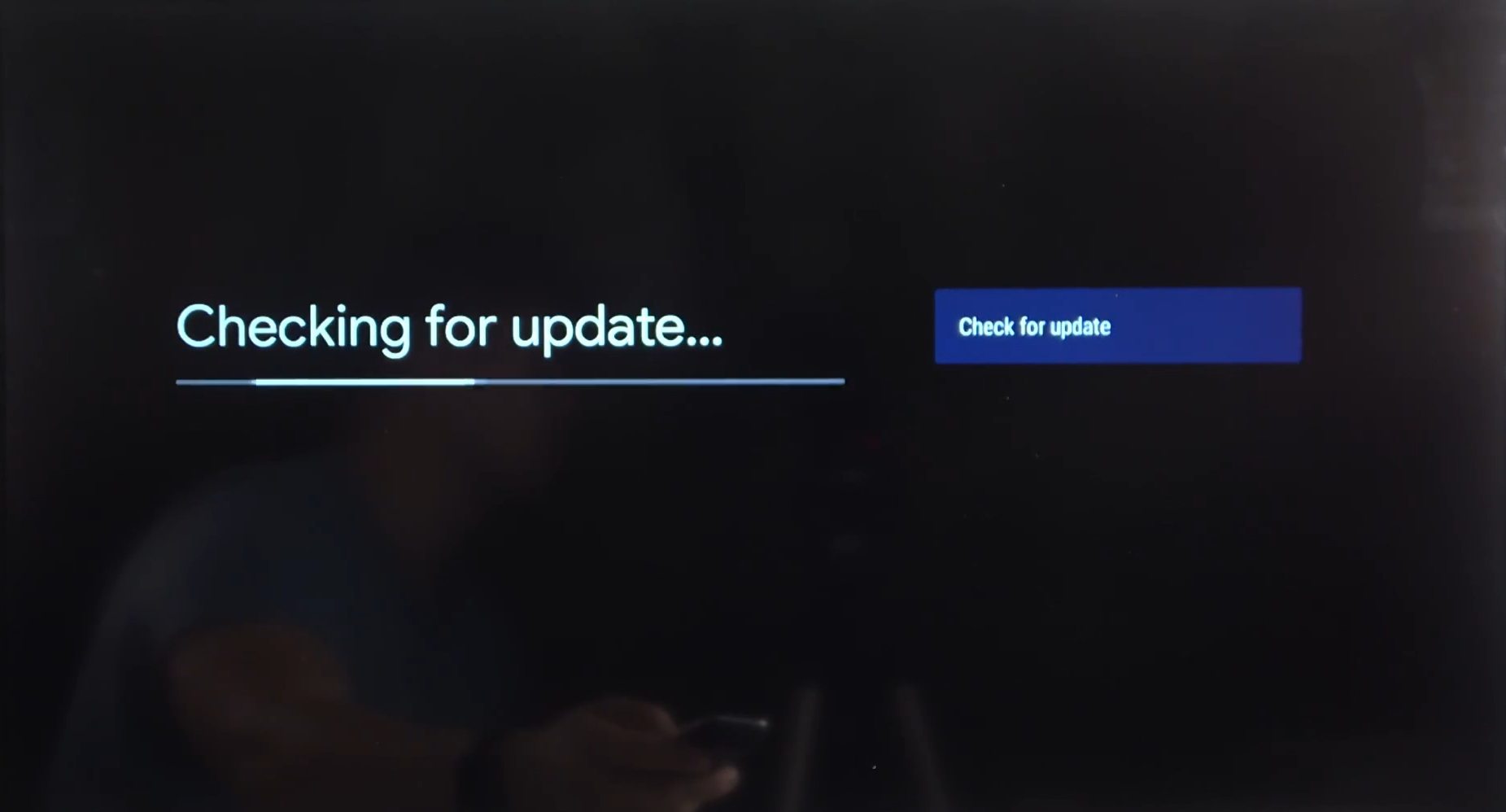
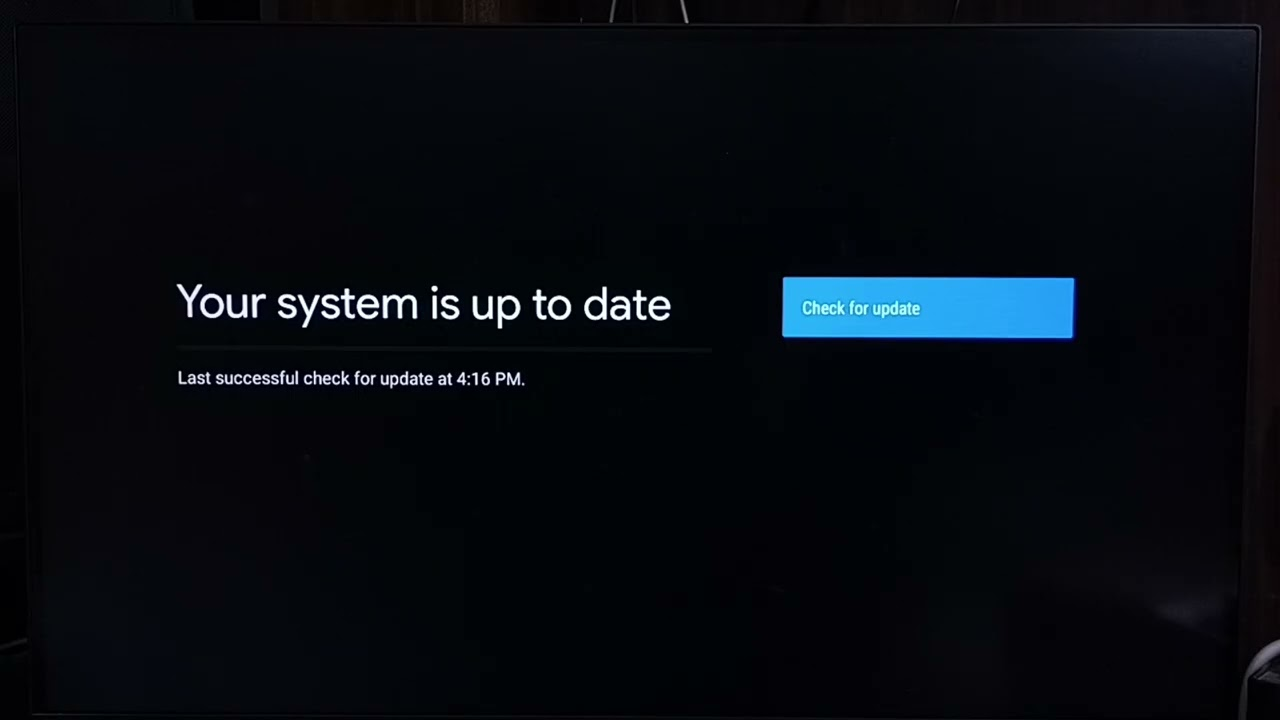
The update check will start automatically. If it doesn’t, click the “Check for Update” button to launch the search manually.
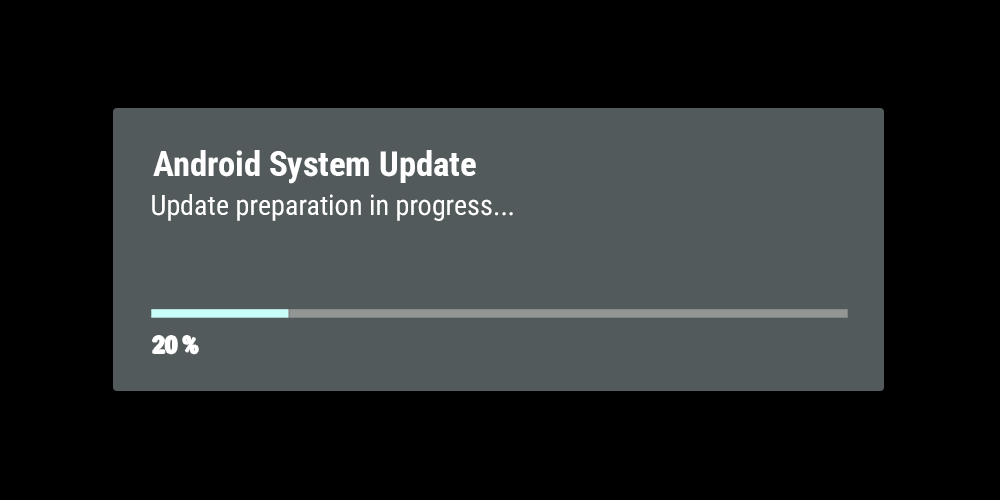
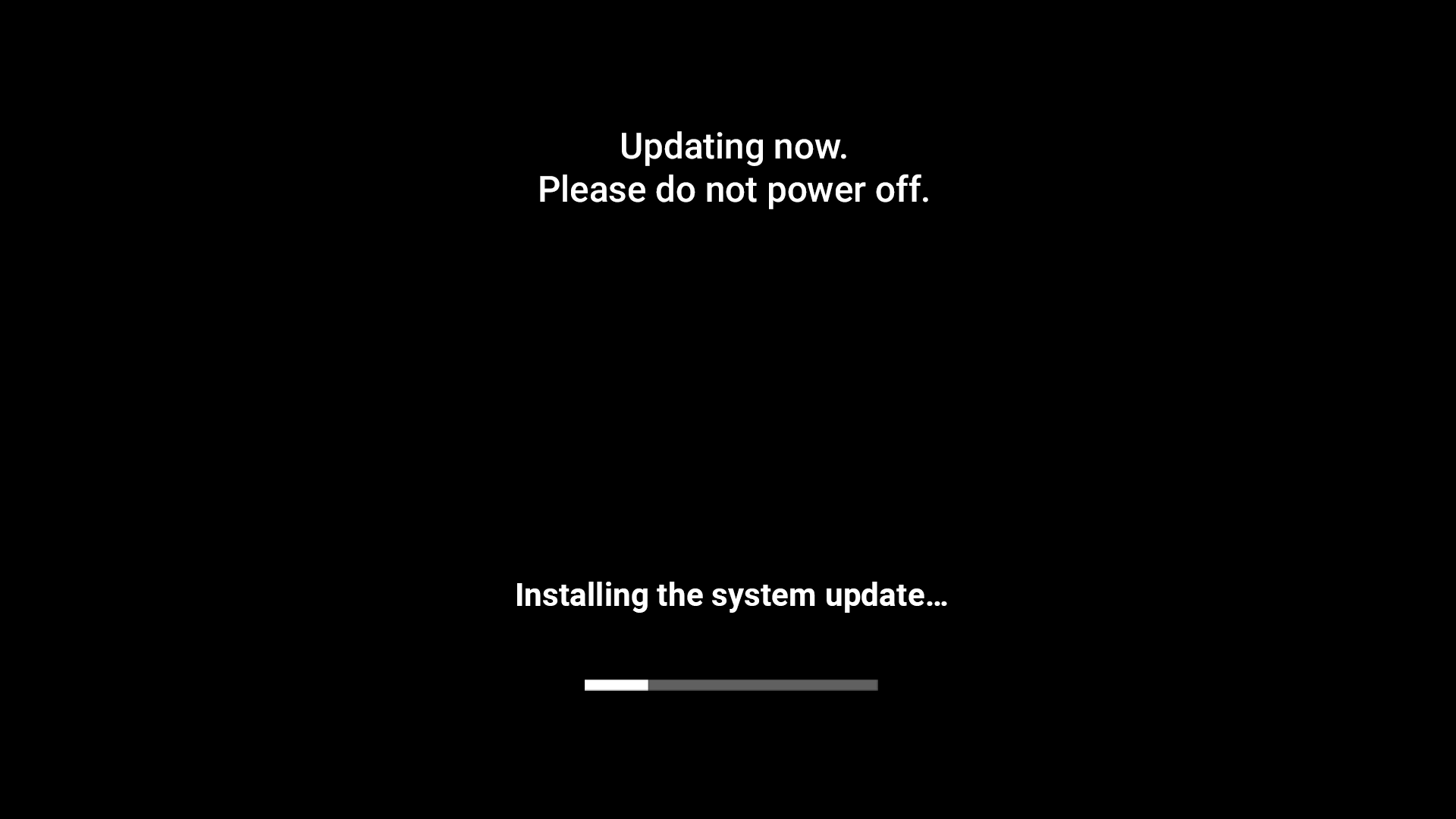
The system should then begin updating the Android TV software. Do not turn off the device during the update. If you are unsure or if the screen goes black, wait 10 minutes before powering off the device.
You will see a gray screen with a progress bar indicating that the update is being prepared. The device will restart several times.
Then a progress bar for the installation will appear on a black background.
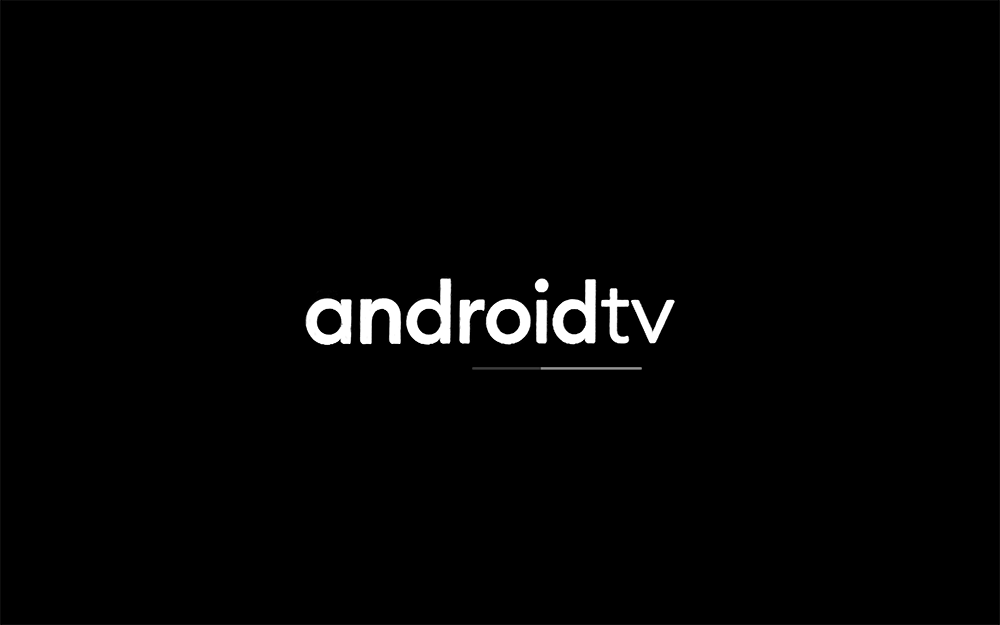
Near the end of the update, an Android TV logo will appear on the screen.
Once the process is complete, a message will appear confirming that your system is up to date.
Was this article helpful?
That’s Great!
Thank you for your feedback
Sorry! We couldn't be helpful
Thank you for your feedback
Feedback sent
We appreciate your effort and will try to fix the article