Blu‑ray ISOs generally contain multiple video files. In BD‑Lite mode (ISO playback without Blu‑ray menus), the player automatically selects the longest video file. However, you can access the other files using the Playlist feature during playback of an ISO or a BDMV structure.
This feature is particularly useful when a documentary or making‑of is longer than the main feature (for example: the Gravity Blu‑ray). In such cases, the making‑of may be played by default in BD‑Lite mode, and the Playlist allows you to manually select the main movie.
It is also helpful when playing TV series episodes stored in ISO format. However, since episode names are not displayed in the Playlist, it becomes difficult — if not impossible — to watch them in the correct order. For this reason, we recommend playing Blu‑ray ISO files of TV series in full menu mode, which displays the episode titles and numbers just like a standard Blu‑ray player.
Accessing the Playlist
1. Start playback of a Blu‑ray ISO or a BDMV structure in BD‑Lite mode (without Blu‑ray menus).
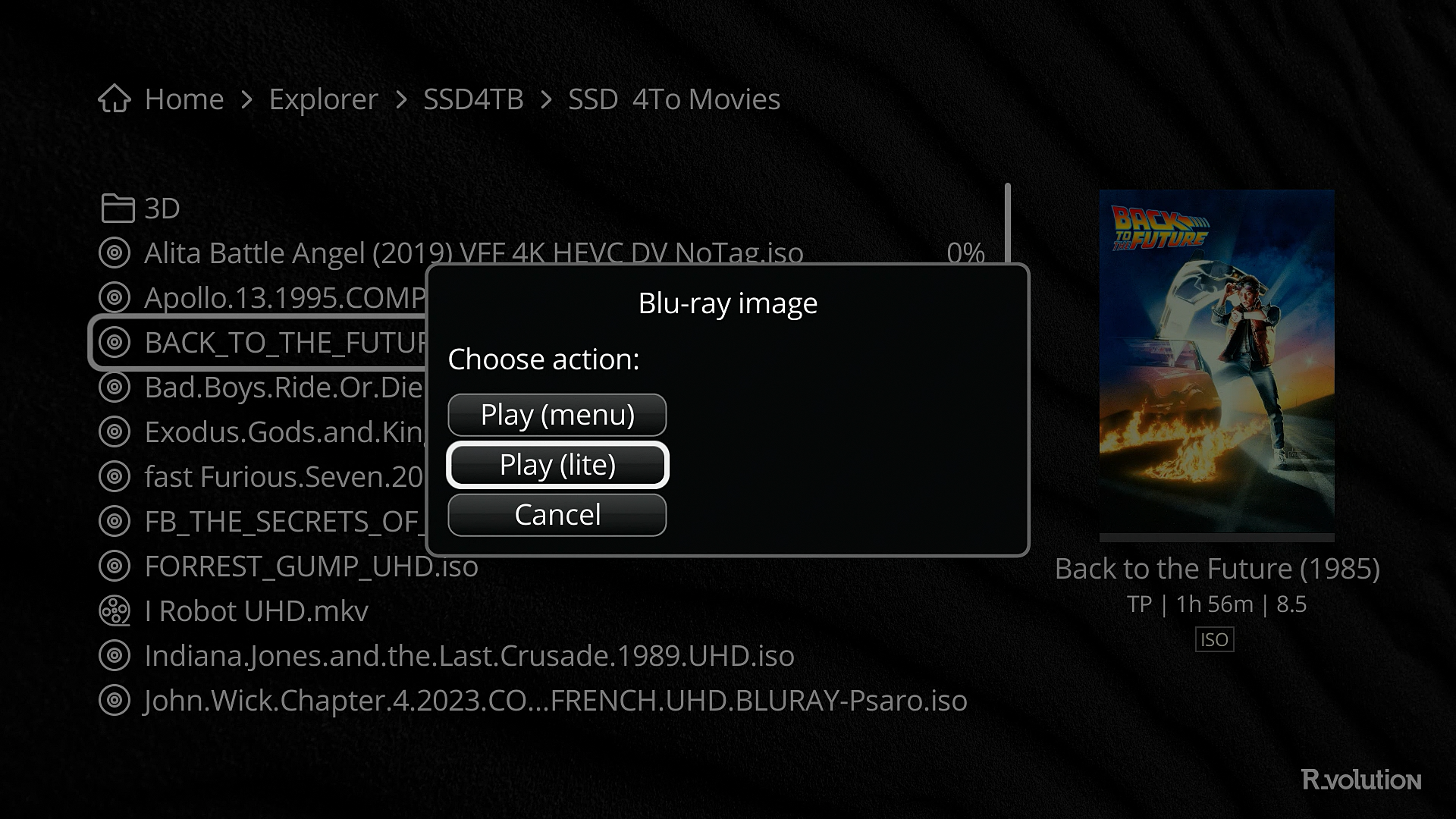
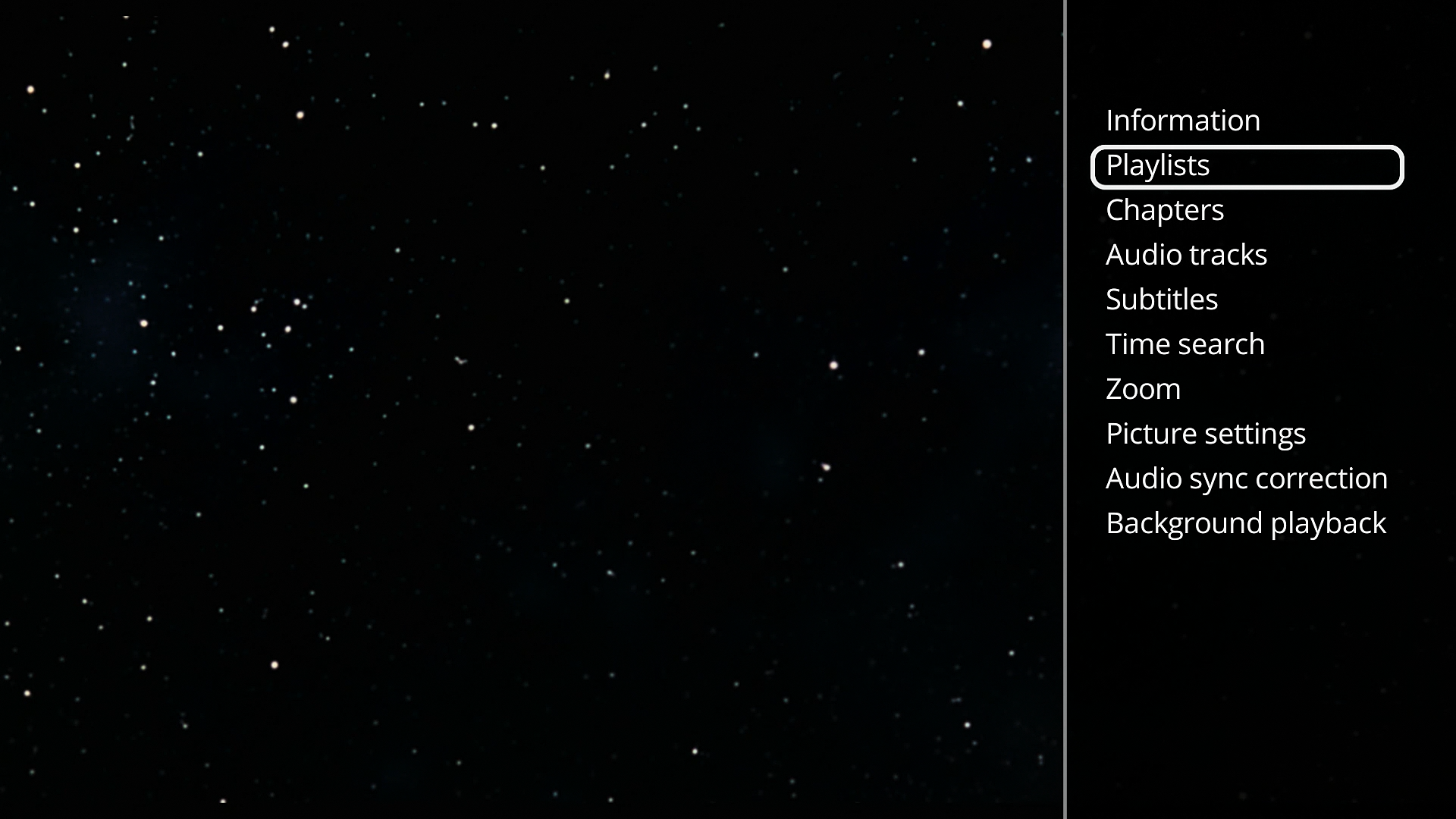
2. Press the Menu button on the R_volution remote control. Select Playlist.
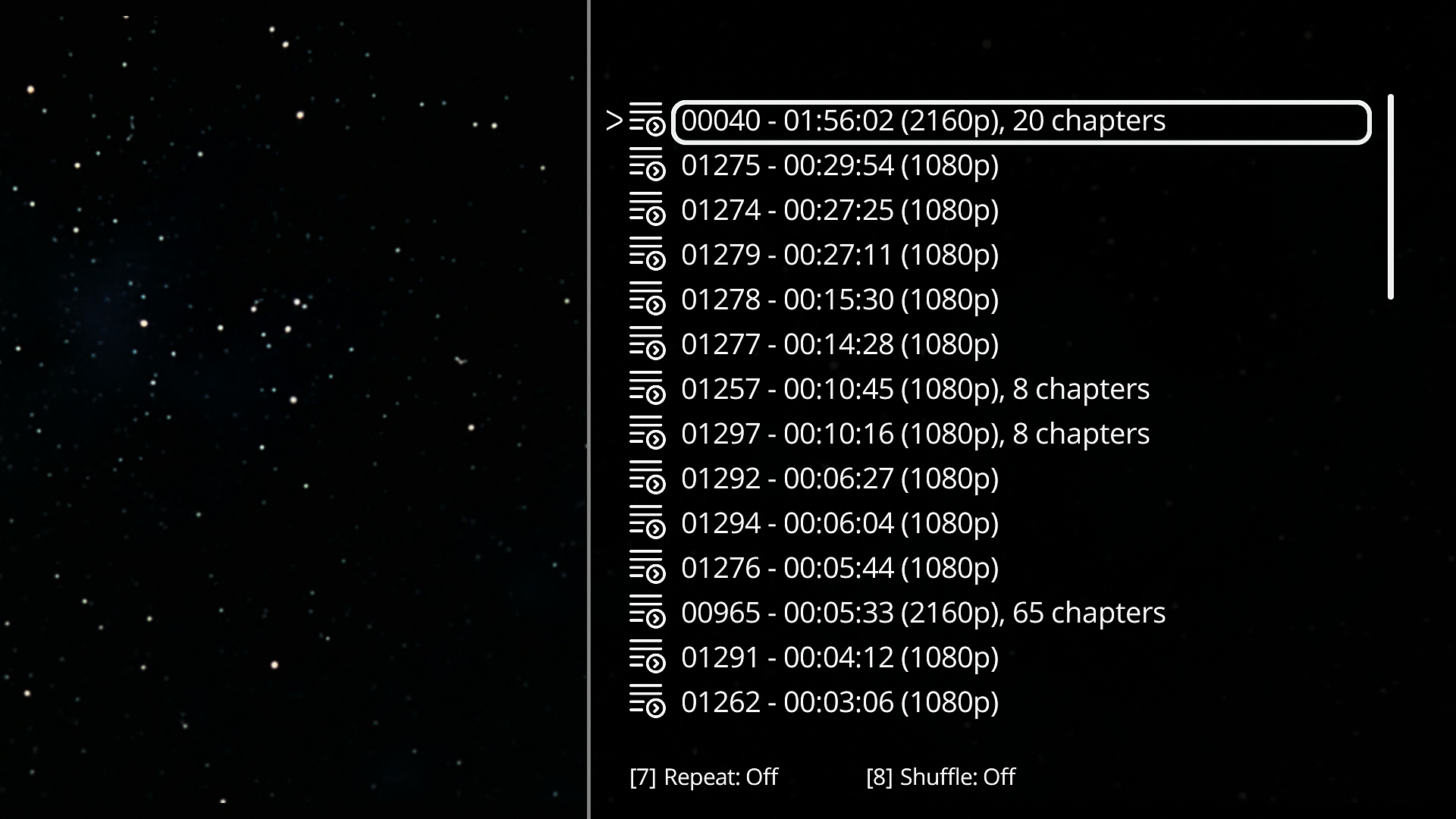
4. The list of video files contained in the ISO or BDMV structure will appear, sorted by duration (longest first). Scroll through the list using the Down Arrow button on the remote, then press OK to play the selected file.
Was this article helpful?
That’s Great!
Thank you for your feedback
Sorry! We couldn't be helpful
Thank you for your feedback
Feedback sent
We appreciate your effort and will try to fix the article