R_volution offers a virtual remote control app that lets you control your R_volution player directly from your smartphone.
To install it, go to the App Store if you are using an iPhone, or to the Google Play Store if you have an Android phone. Then search for the app using the keyword “R_remote”. Download and install the app just as you would any other app on your phone.
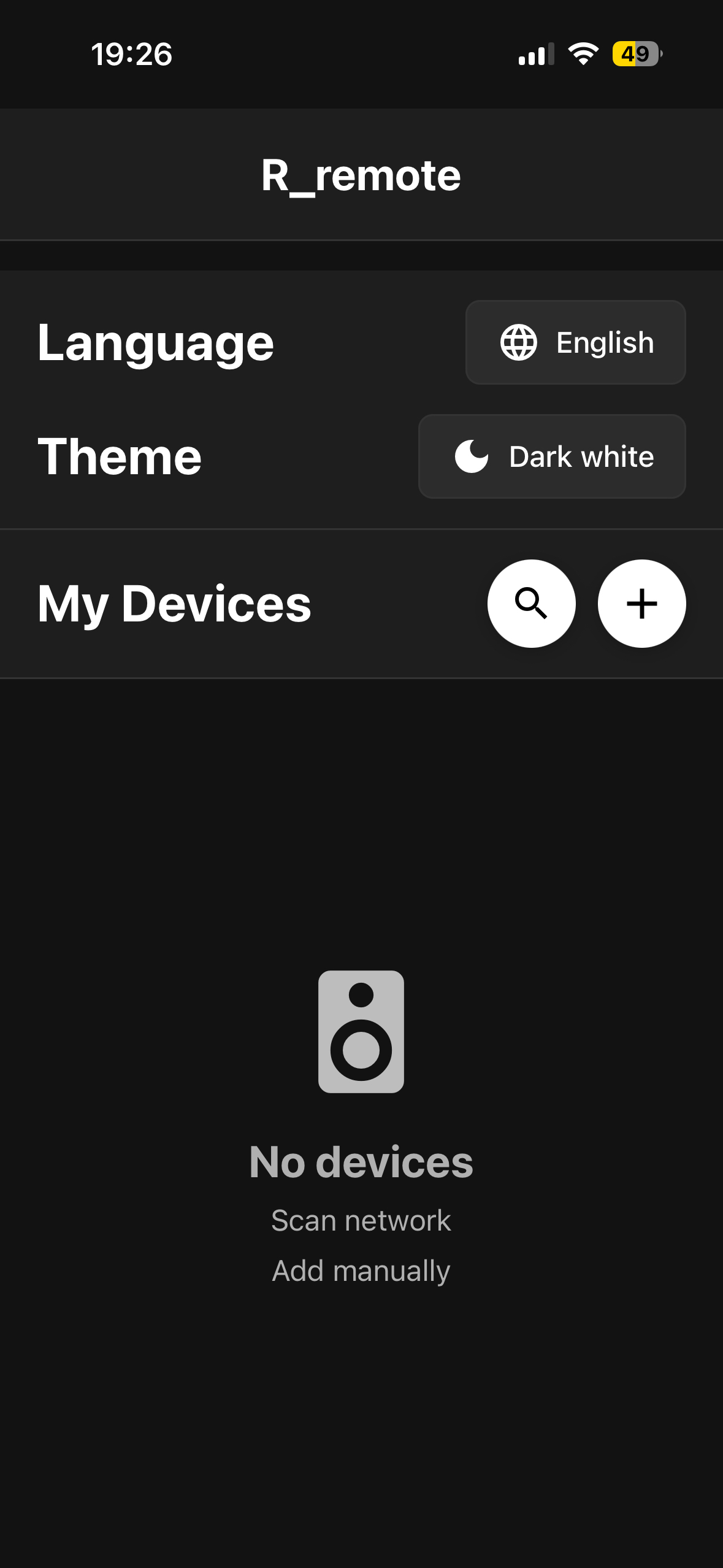
Once the app is installed, launch it. On the home screen, tap the button with the magnifying glass icon.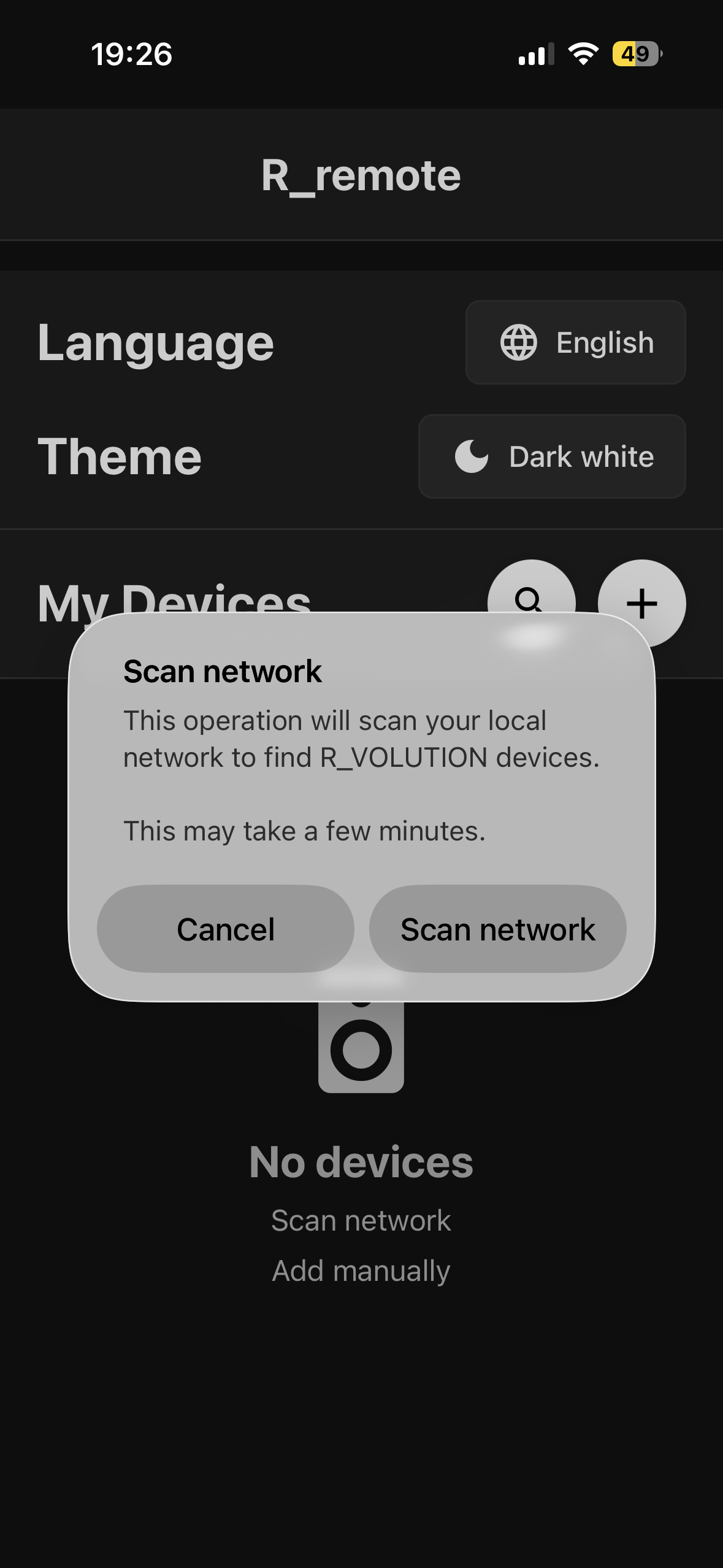
Turn on your R_volution player and make sure it is connected to the network. Then tap the Scan Network button.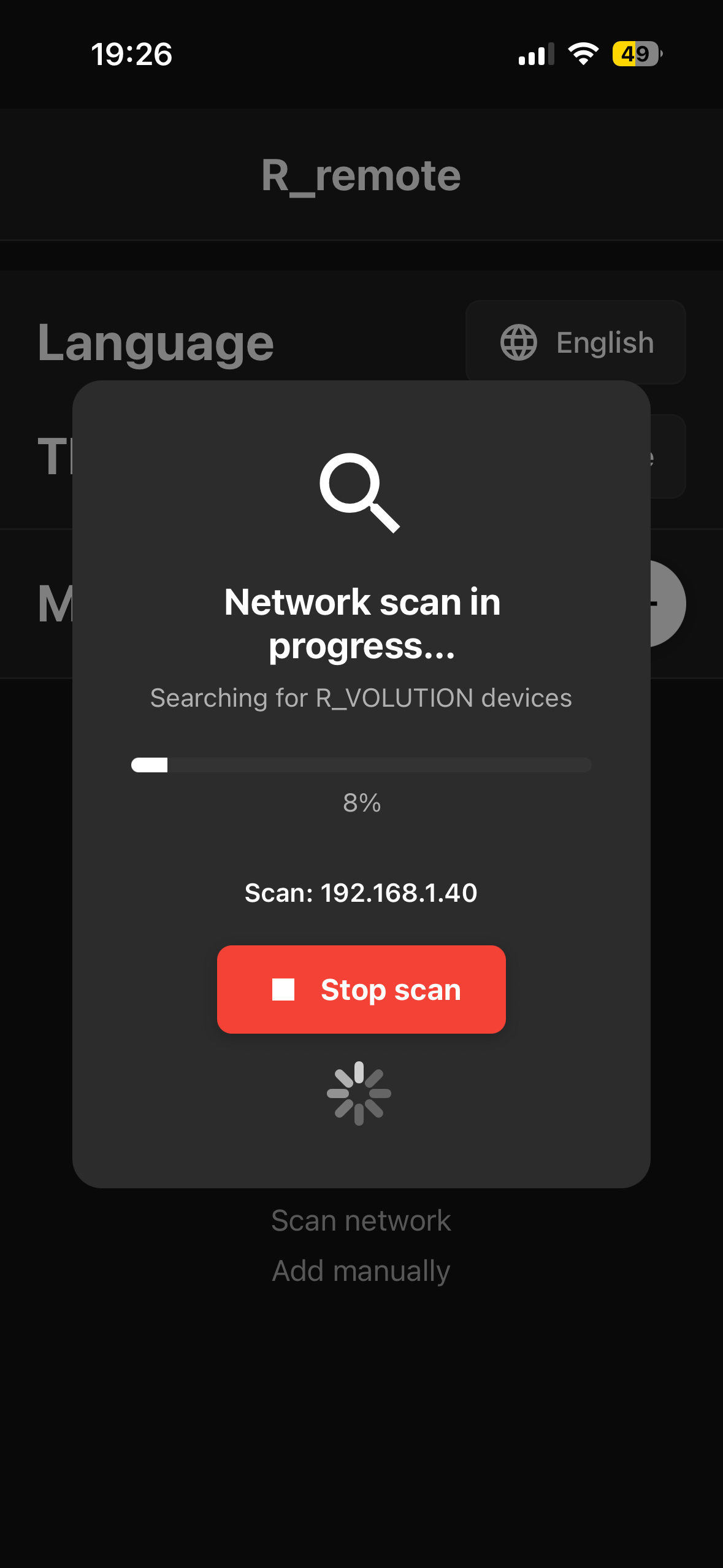
The network scan will begin. Please wait until the scan is complete.
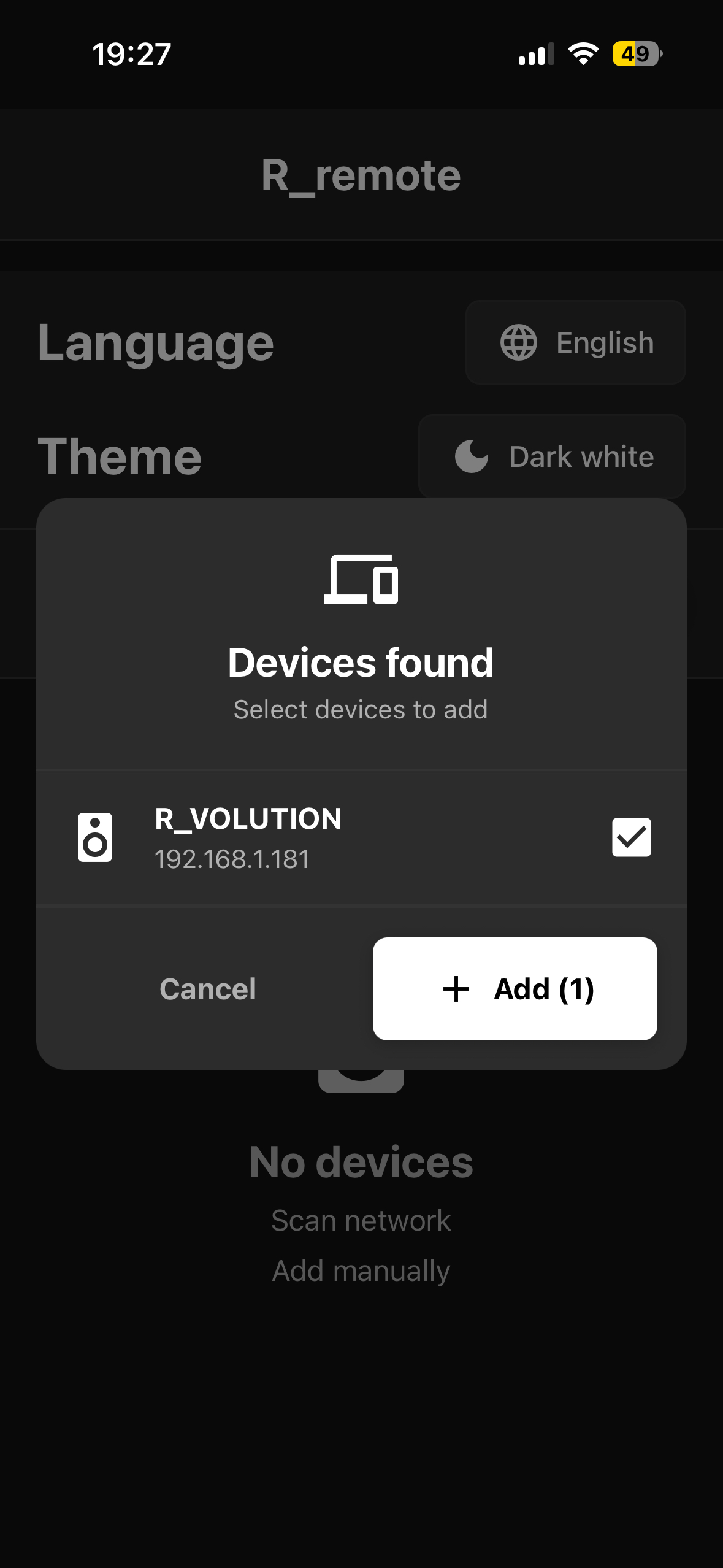
When the scan is finished, your R_volution player should appear. Check the box next to your player (if it is not already checked), then tap Add.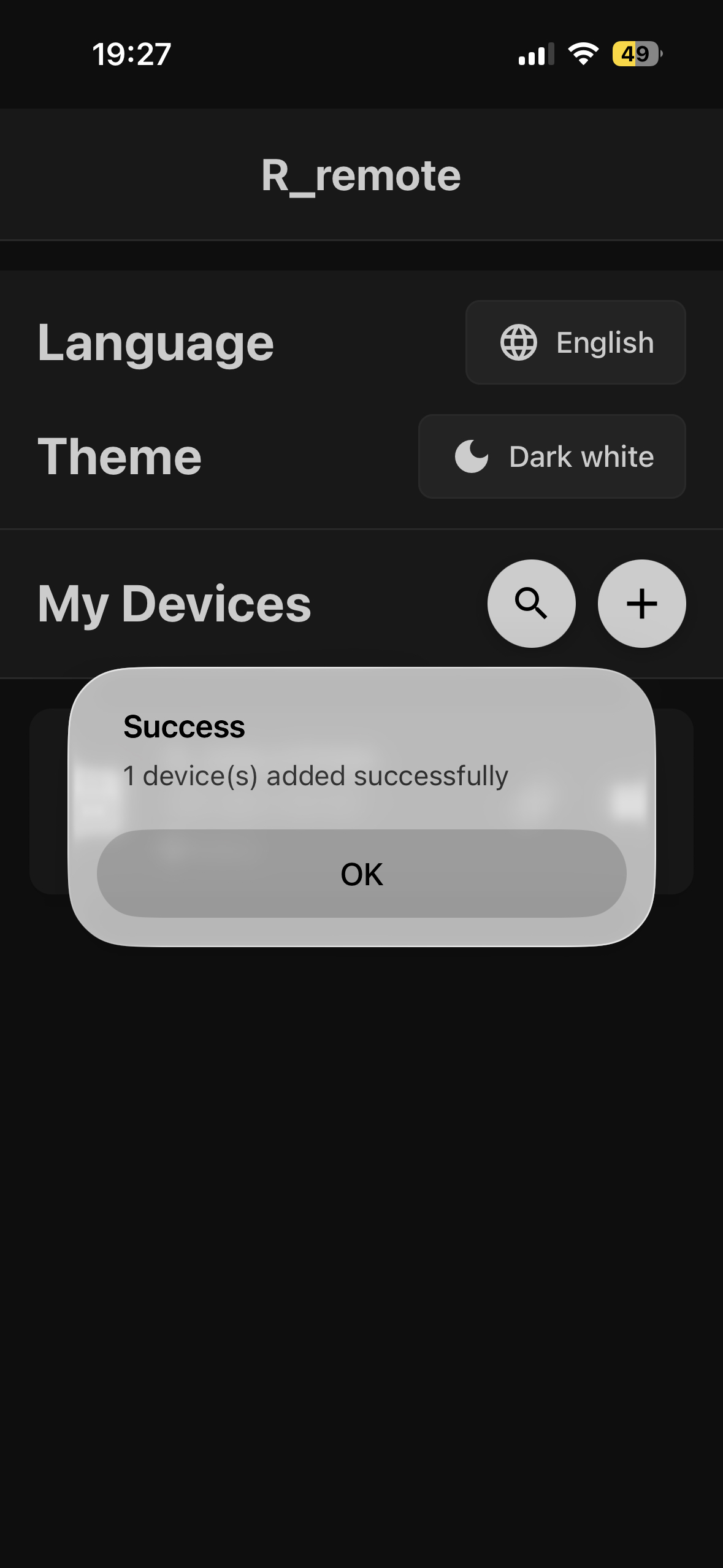
A message will confirm that the device has been successfully added.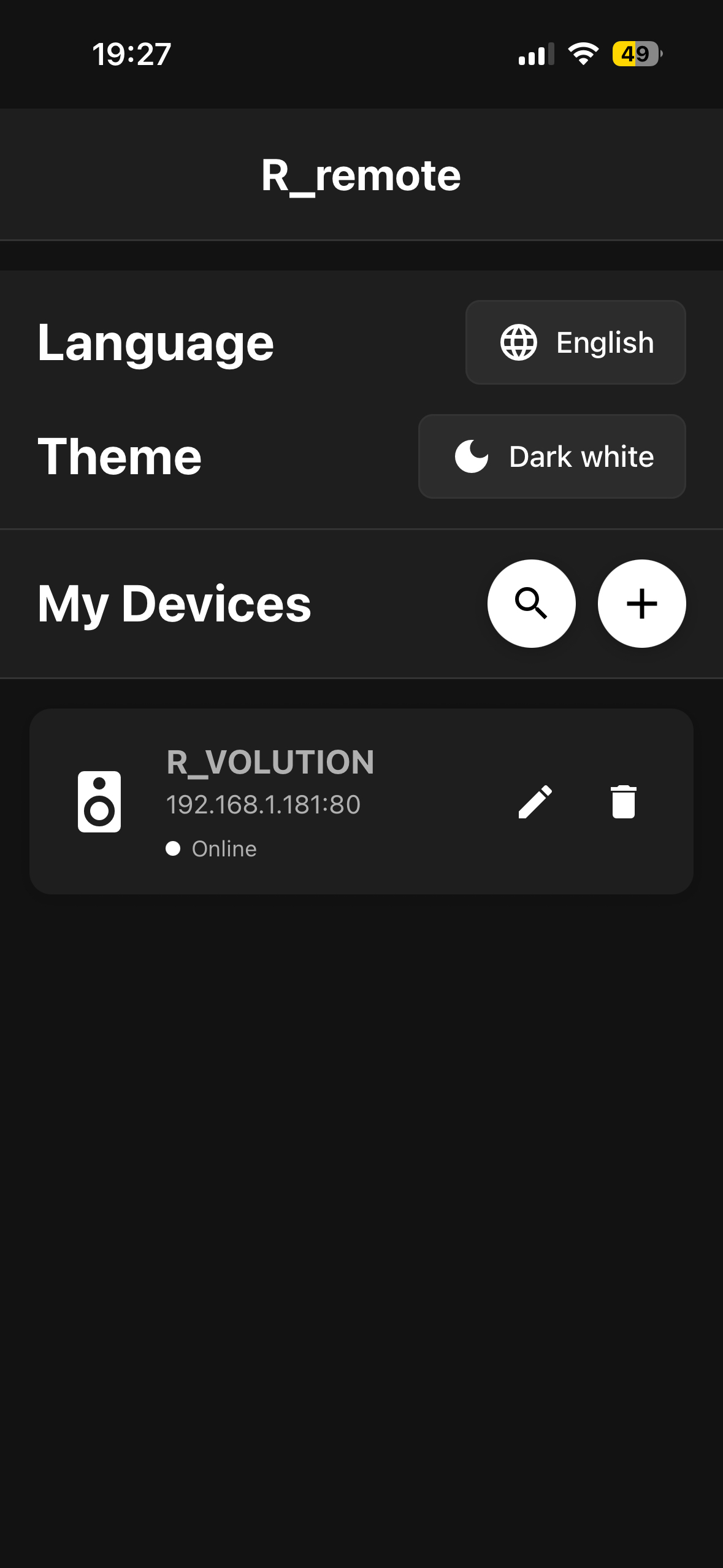
Your player will now appear in the list. Note that you can add multiple R_volution players and control whichever one you want.
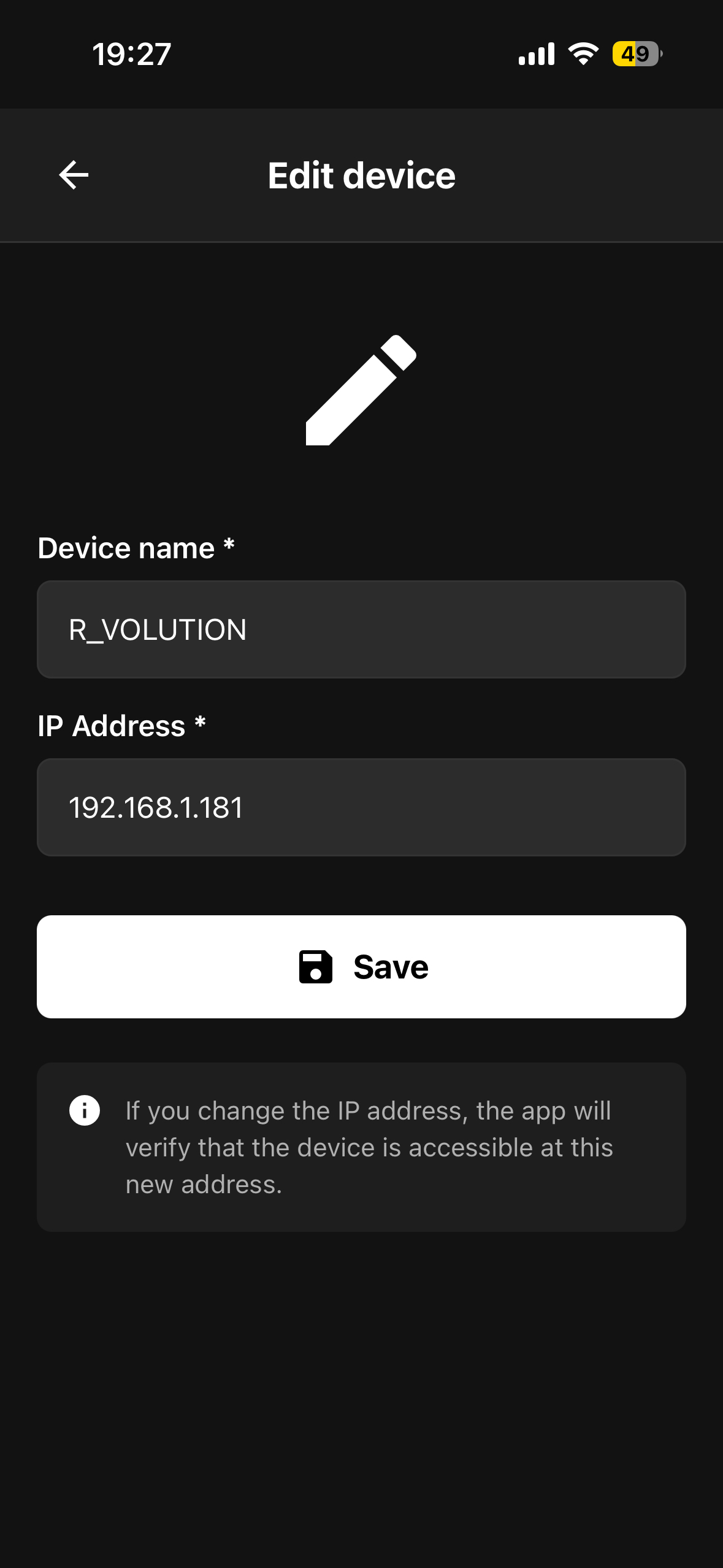
To control a player, tap the line corresponding to the device you want to operate. Players can be identified by their IP address. You can edit the player’s name using the pencil icon, which makes it easier to distinguish between multiple devices.
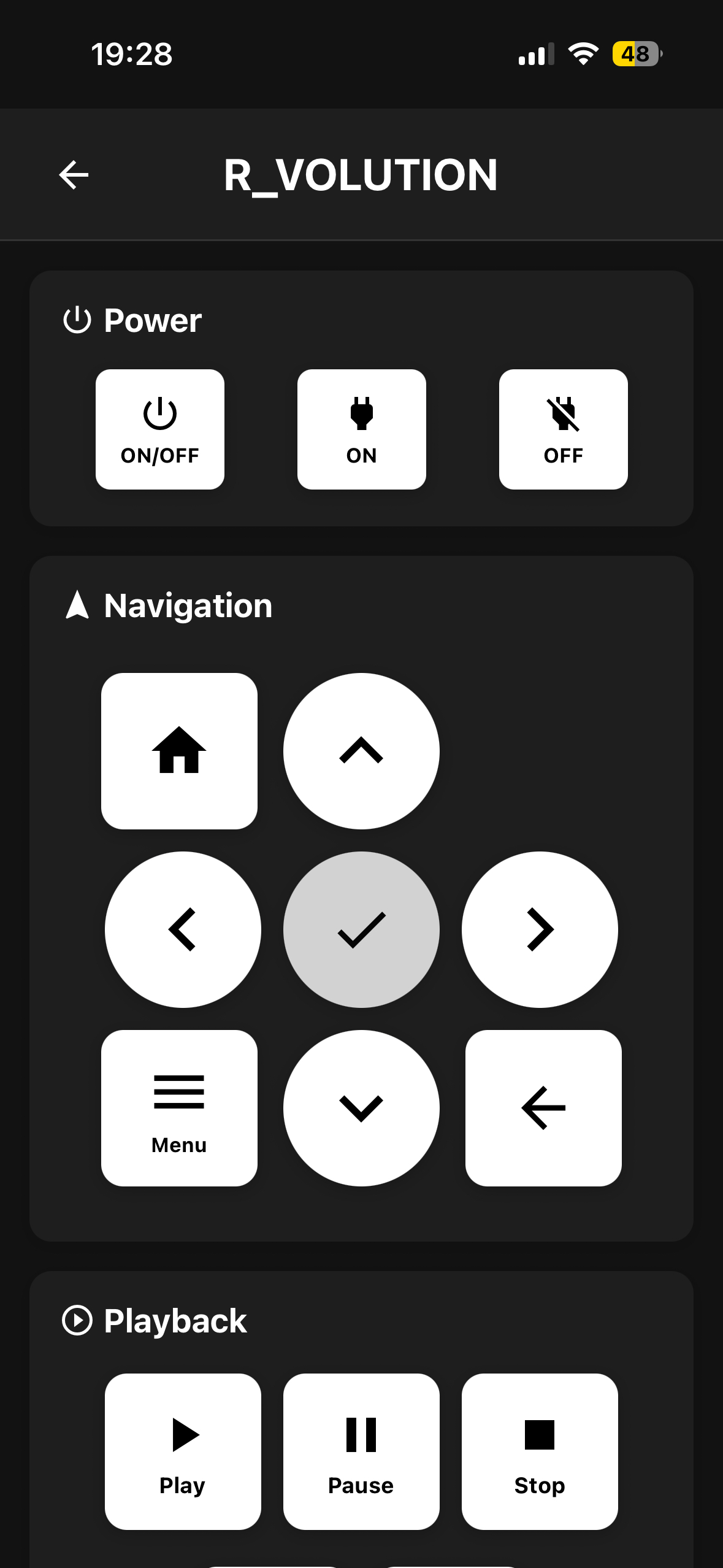
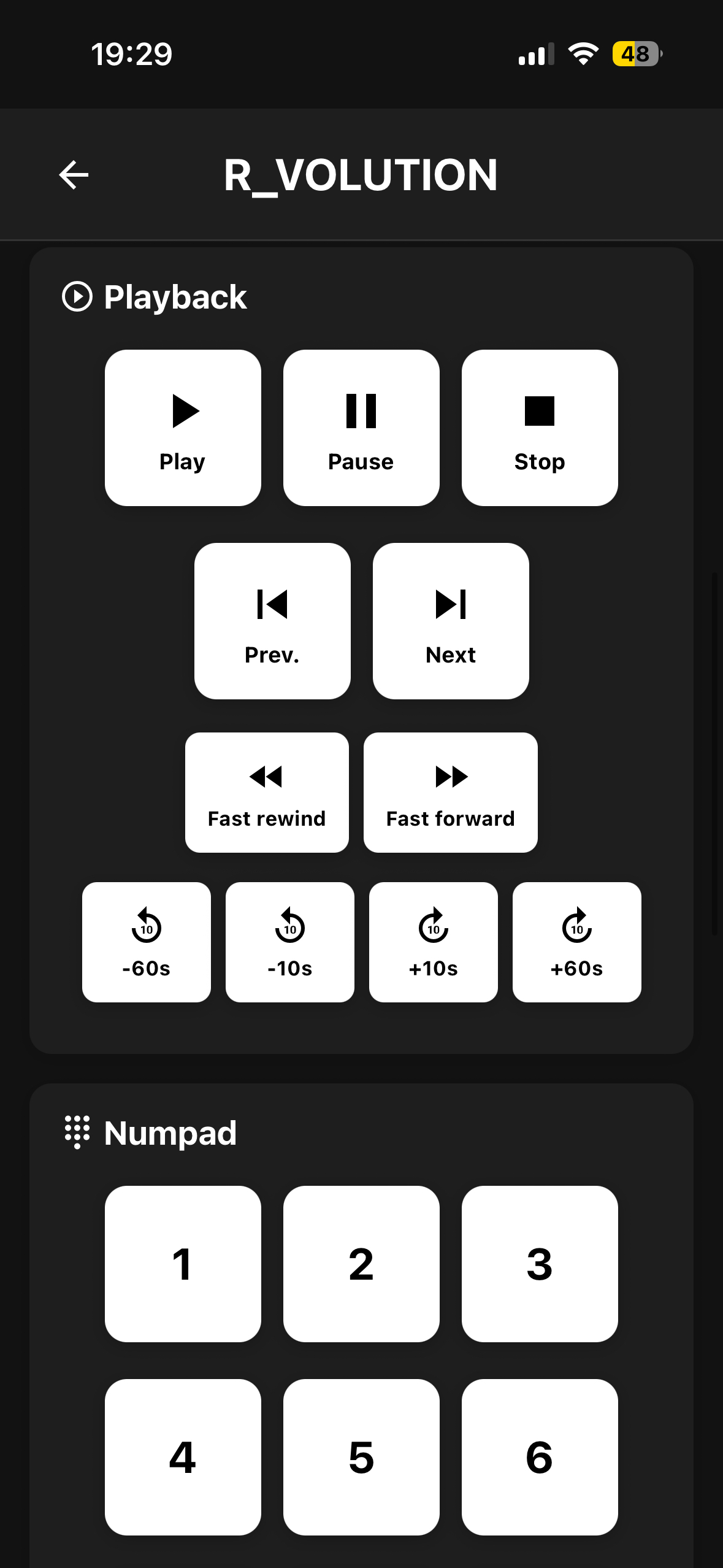
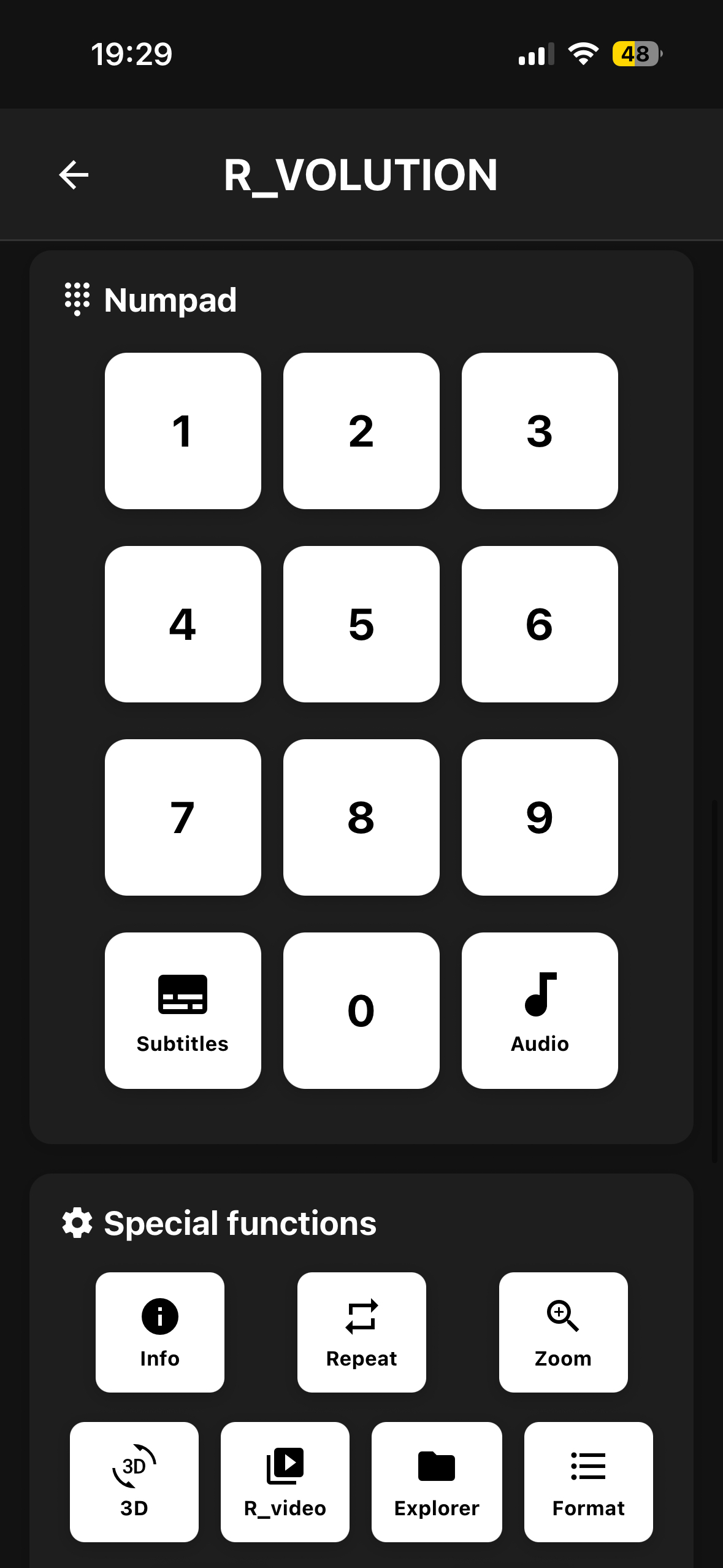
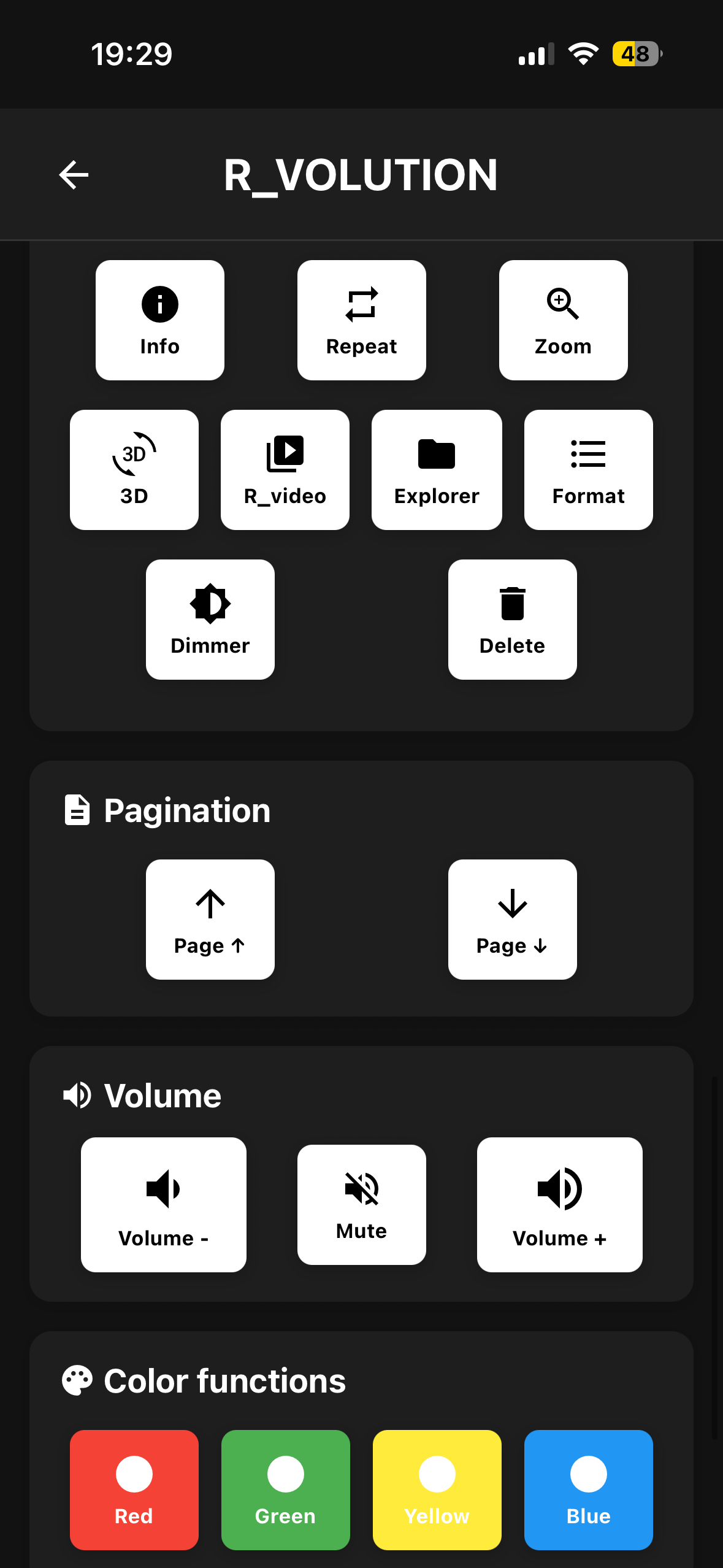
After selecting the device, a virtual remote control will appear, providing all the main functions of the original remote. Note that the virtual remote also works in the Android TV section if you have a compatible player.
Was this article helpful?
That’s Great!
Thank you for your feedback
Sorry! We couldn't be helpful
Thank you for your feedback
Feedback sent
We appreciate your effort and will try to fix the article