Start by unpacking your R_volution Chassis DIY-X700 and open the accessories box. You will find a set of screws and two screwdrivers there.
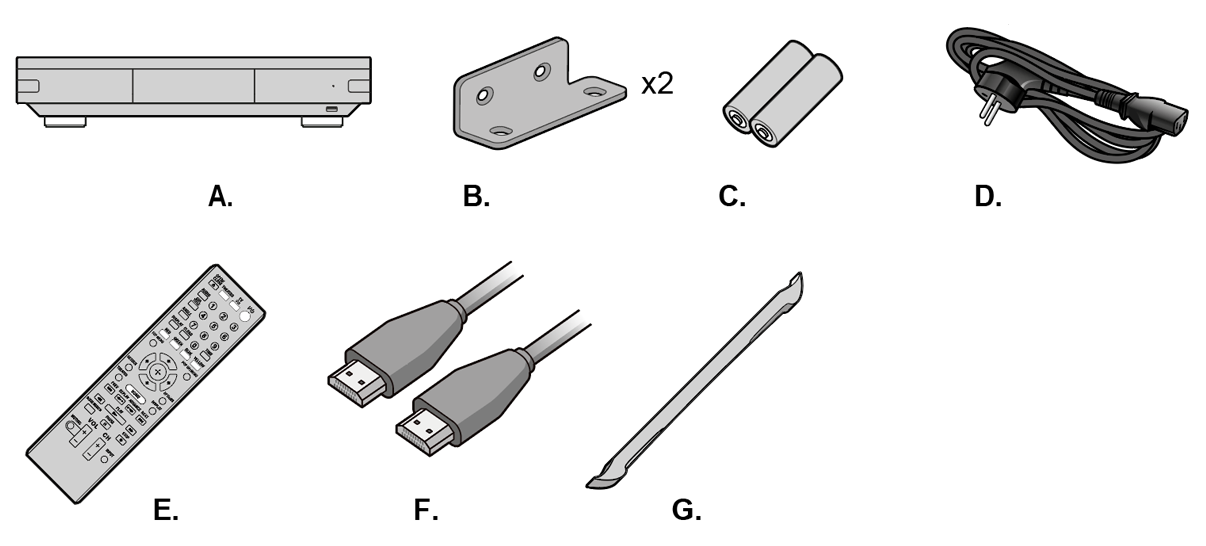
A. R_volution Chassis DIY-X700.
B. Rack Mount Kit.
C. Batteries.
D. Power cable.
E. Remote control.
F. HDMI cable
G. Unmount accessory.
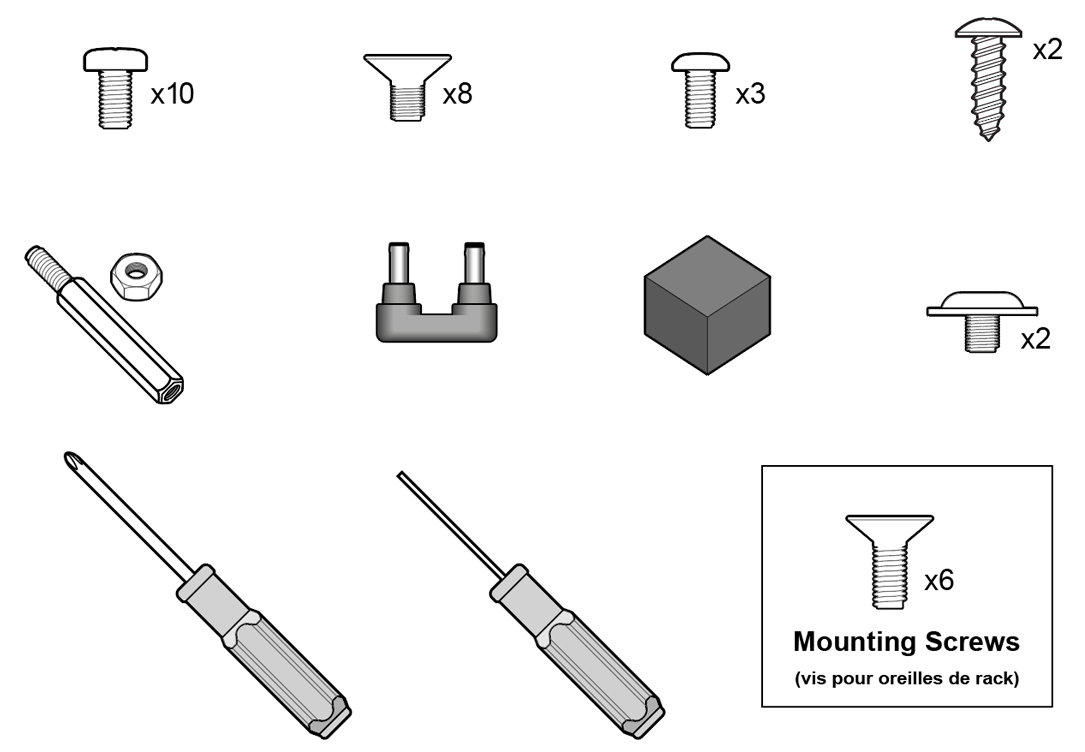
Then, open the box of your Sony UBP-X700 player and take out the player. The first step will be to disassemble it and retrieve the motherboard and the optical unit.
Take the supplied Phillips screwdriver and unscrew the 3 screws of the cover located at the back of the Sony player.
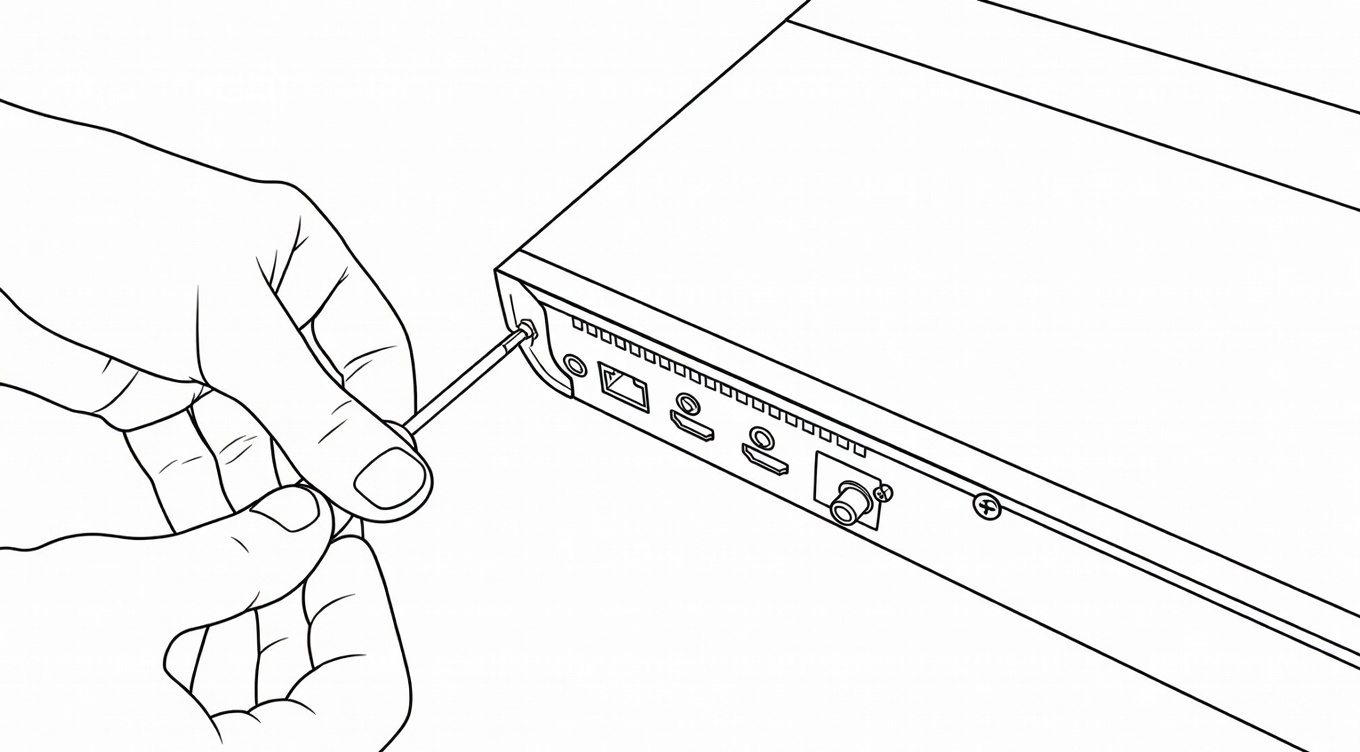
Start with the left screw.
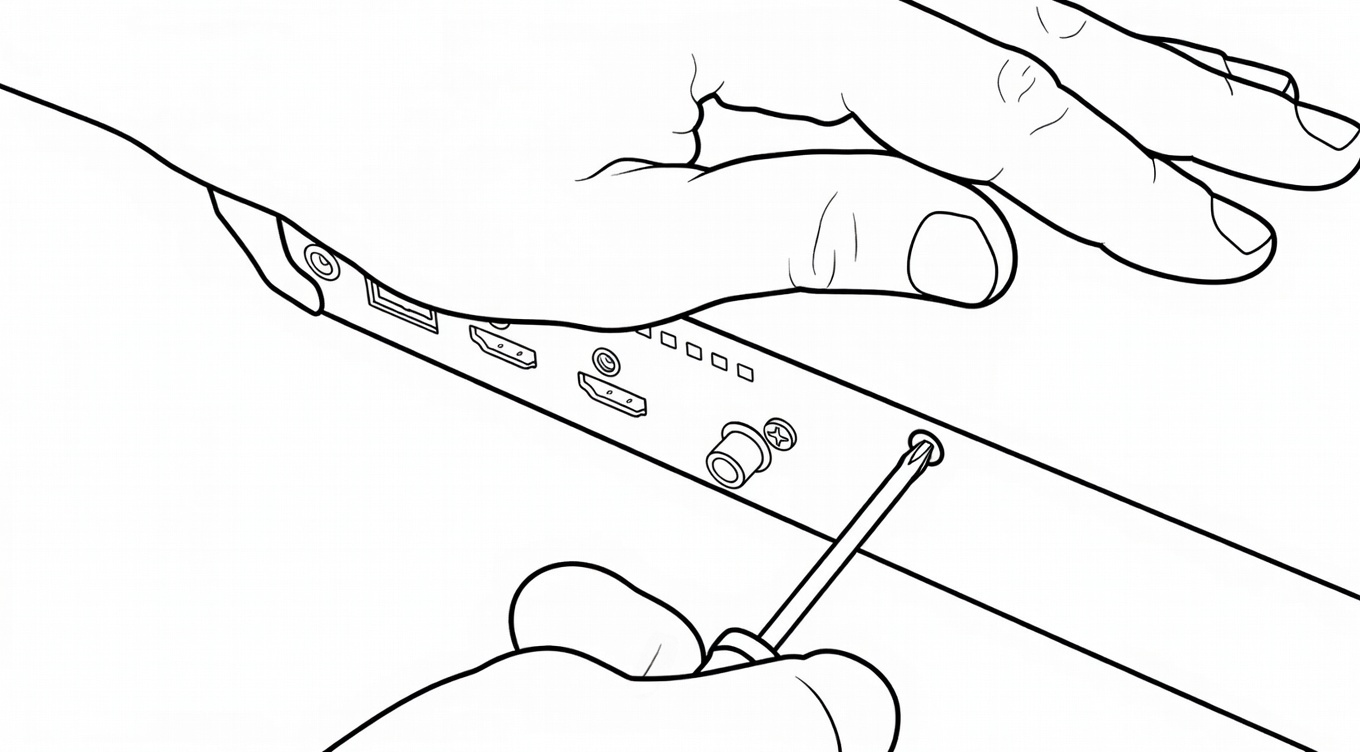
Then, unscrew the one in the center.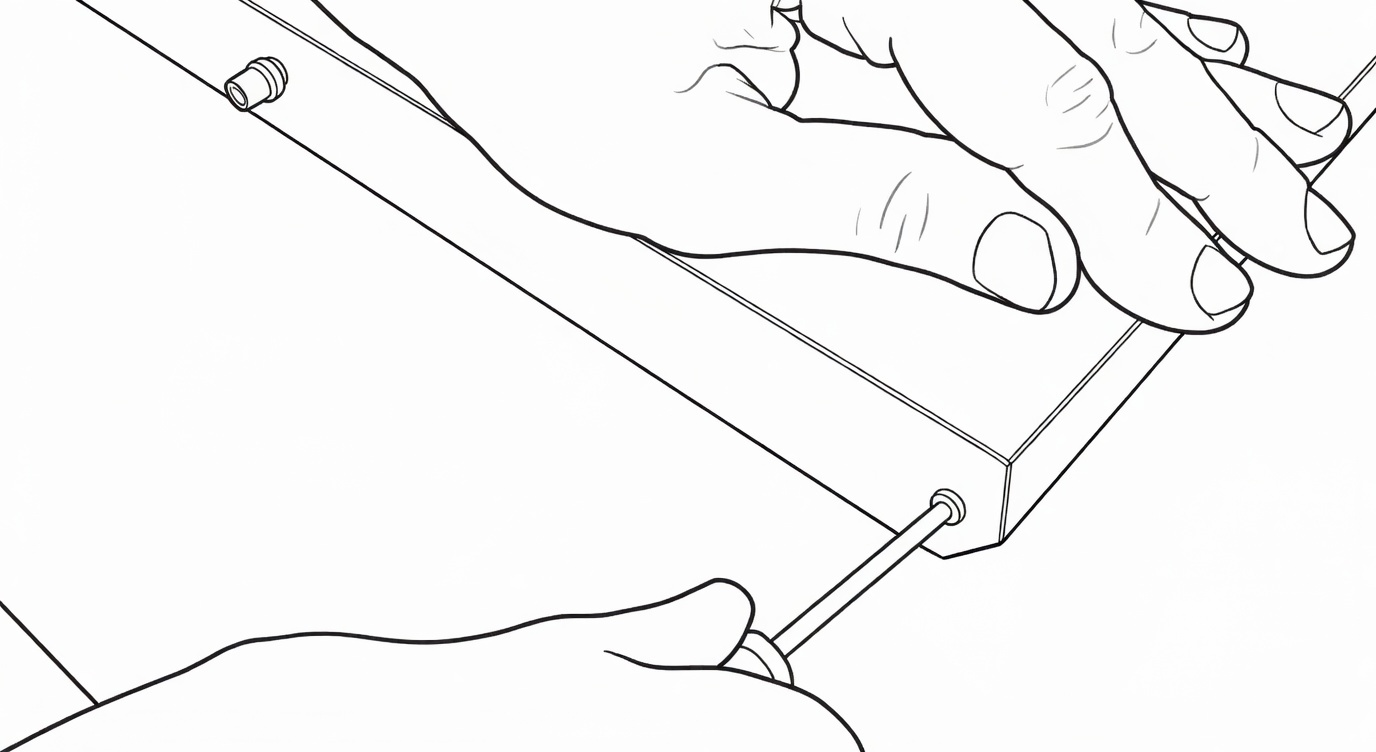
Finally, unscrew the one on the right.
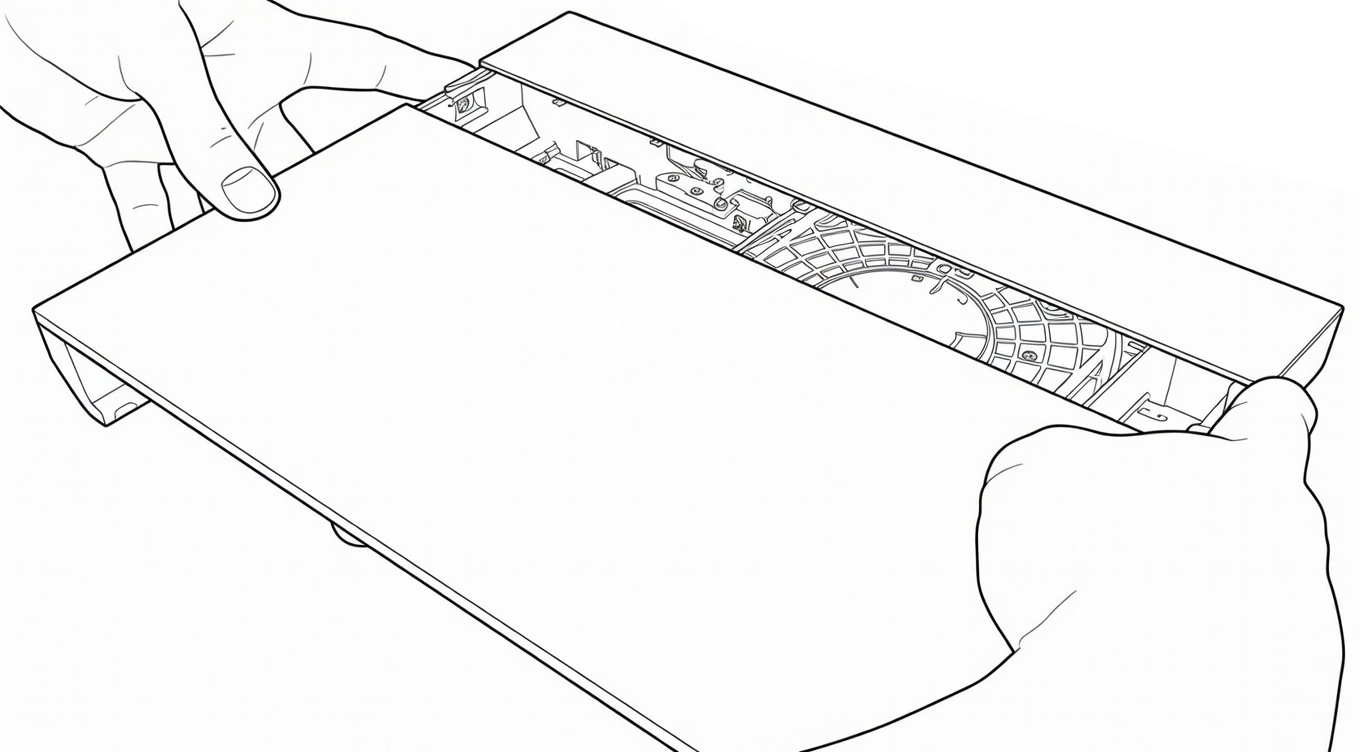
Then, slide the cover towards the back of the device, placing your index fingers on the front of the chassis.
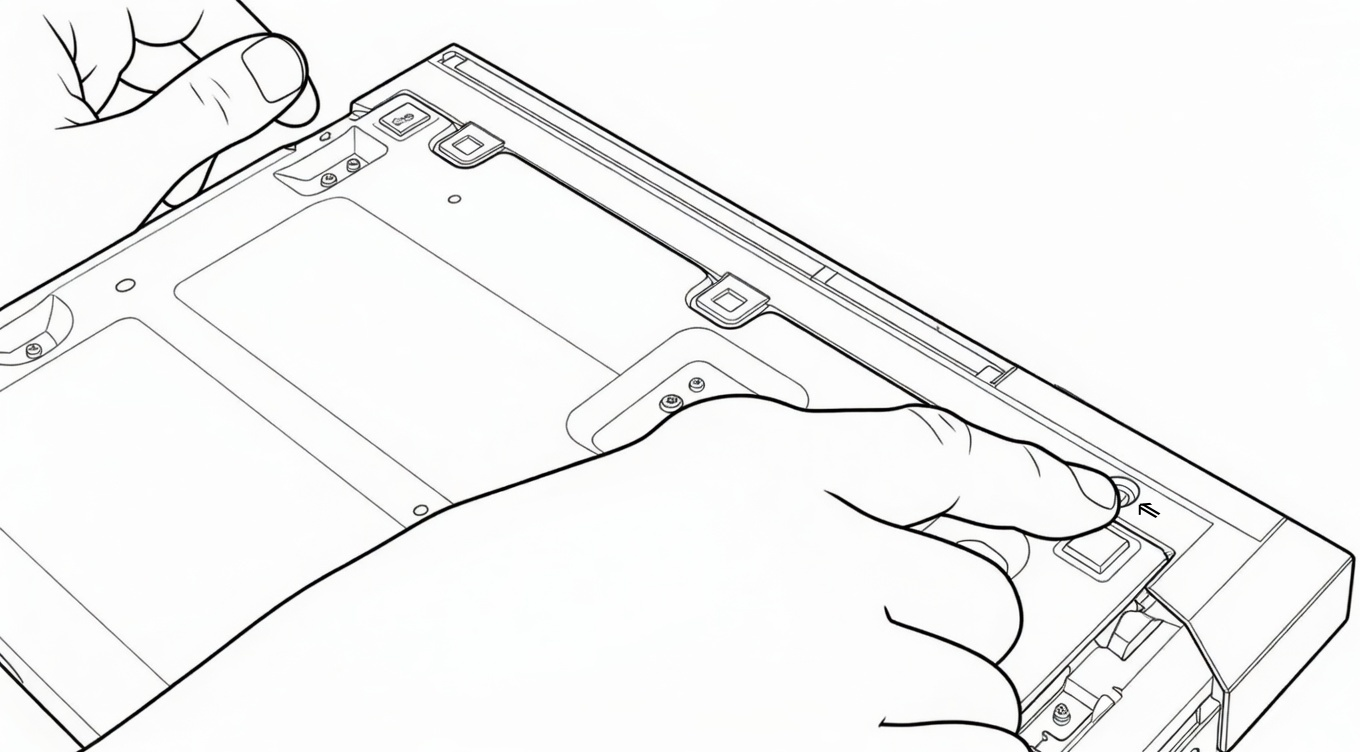
Then, turn the player over and locate the screw next to an arrow.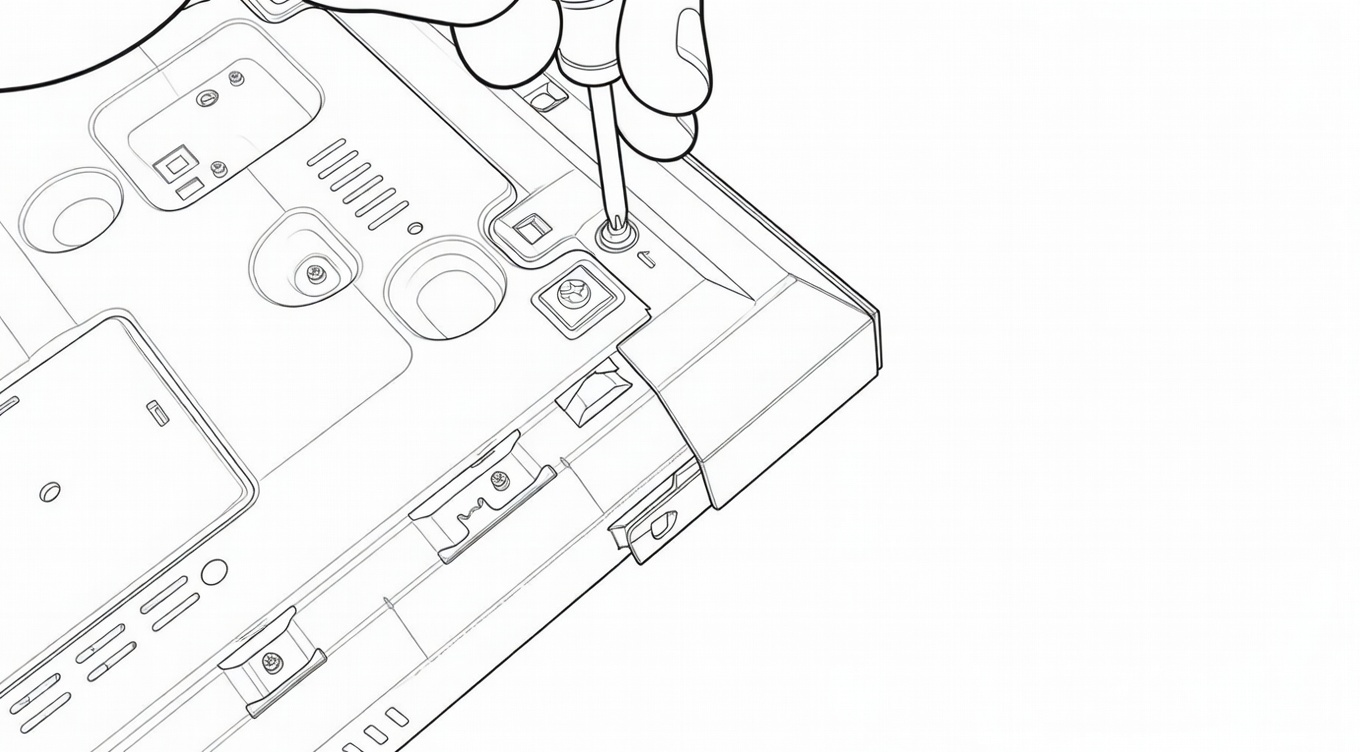
Then, still using the Phillips screwdriver, unscrew the screw. Set all the screws aside. You will no longer need them for the R_volution Chassis DIY-X700 but keep them in a bag in case you need to reassemble the Sony drive for a warranty return or resale later.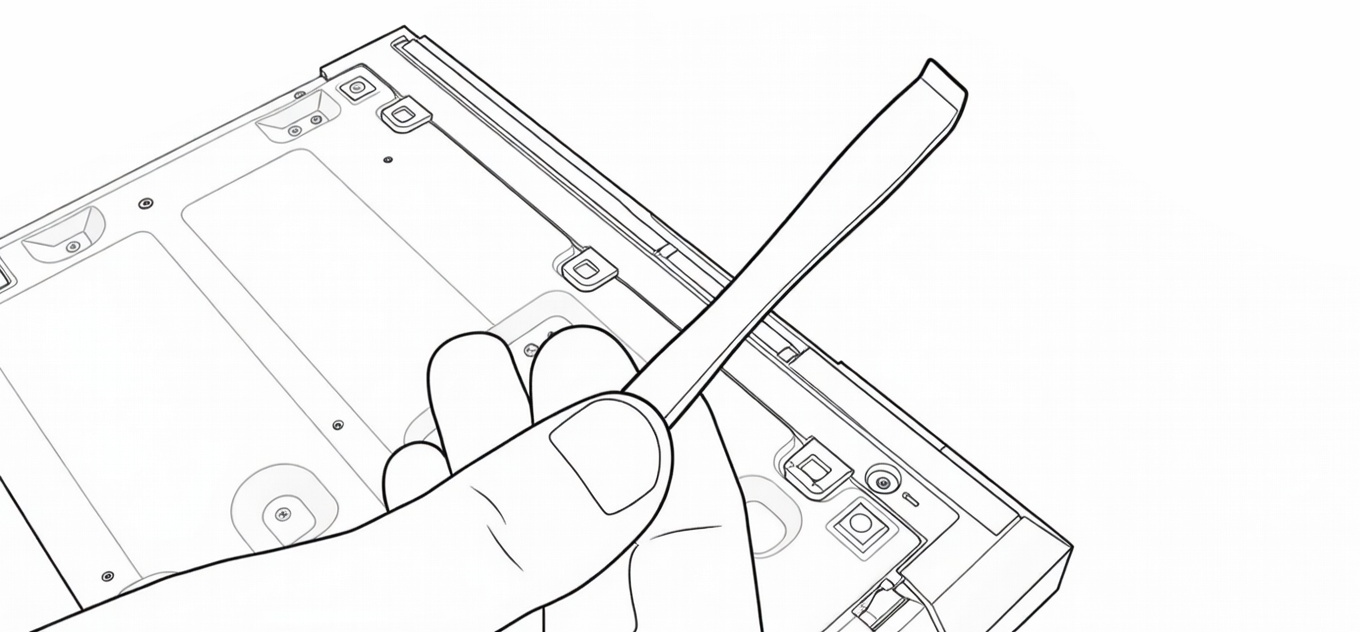
Then, take the provided blue disassembler. It is a tool specifically dedicated to opening the chassis.
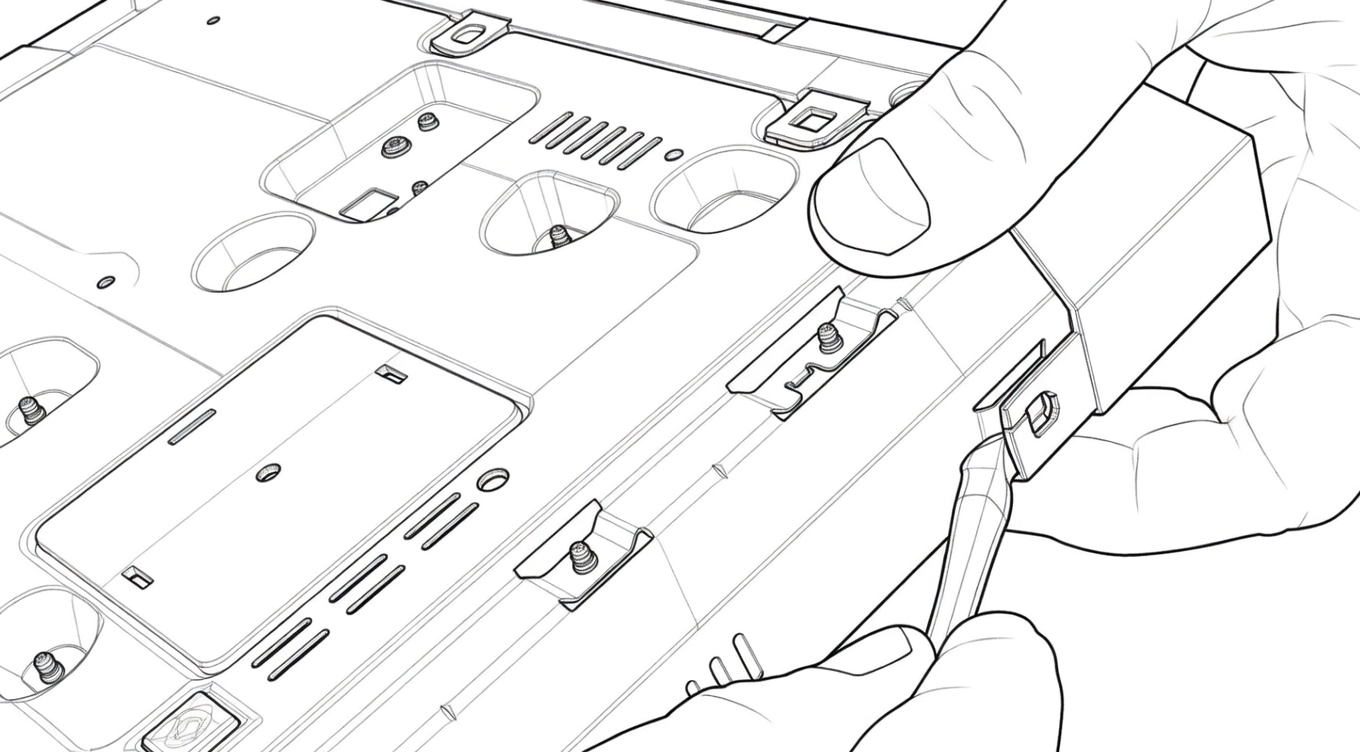
Start by unclipping the right side, then hold the front panel to prevent it from clipping back on.
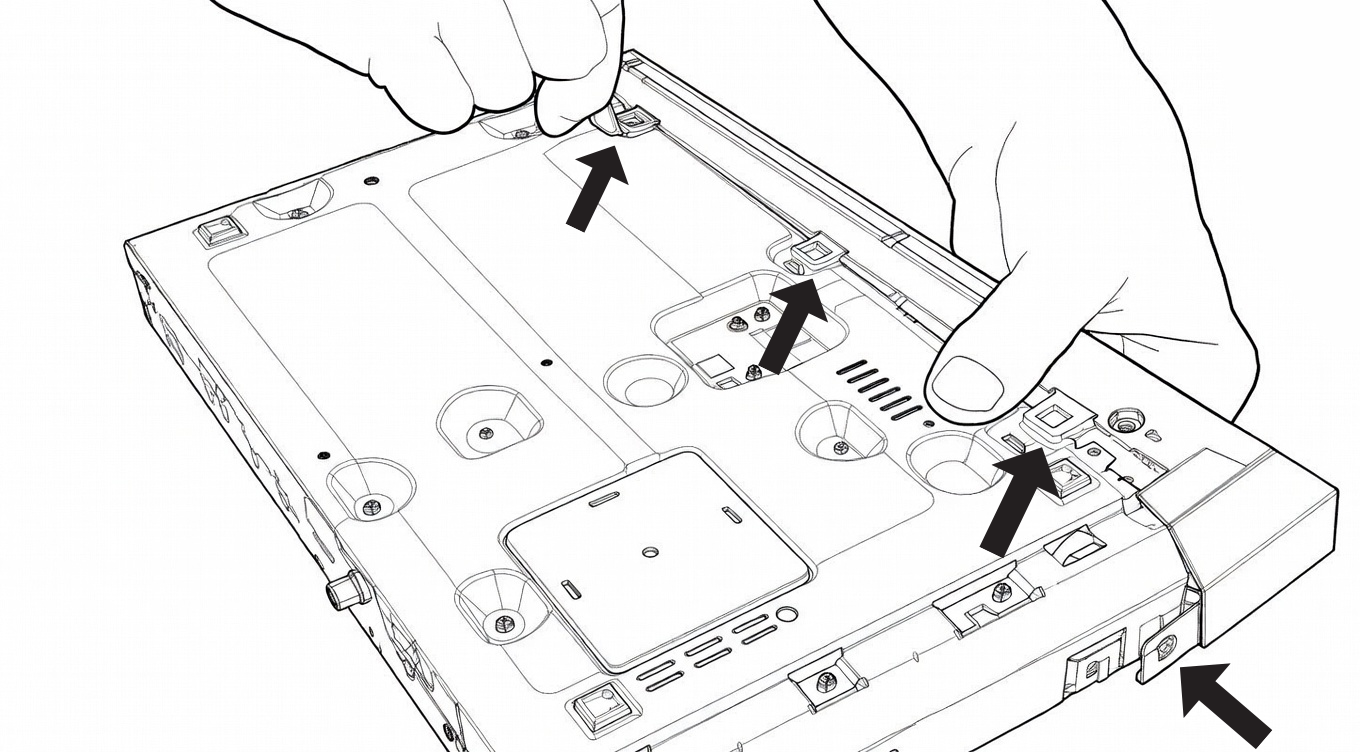
Continue by unclipping the middle.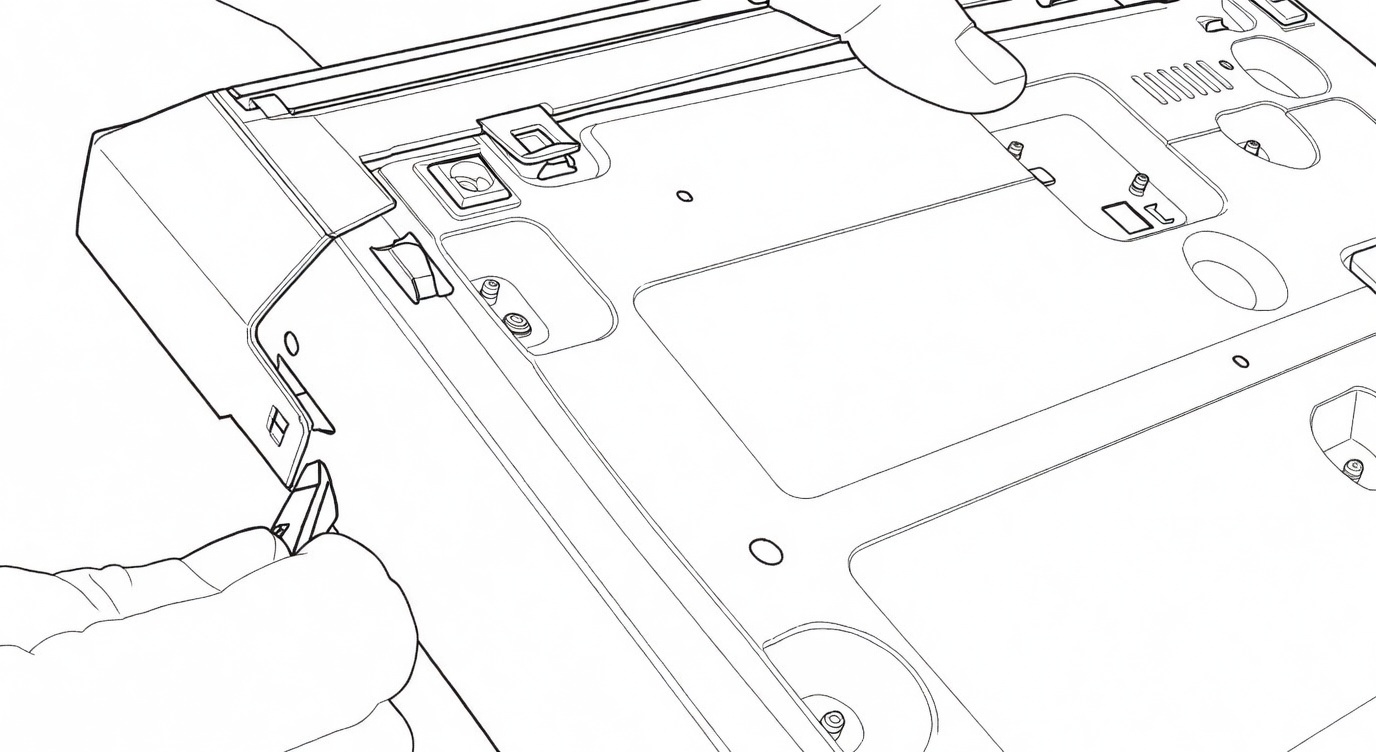
Then, finish with the left side, which will allow you to completely remove the front panel of the player.
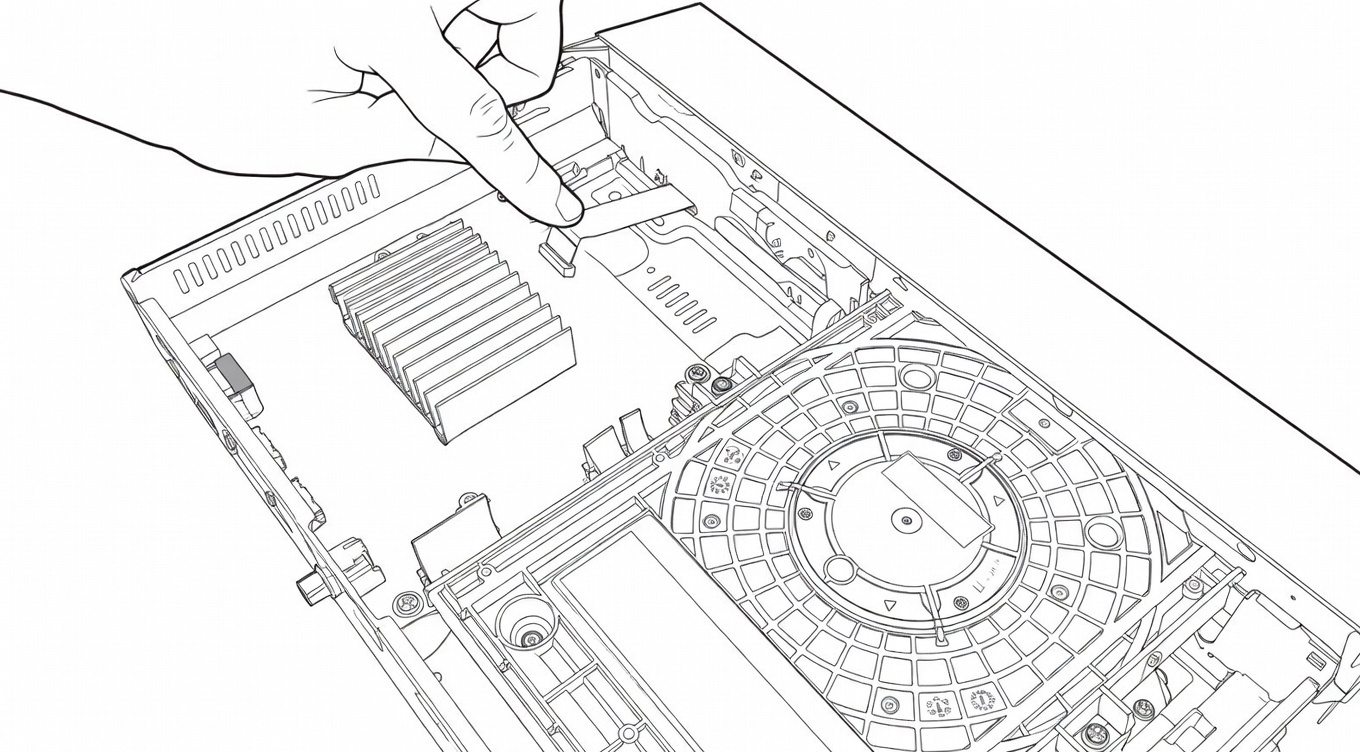
Once this is done, turn the drive over and locate the ribbon cable that holds the drive.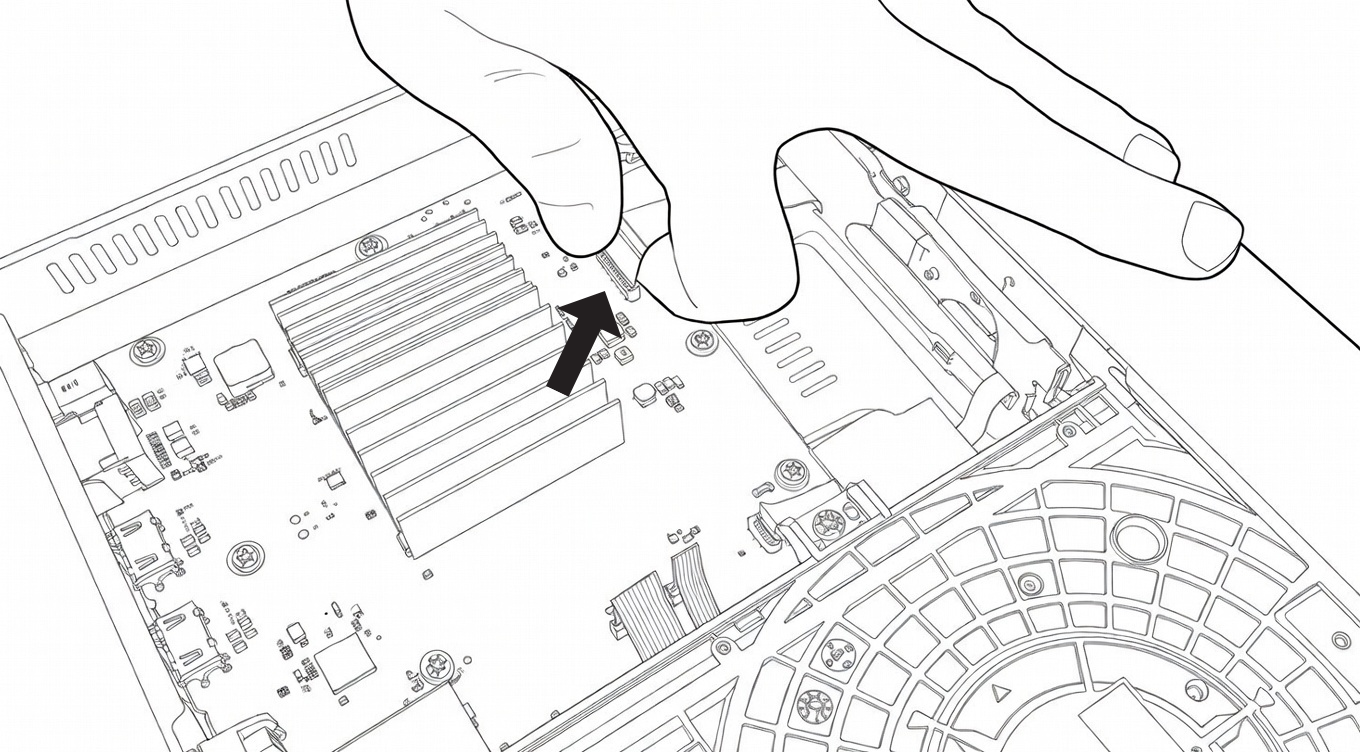
Then, remove the ribbon cable by pulling it upwards.
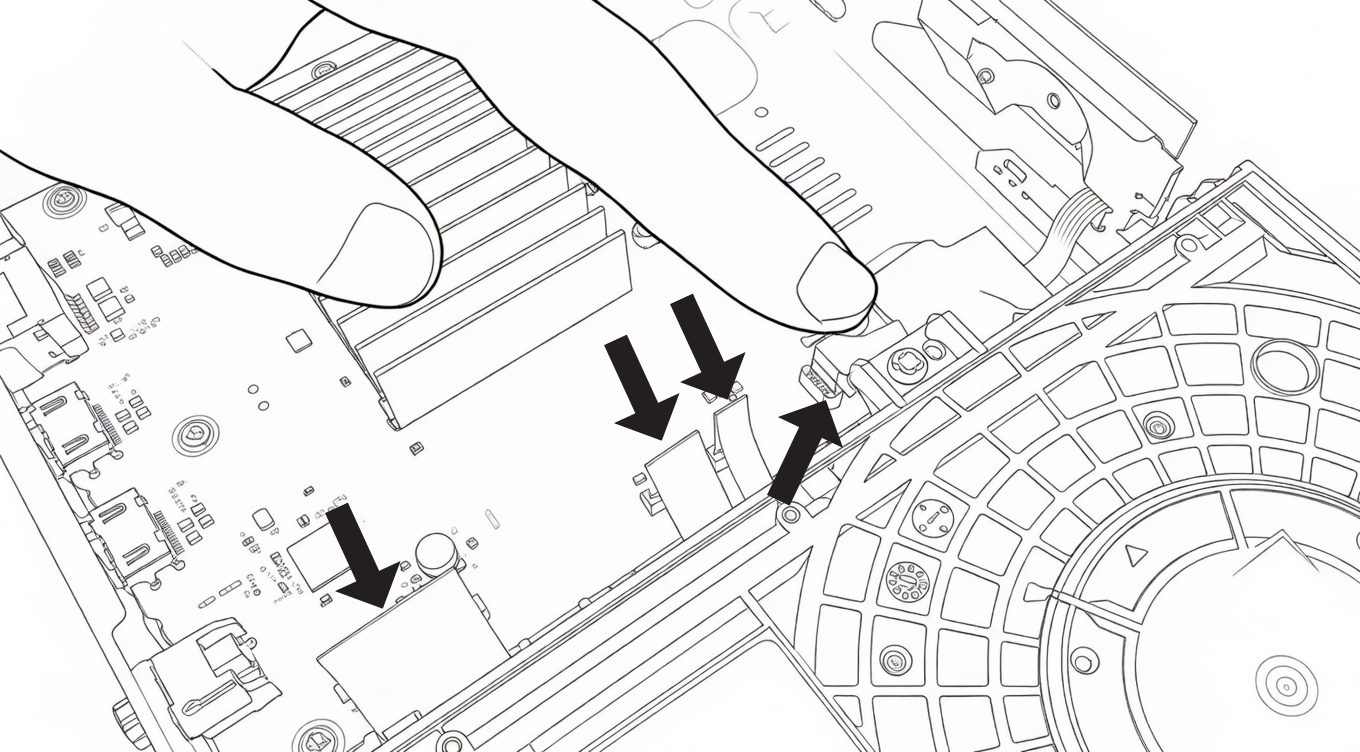
Then, remove the other ribbon cables by pulling them upwards.
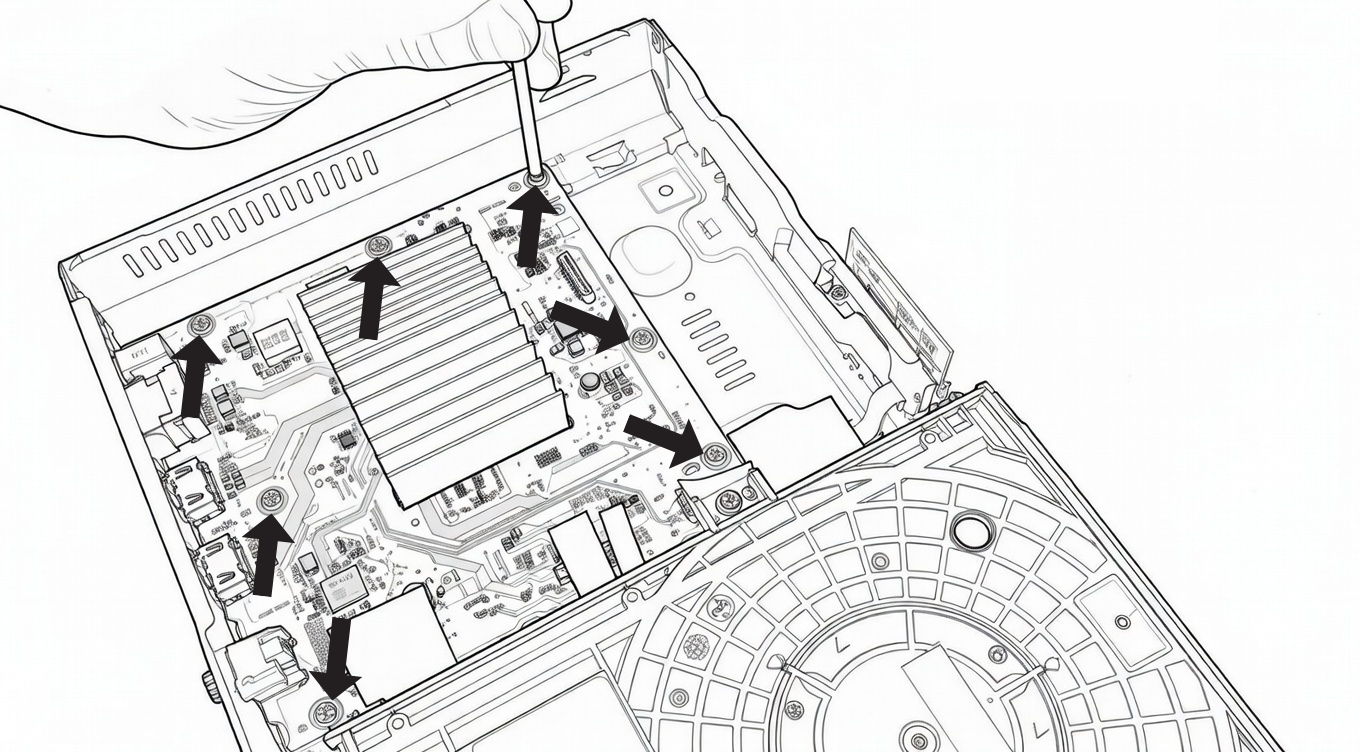
Then, unscrew the 7 screws indicated by the arrows in the diagram above using the Phillips screwdriver.
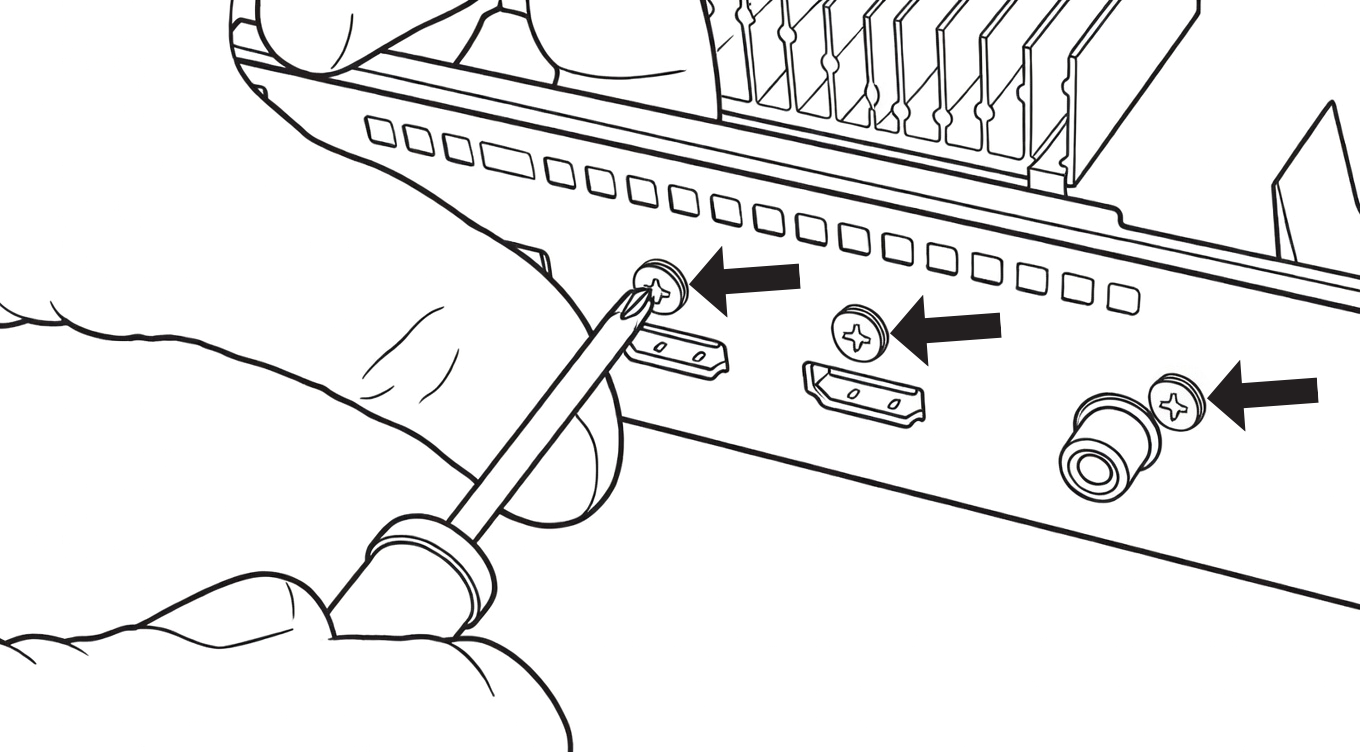 Then, at the back of the player, unscrew the 3 screws indicated by the arrows in the diagram above (the 2 HDMI ports and the Coaxial port).
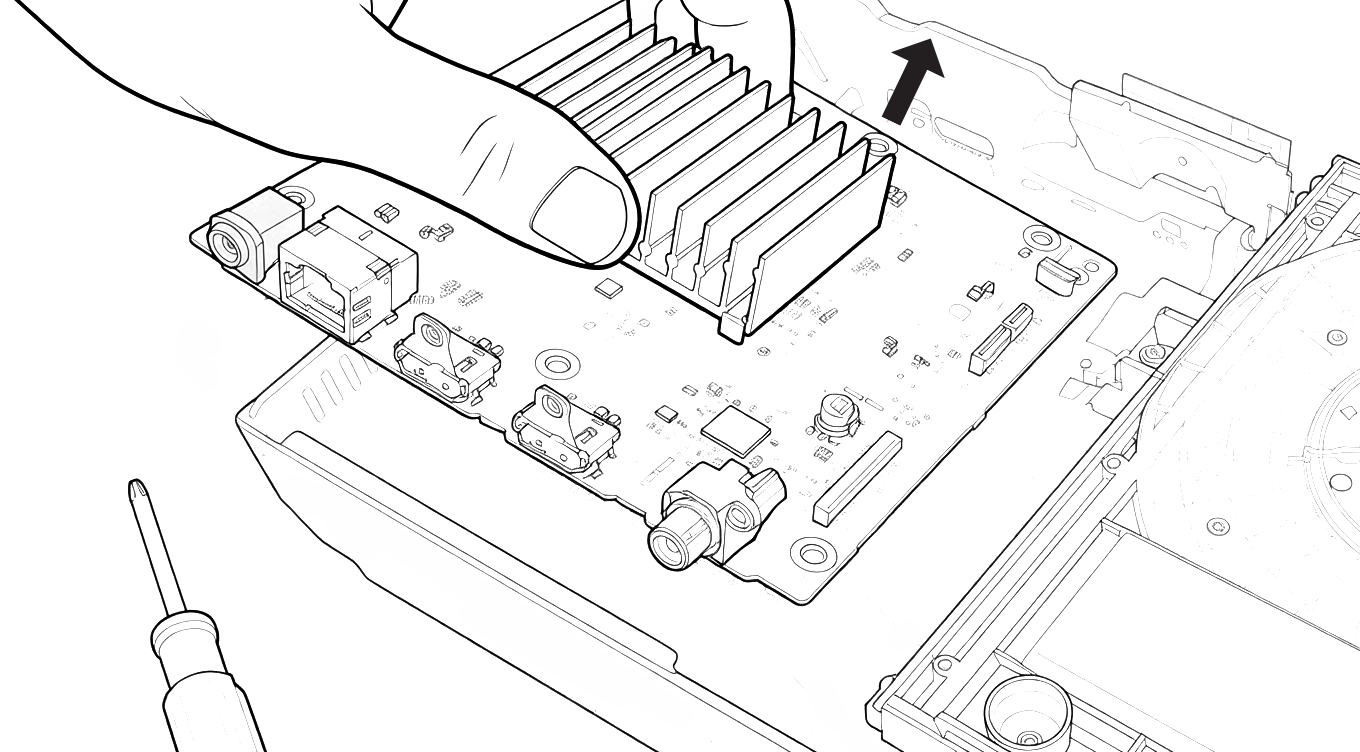
Next, remove the motherboard by pulling it up while holding it by the heatsink.
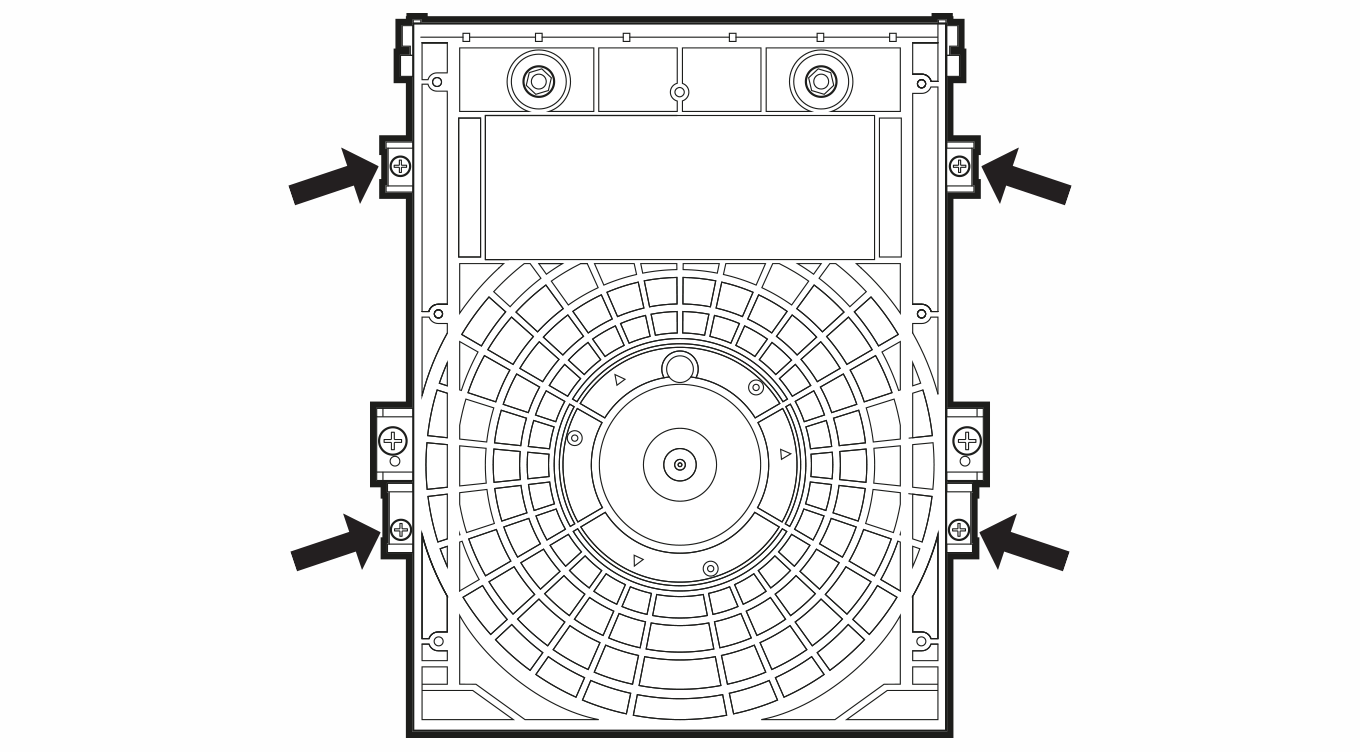
Then, unscrew the 4 screws that attach the optical drive unit to the chassis using the Phillips screwdriver.
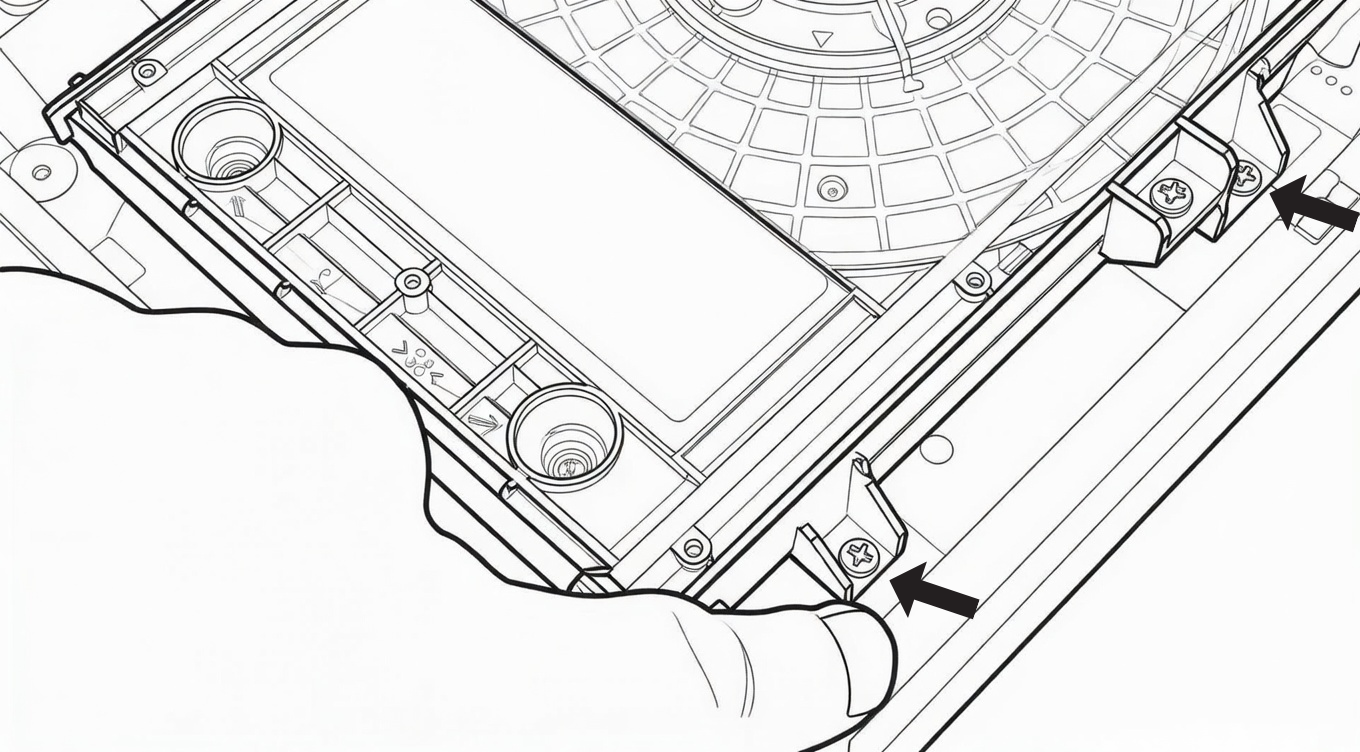
Start by unscrewing the two screws on the right side of the optical drive unit.
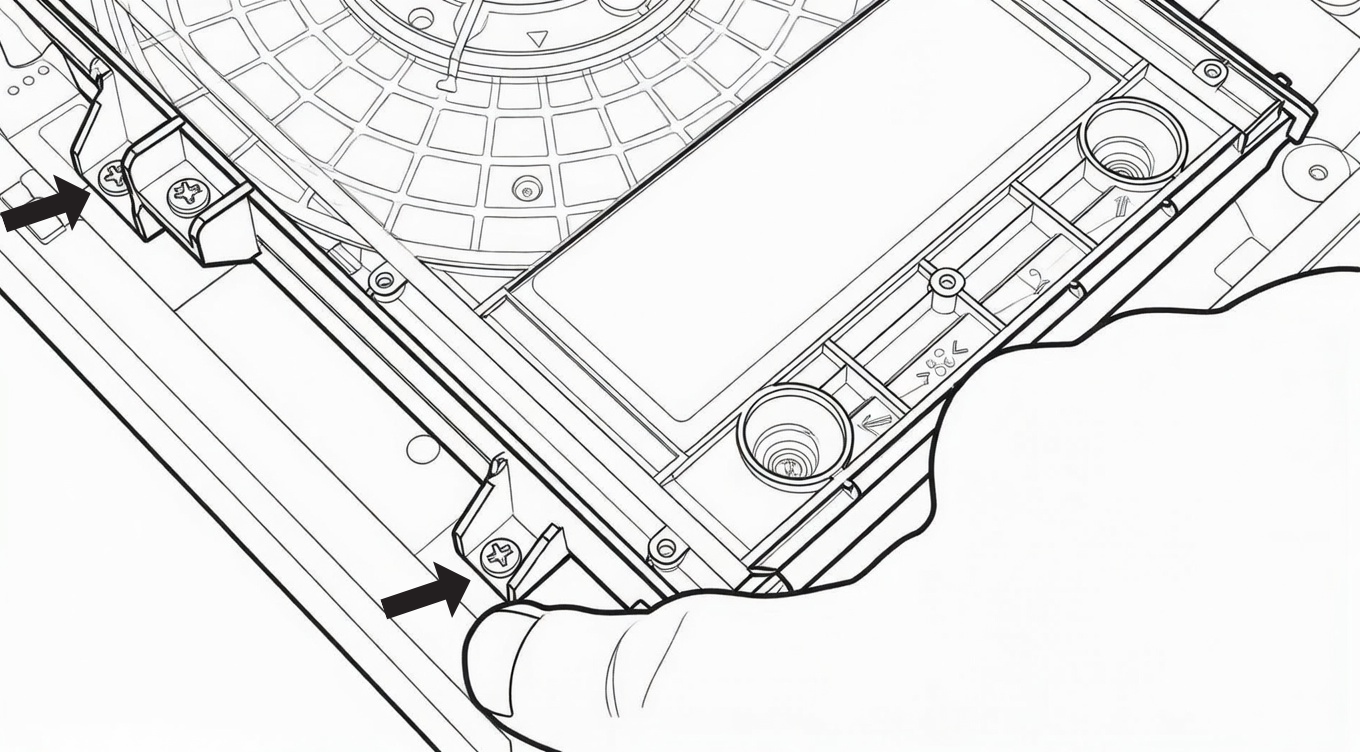
Then, unscrew the 2 screws on the left side of the optical drive unit.
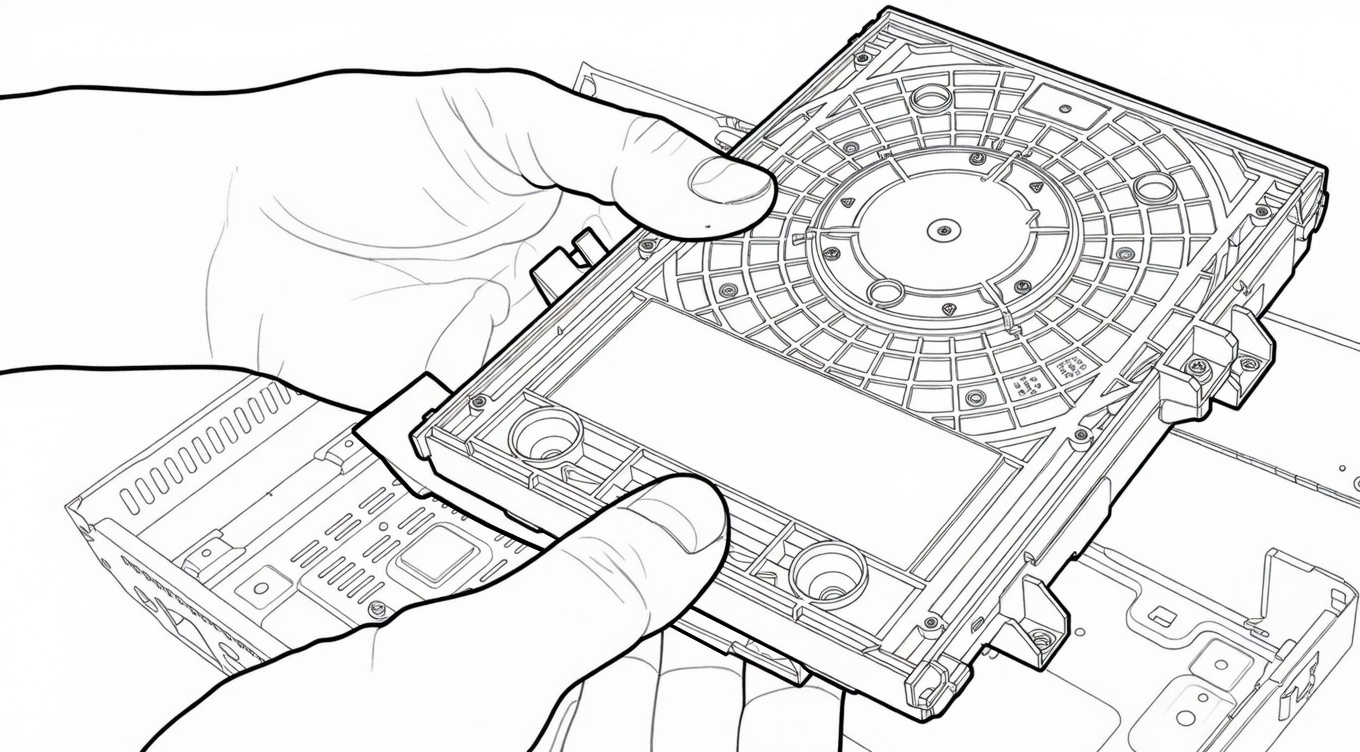
Once the 4 screws are removed, take out the optical drive unit from the Sony 4K UHD Blu-ray player chassis.
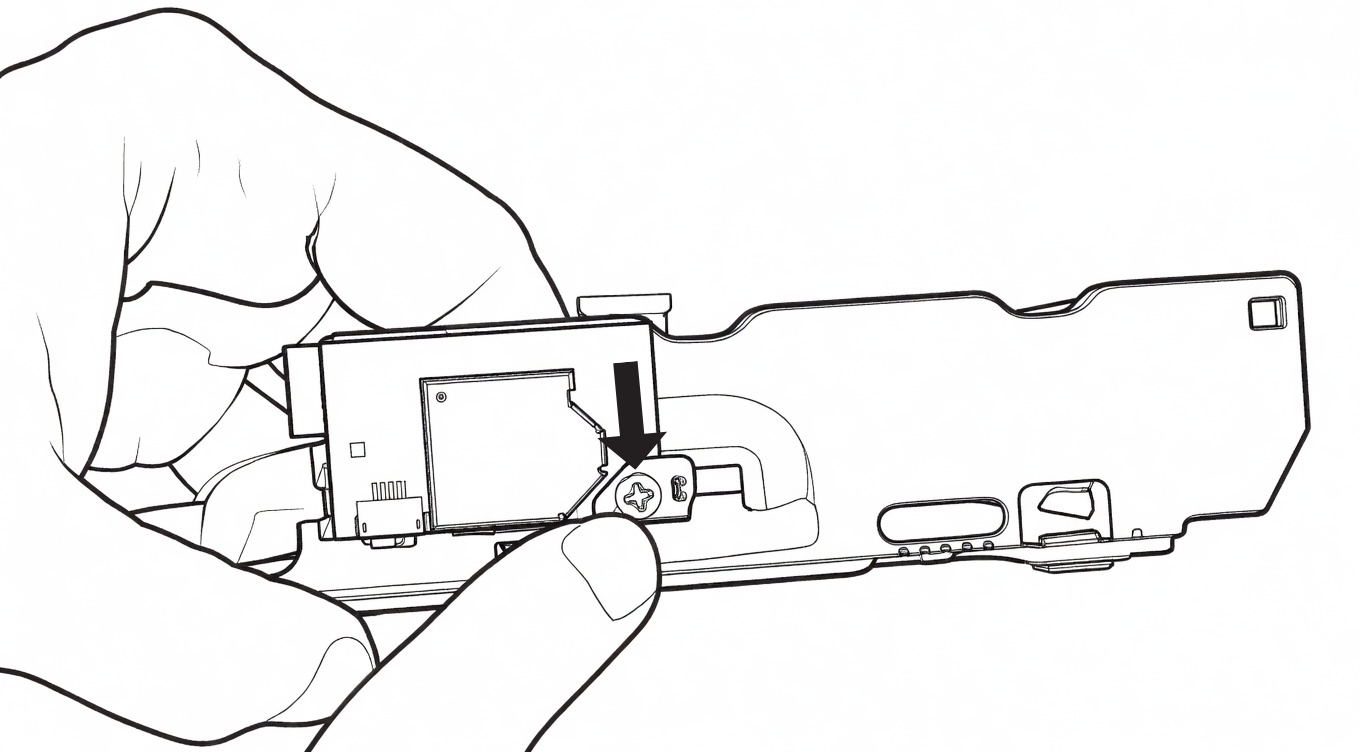
Then, using the Phillips screwdriver, remove the screw that secures the Wi-Fi card of the Sony player located on the right side of the Sony player's chassis. This card is only present on certain versions of the Sony player. If you do not see this card, proceed to the next step.
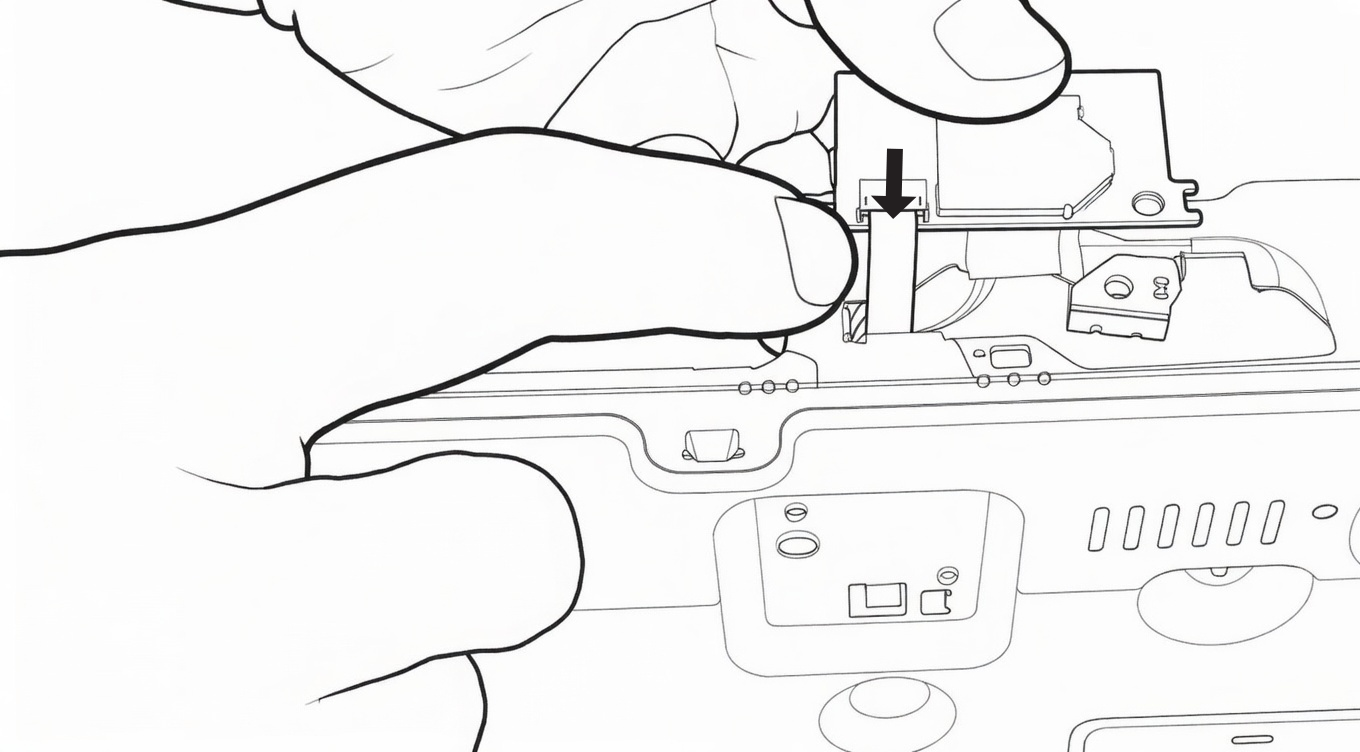
Remove the computer ribbon cable that connects the Wi-Fi card to the Sony player chassis.
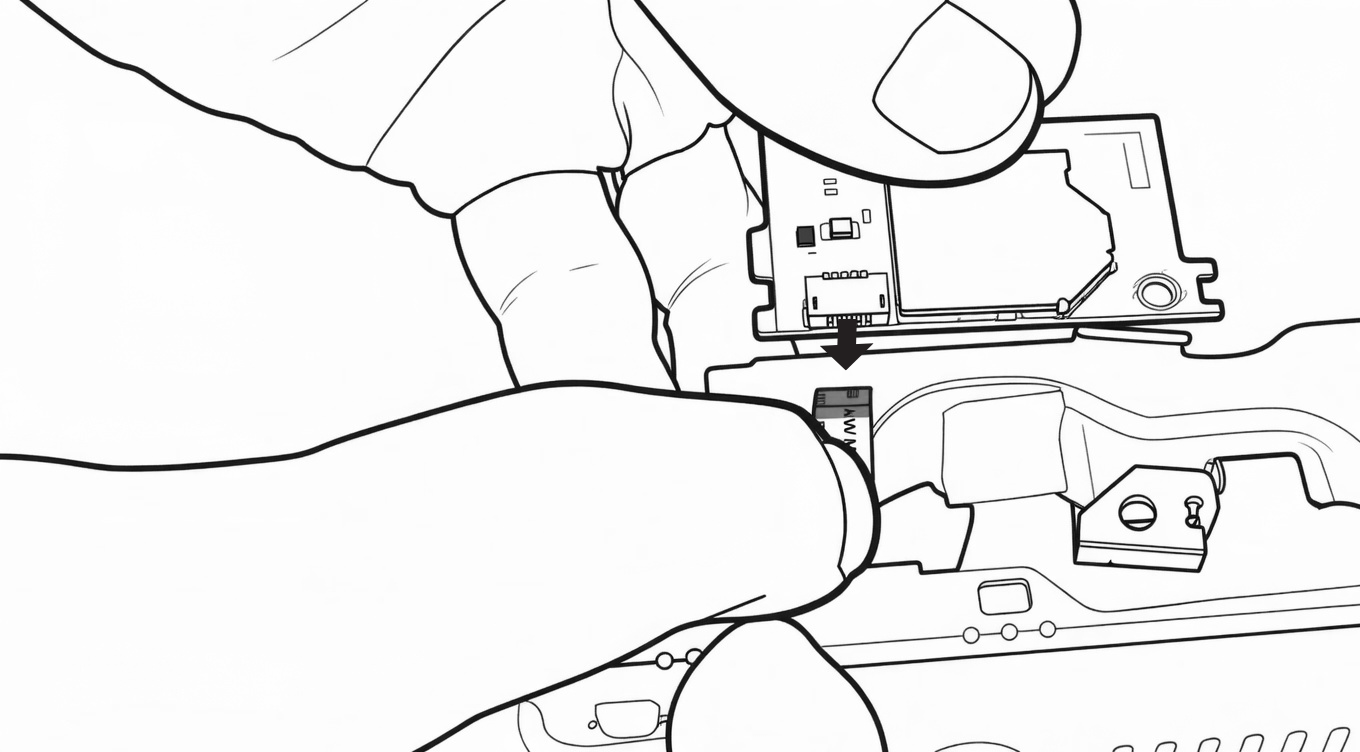
Use your thumb and index finger and pull on the ribbon to release it from the connector and free the Wi-Fi card. Then, set the card aside.
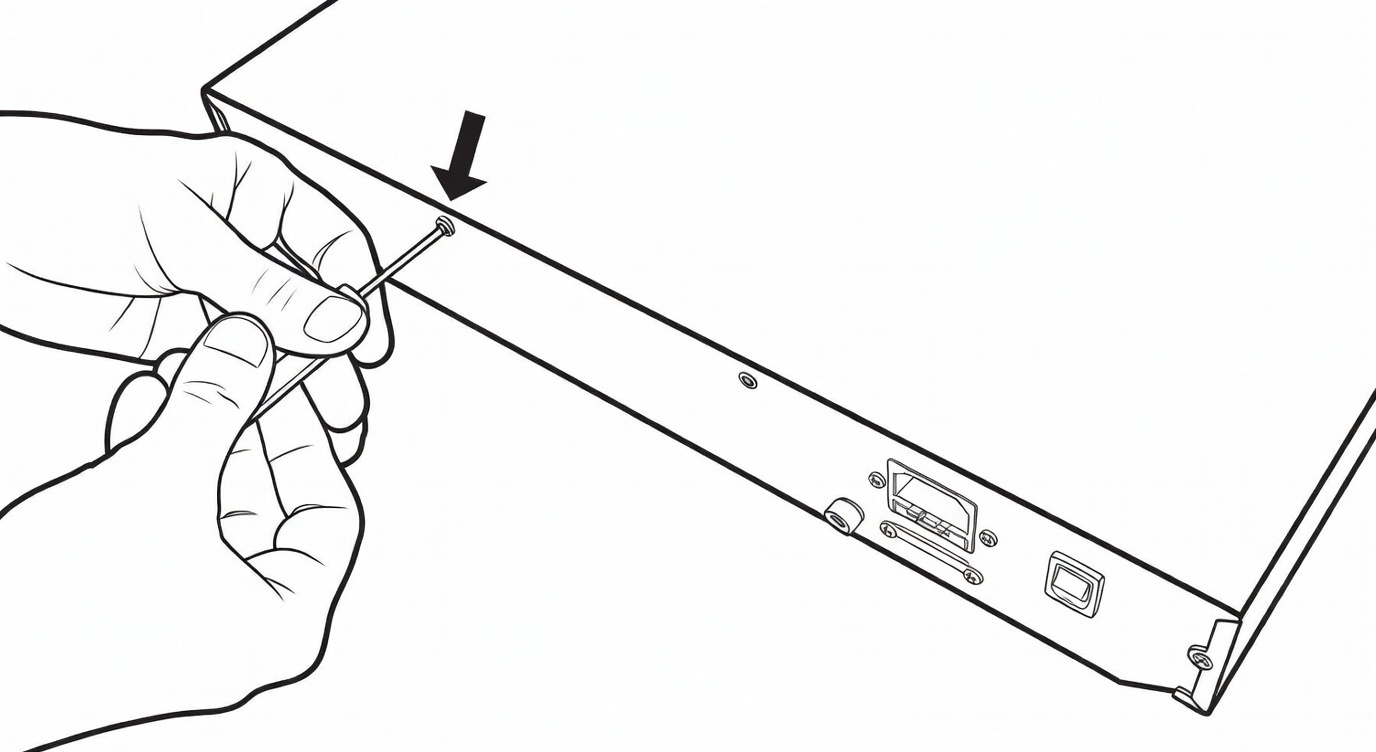
Locate the screw placed at the back of the R_volution Chassis DIY-X700. Then, unscrew it using the Allen screwdriver.
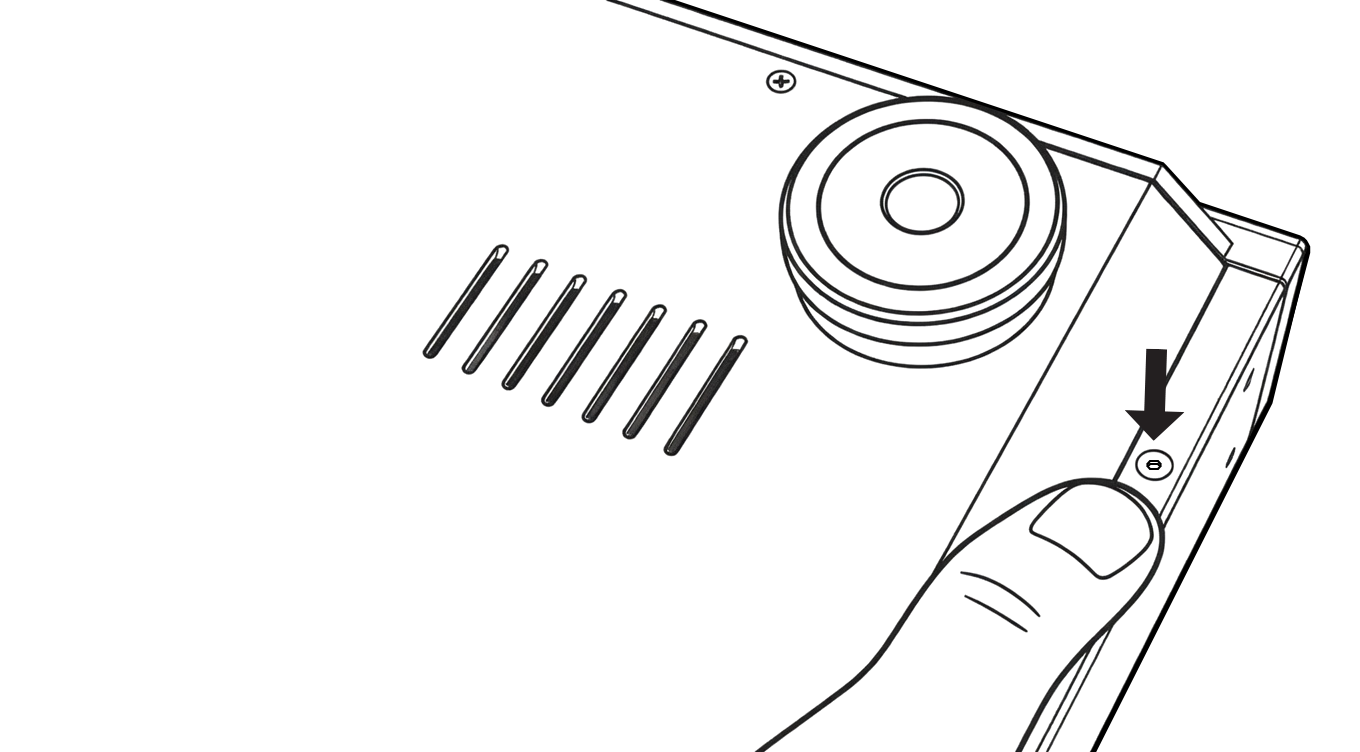
Then, turn the player over and unscrew the screw located on the right leg, near the front face, using the Allen screwdriver.
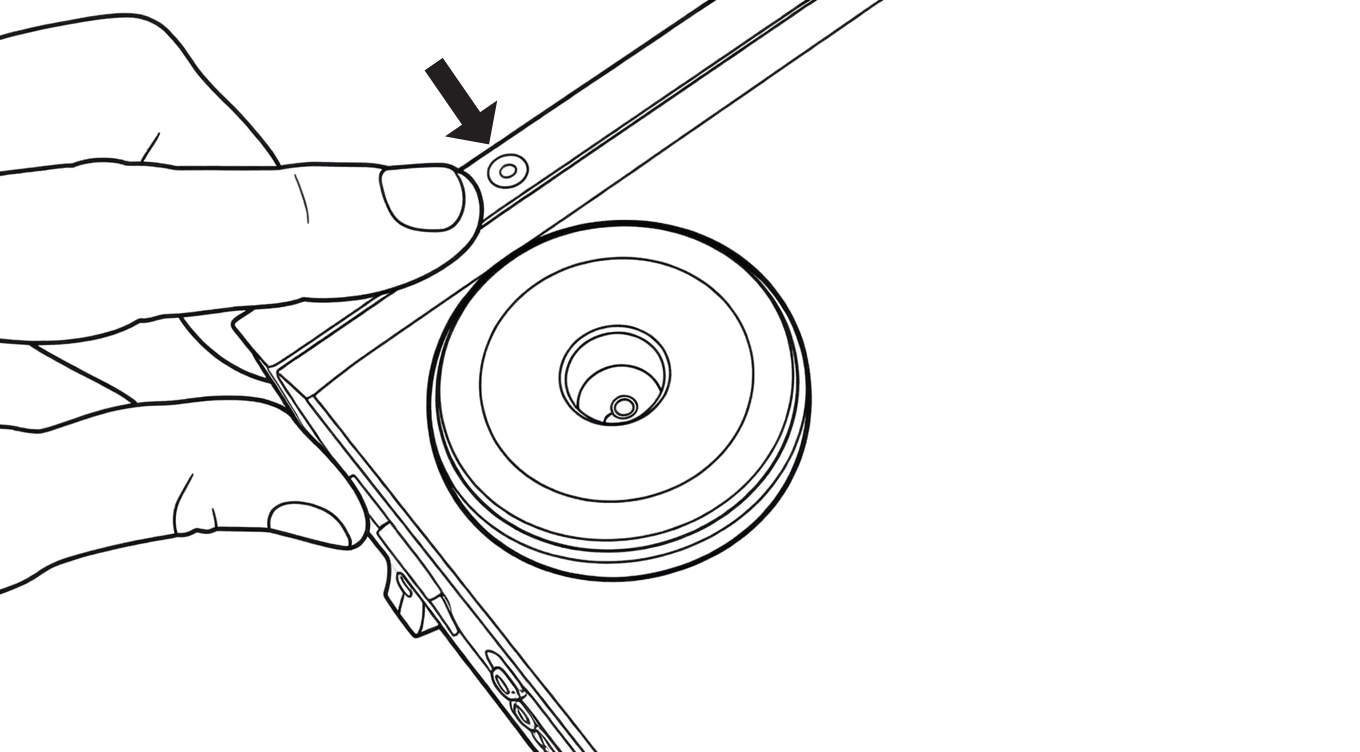
Then, locate the screw placed near the foot situated in the opposite corner and unscrew it using the Allen screwdriver.
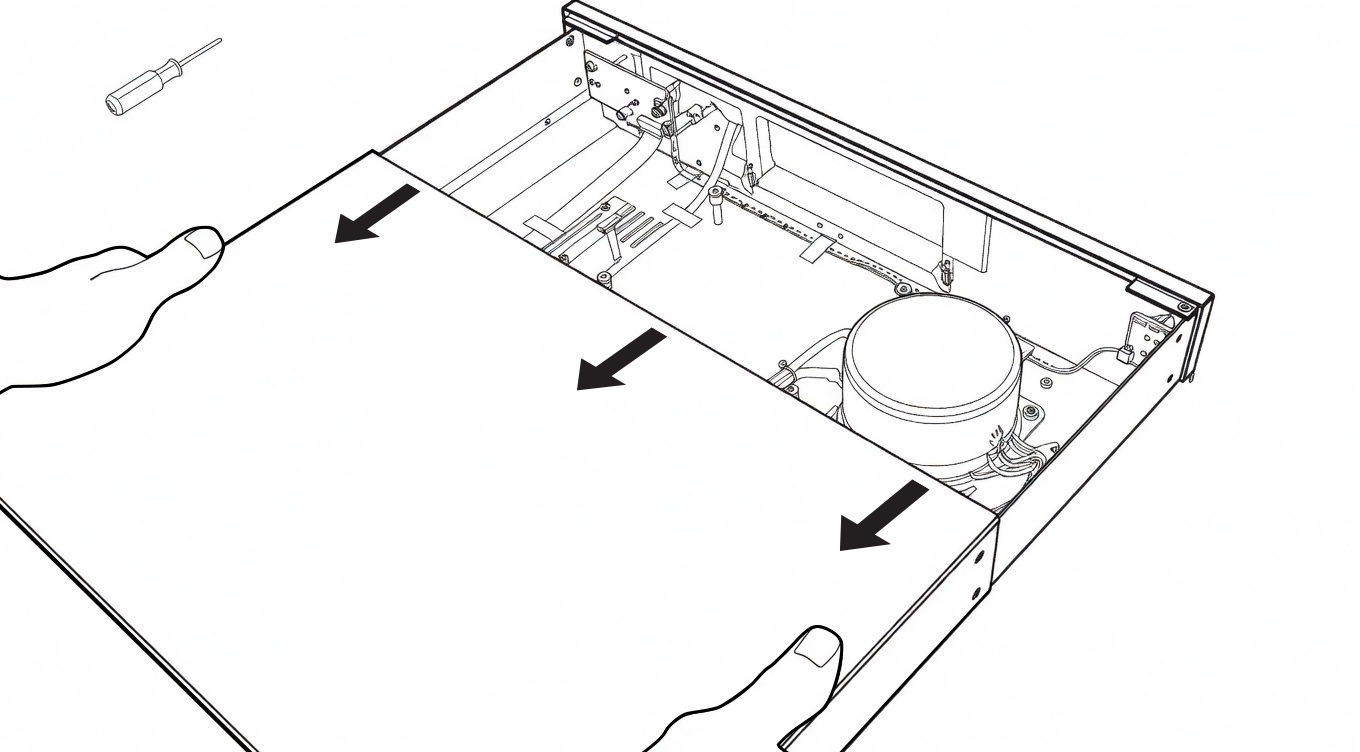
Turn the DIY-X700 chassis over and place it on its feet. Then, remove the cover by pulling it backward.
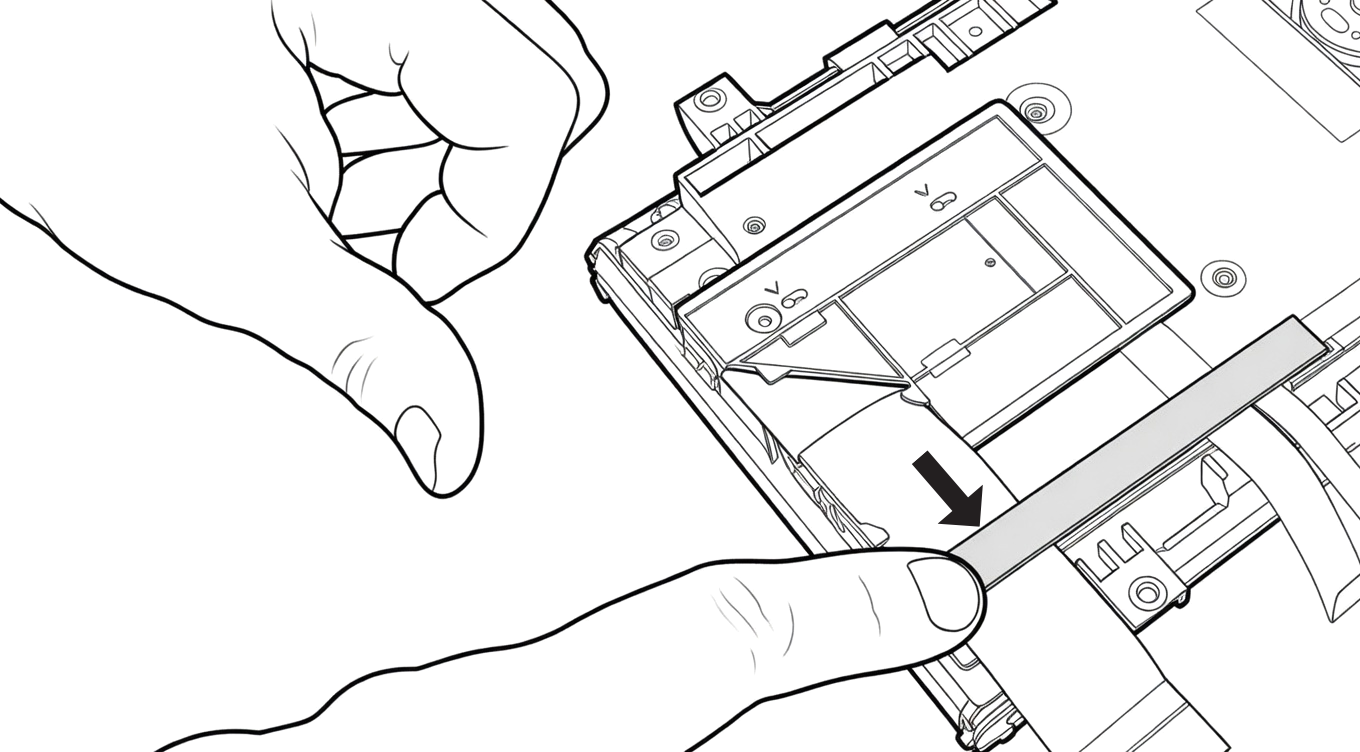
Then, take the optical block that you set aside earlier and turn it over. On the underside of the optical block, locate the black tape strip that secures the widest ribbon cable to the optical block.
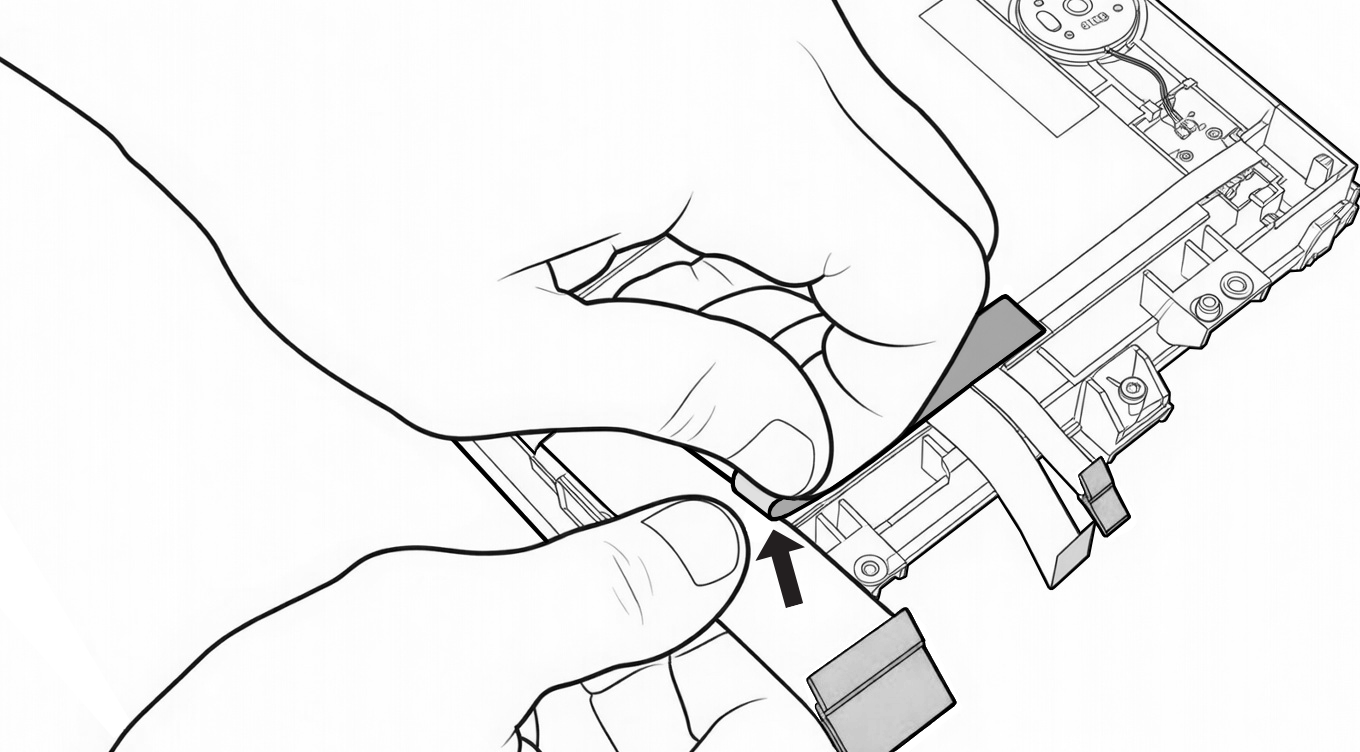
Remove it with the help of your thumb and forefinger.
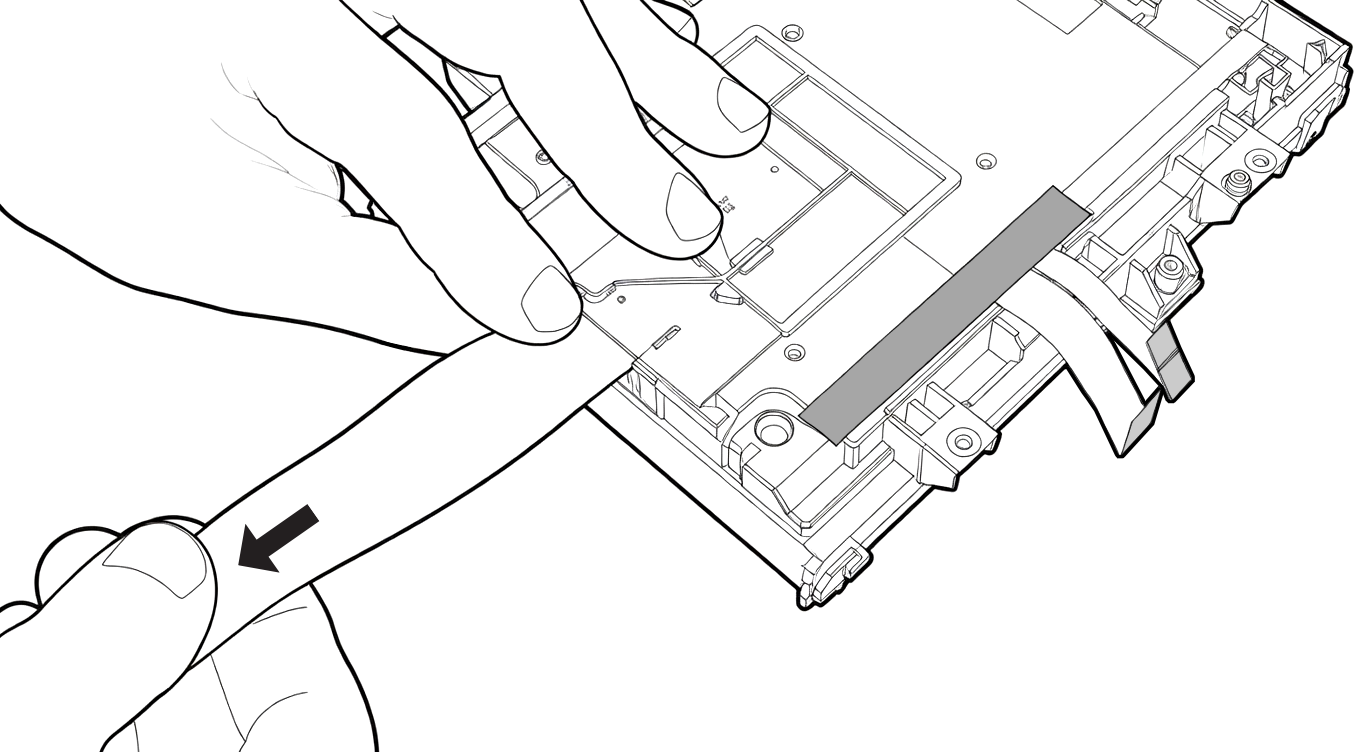
Once the cable is freed from the black adhesive, gently pull on the cable to extend and flatten it.
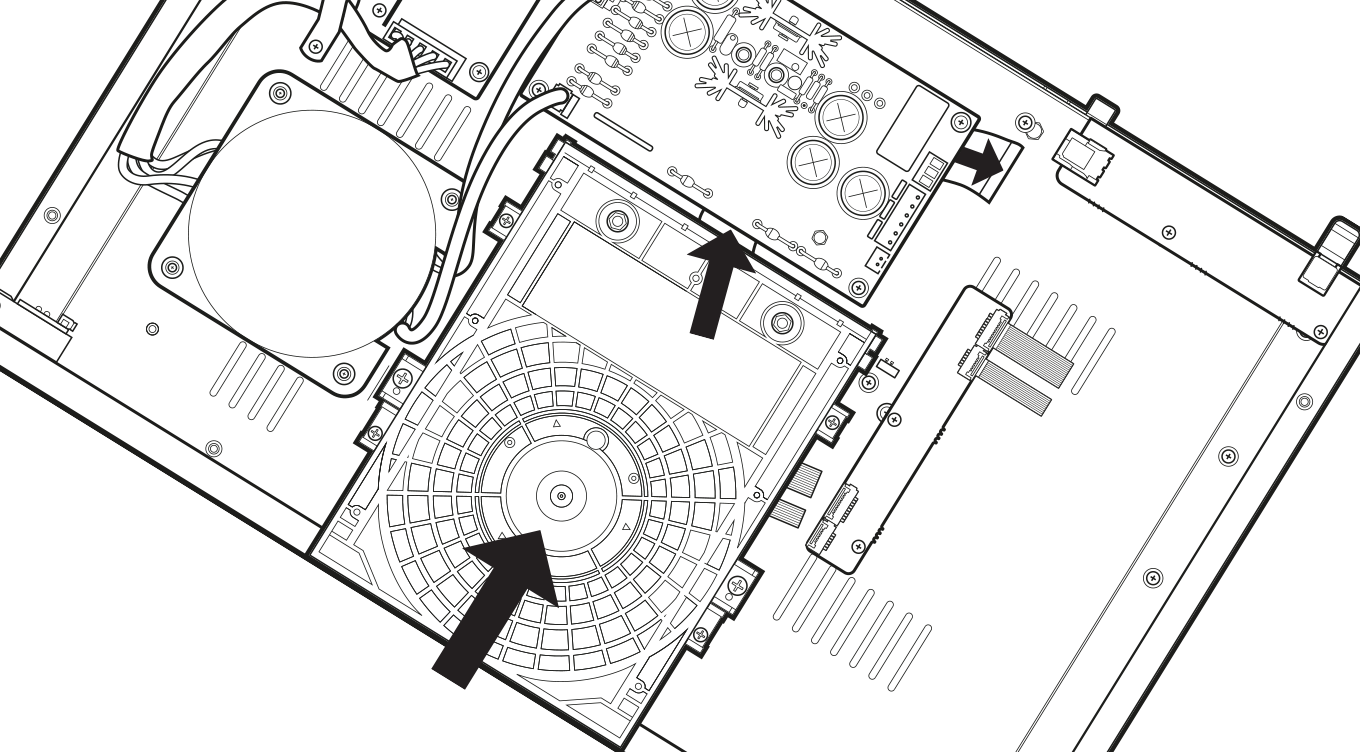
Next, turn the optical block over and pass the ribbon cable under the electronic board with the large capacitors and place the optical block in its position.
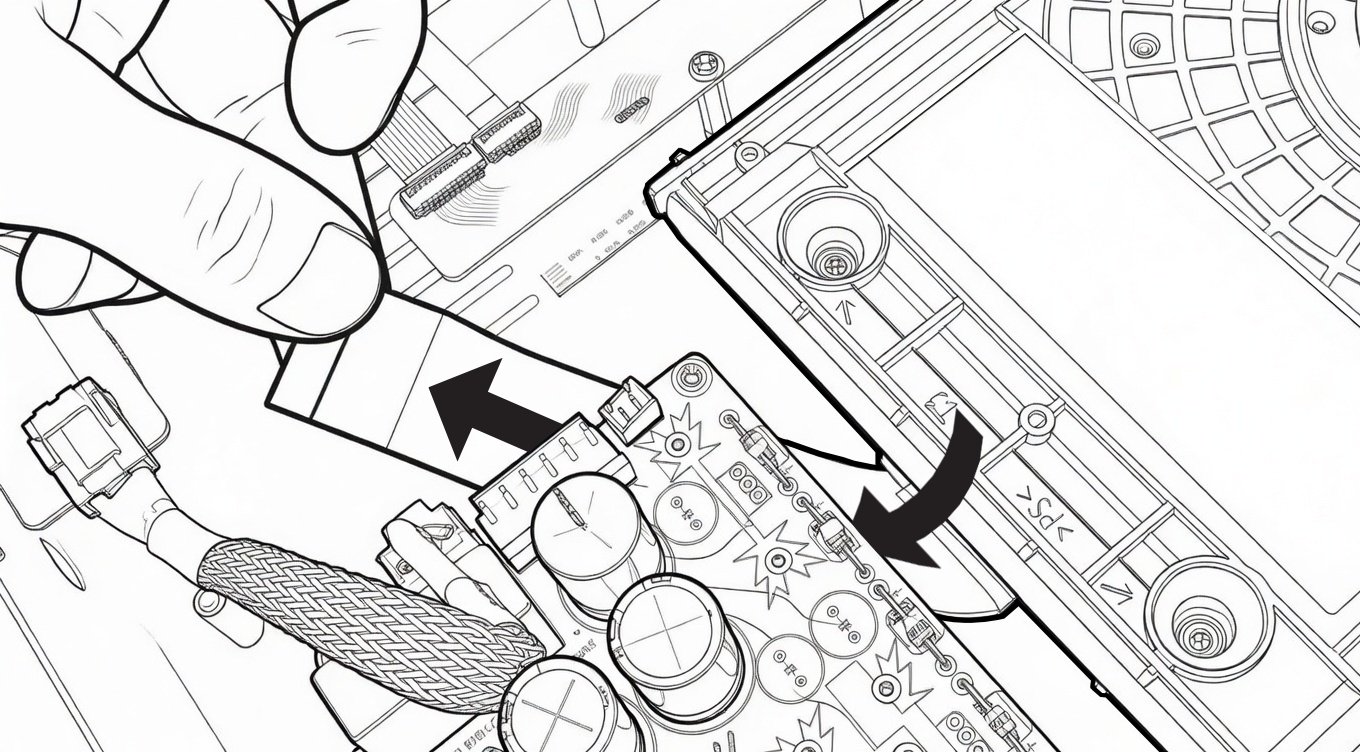
Pull the cable well so that it comes out properly from under the circuit board. Then, place the optical block correctly in its position.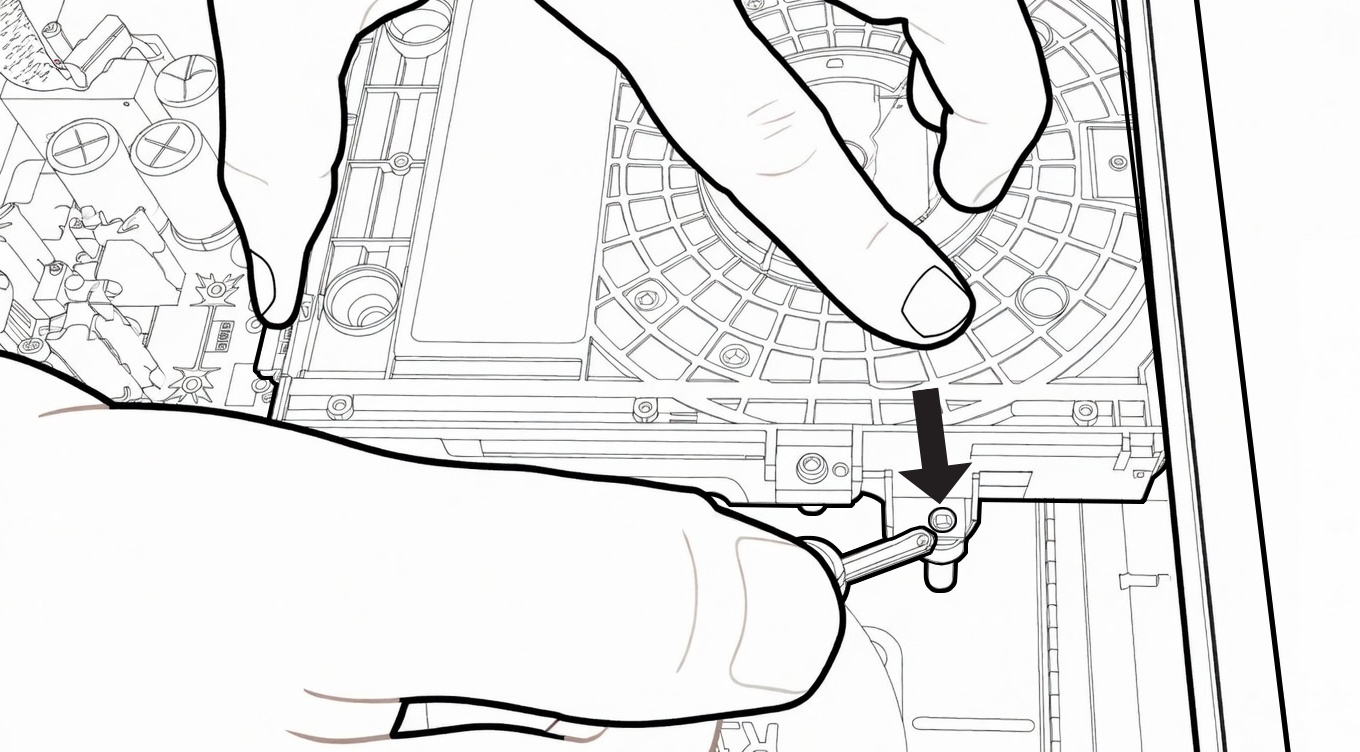
Then, using the Phillips screwdriver, screw the optical block in place using the screws from bag number 1.
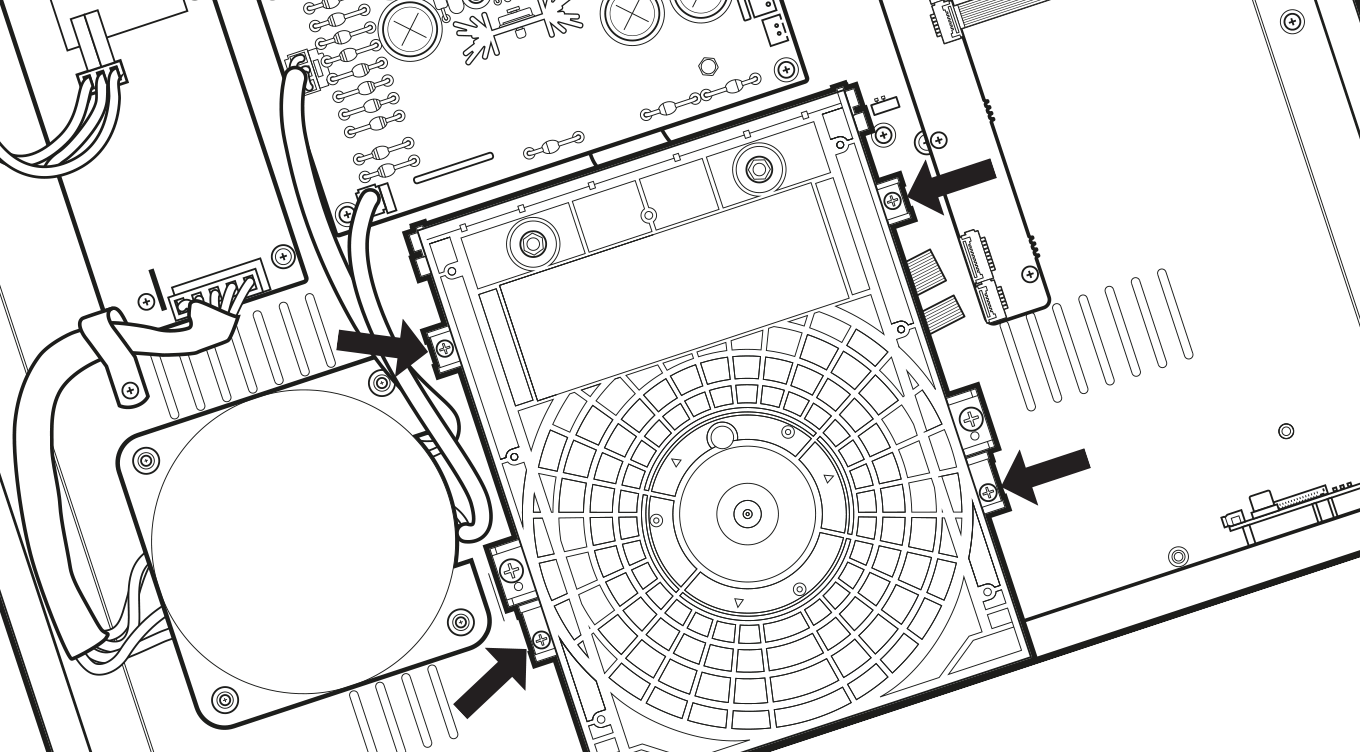
Respect the screw locations as indicated above and take care to screw the optical block in properly so that it does not move from its position and does not vibrate during playback. Note that the optical block is mounted on an anti-vibration system to improve reading quality compared to the original Sony player.
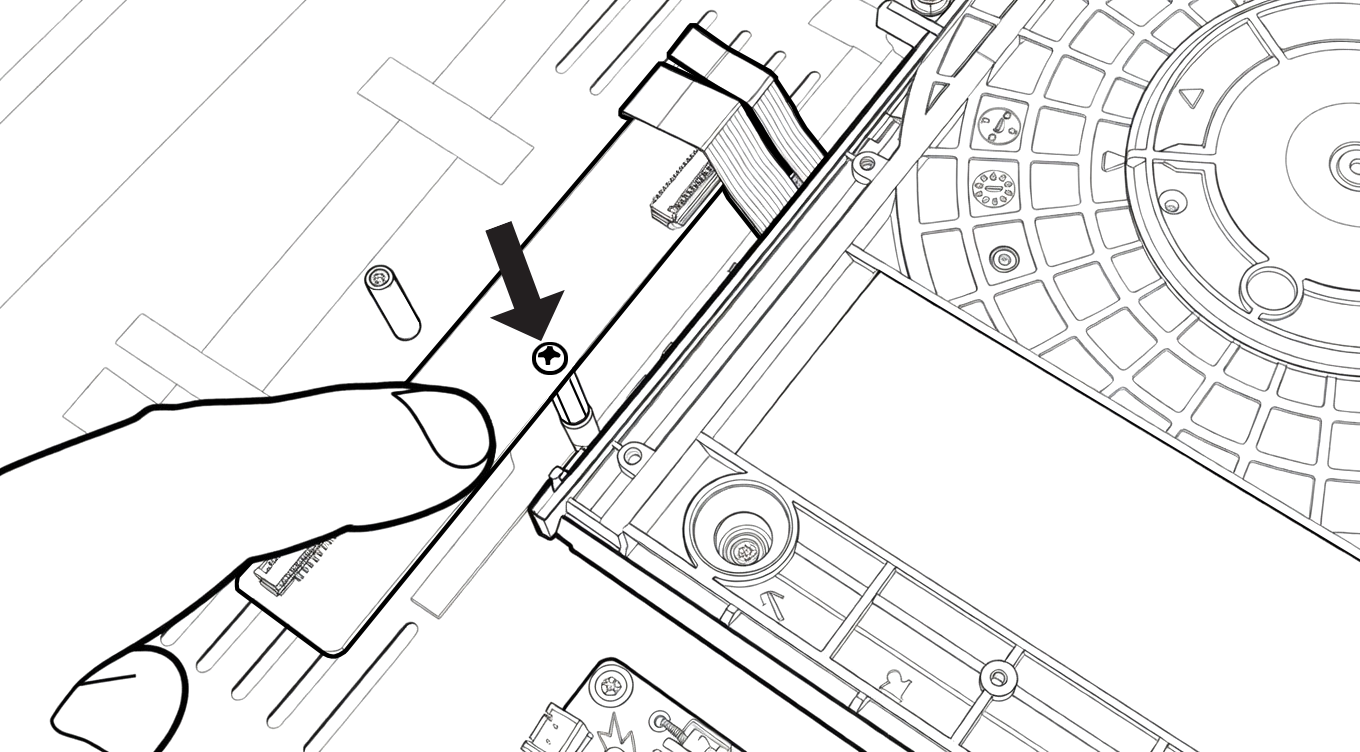
Then, unscrew the small raised card positioned next to the optical block using the Phillips screwdriver.
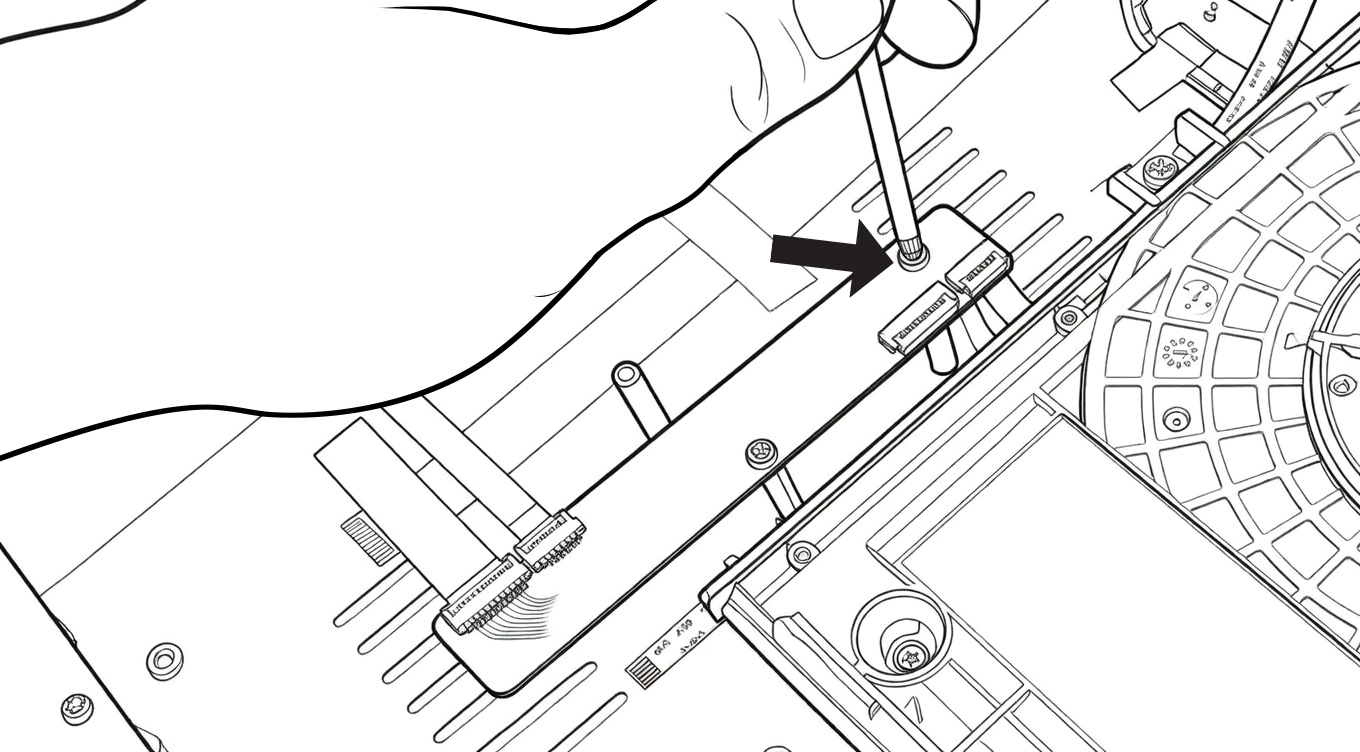
There are 2 screws to unscrew using the Phillips screwdriver. Then, remove the card and set it aside. We will need it later.
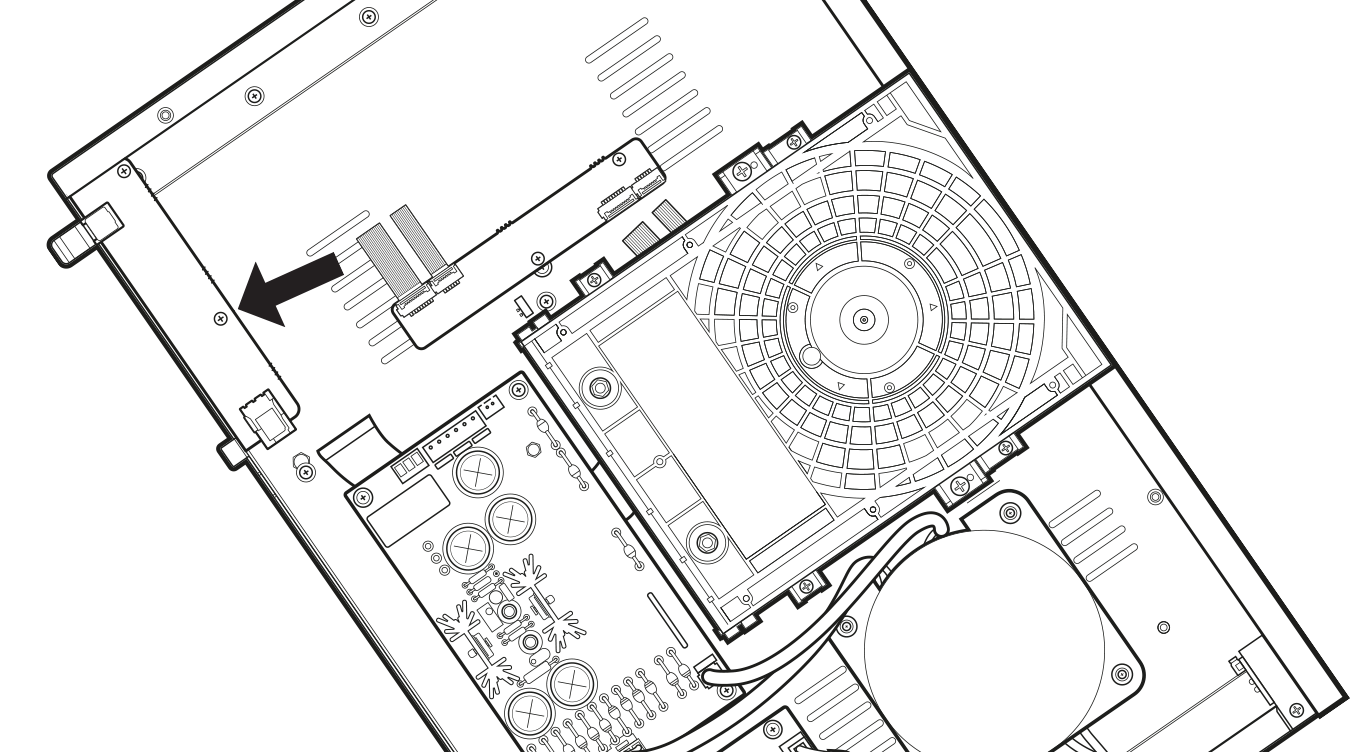
Next, you need to unscrew the card that is located at the position indicated by the arrow above.
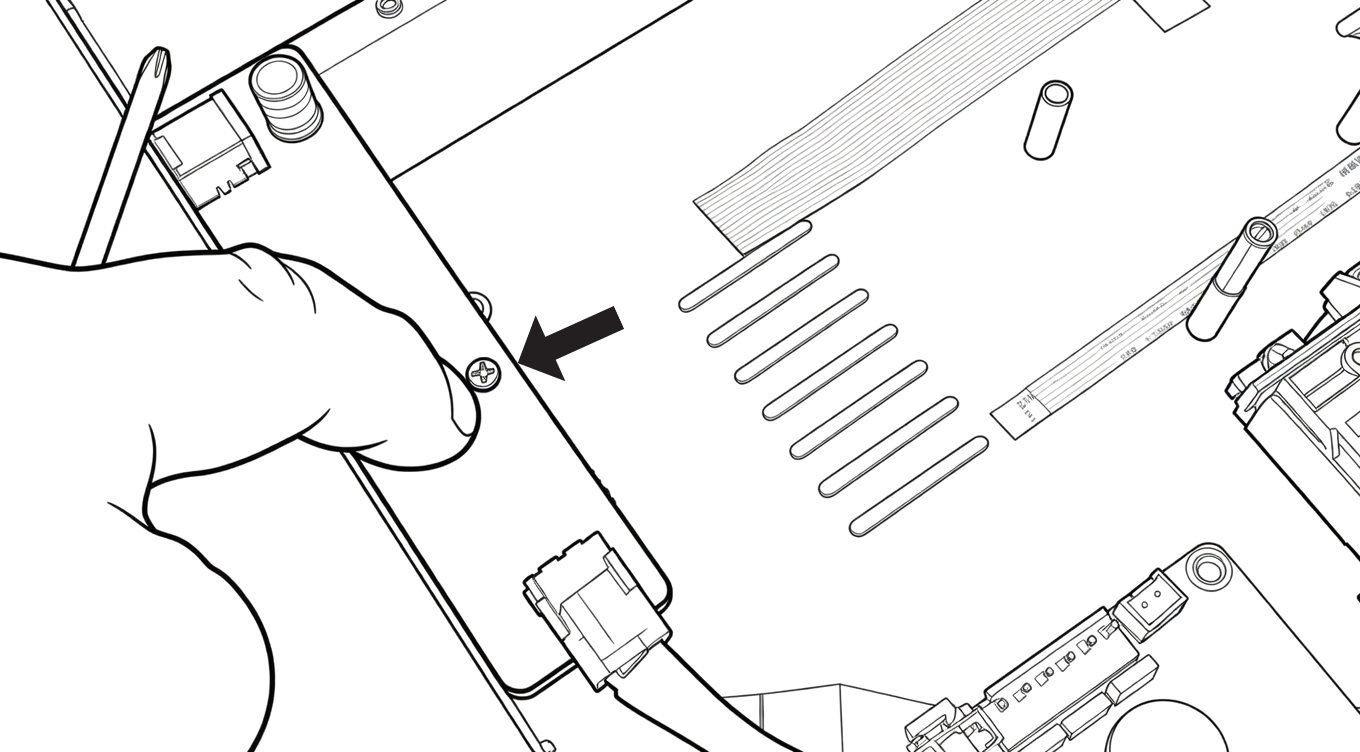
There is only one screw to unscrew using the Phillips screwdriver.
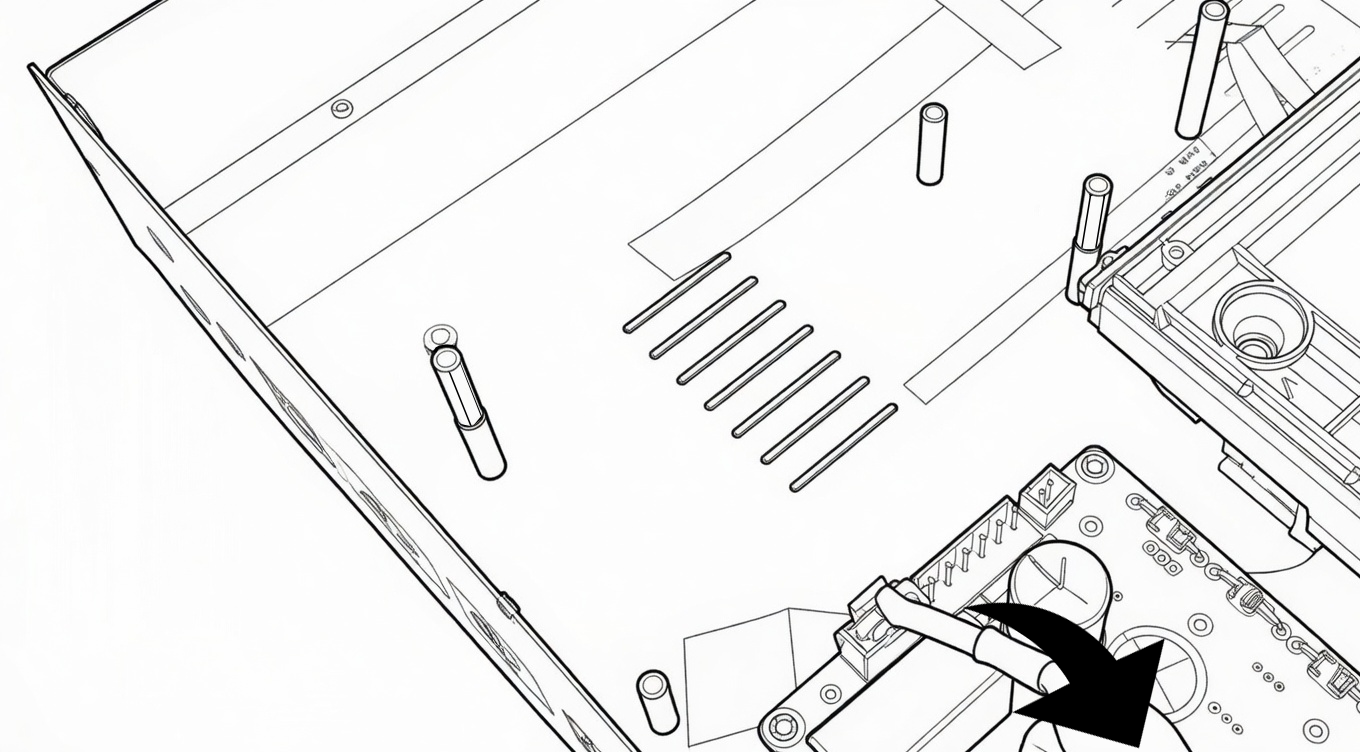
Then, put the card on the side (above the electronic board and without disconnect it from the cable).
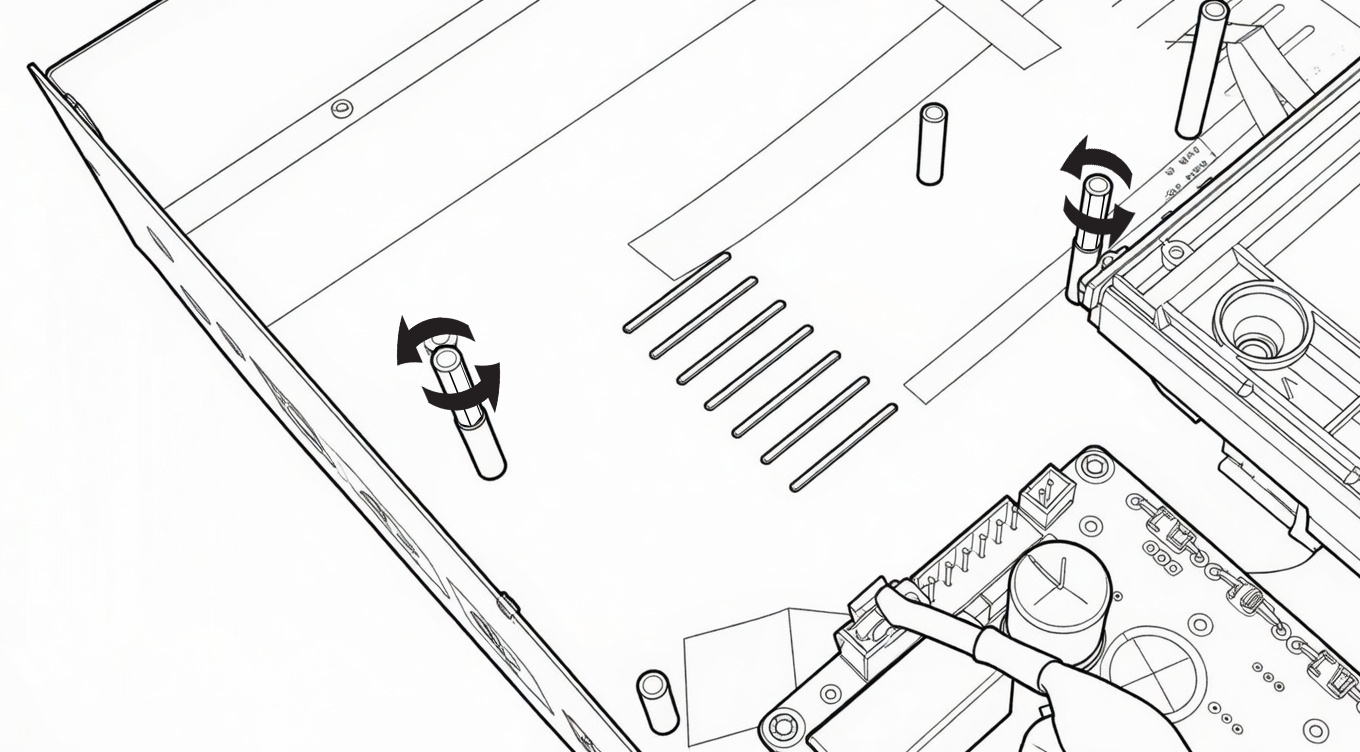
Then, unscrew the two spacers as shown in the diagram above.
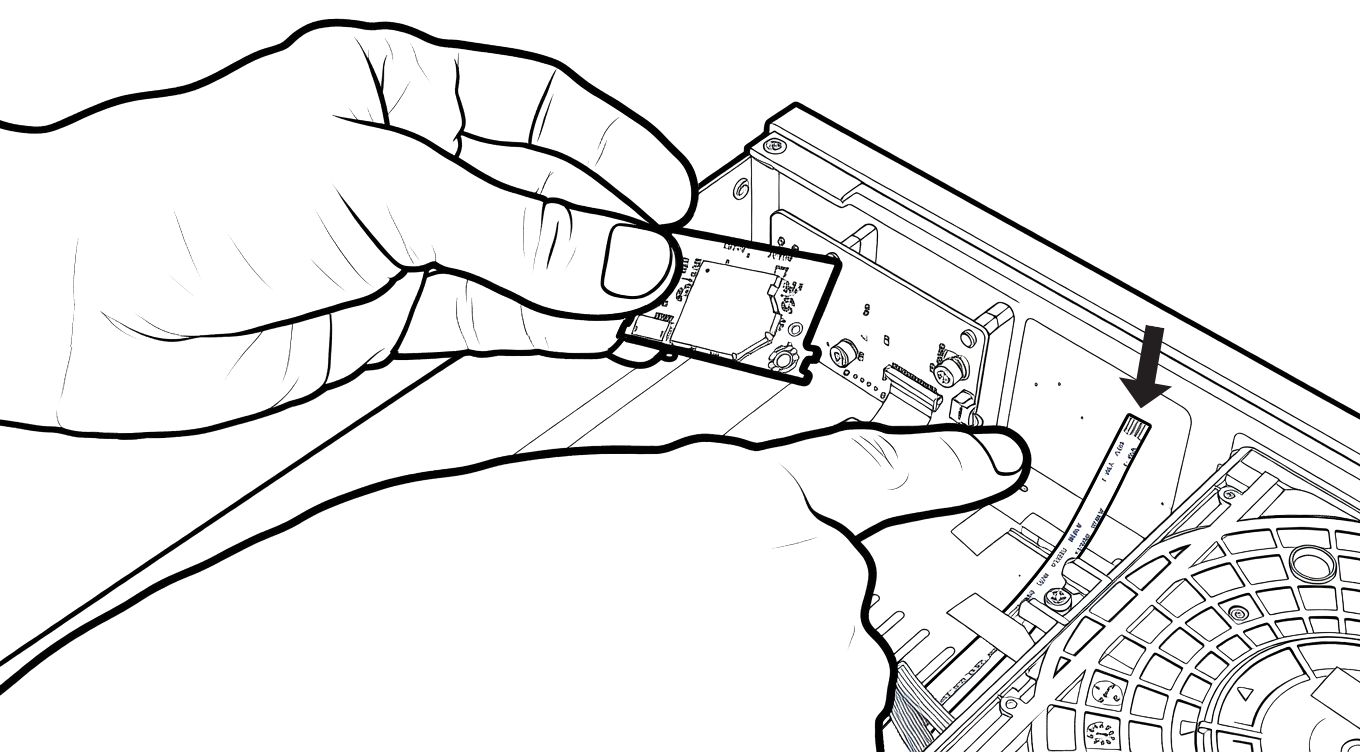
If your Sony player is Wi-Fi compatible, you should previously have removed the Wi-Fi card from the chassis of the Sony player. Retrieve the Wi-Fi card that was set aside. In the R_volution Chassis DIY-X700, locate the small ribbon cable that goes to the front panel.
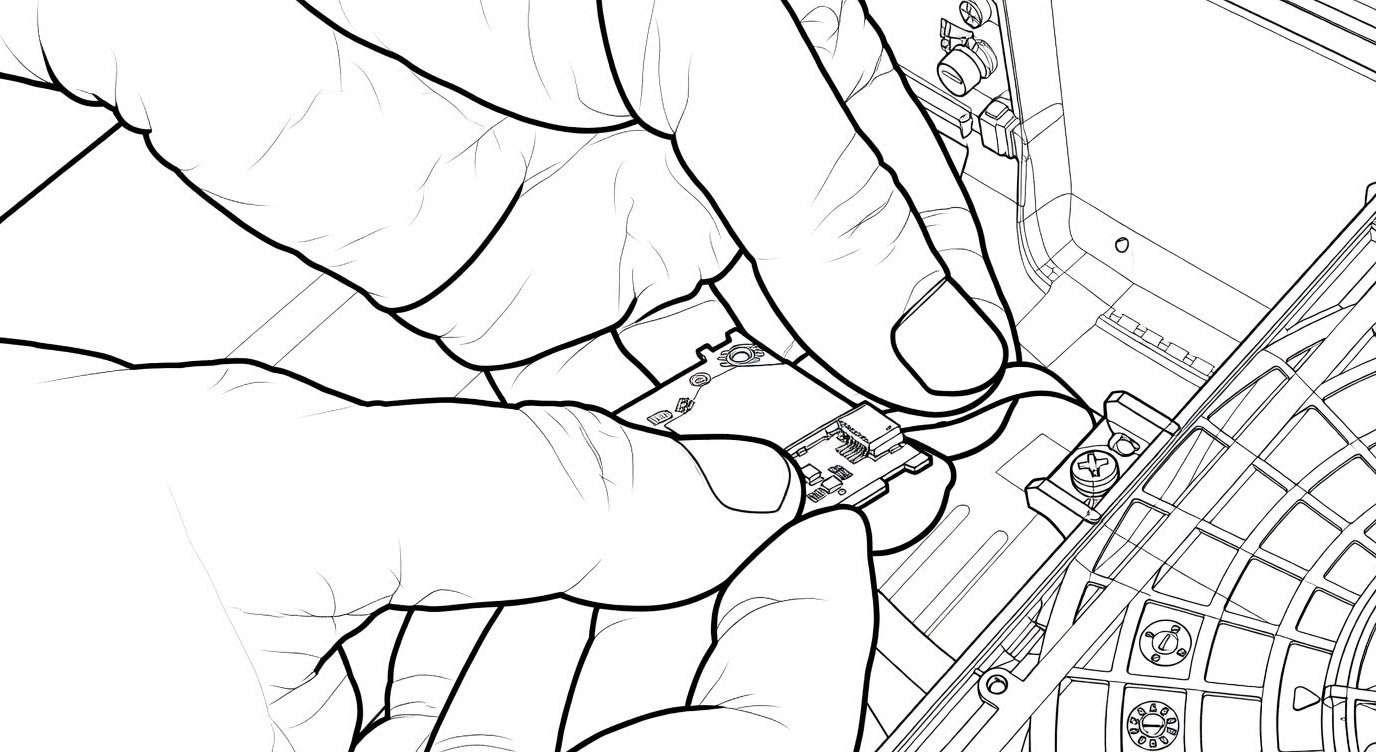
Then, connect the ribbon cable to the Wi-Fi card.
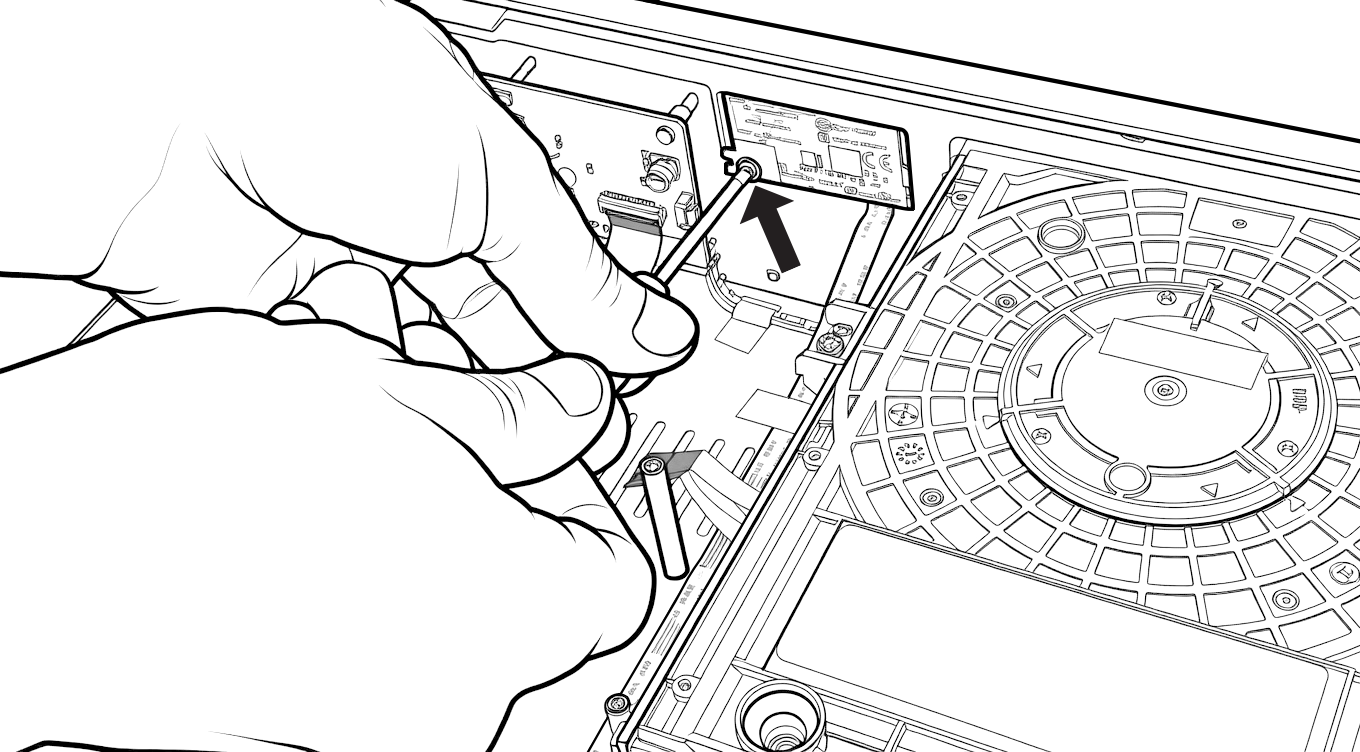
Then, screw the Wi-Fi card onto the front panel with a screw from bag number 8 using a Phillips screwdriver.
WARNING! It is essential to use a screw from bag number 8! Using a different screw could damage the front of the chassis.
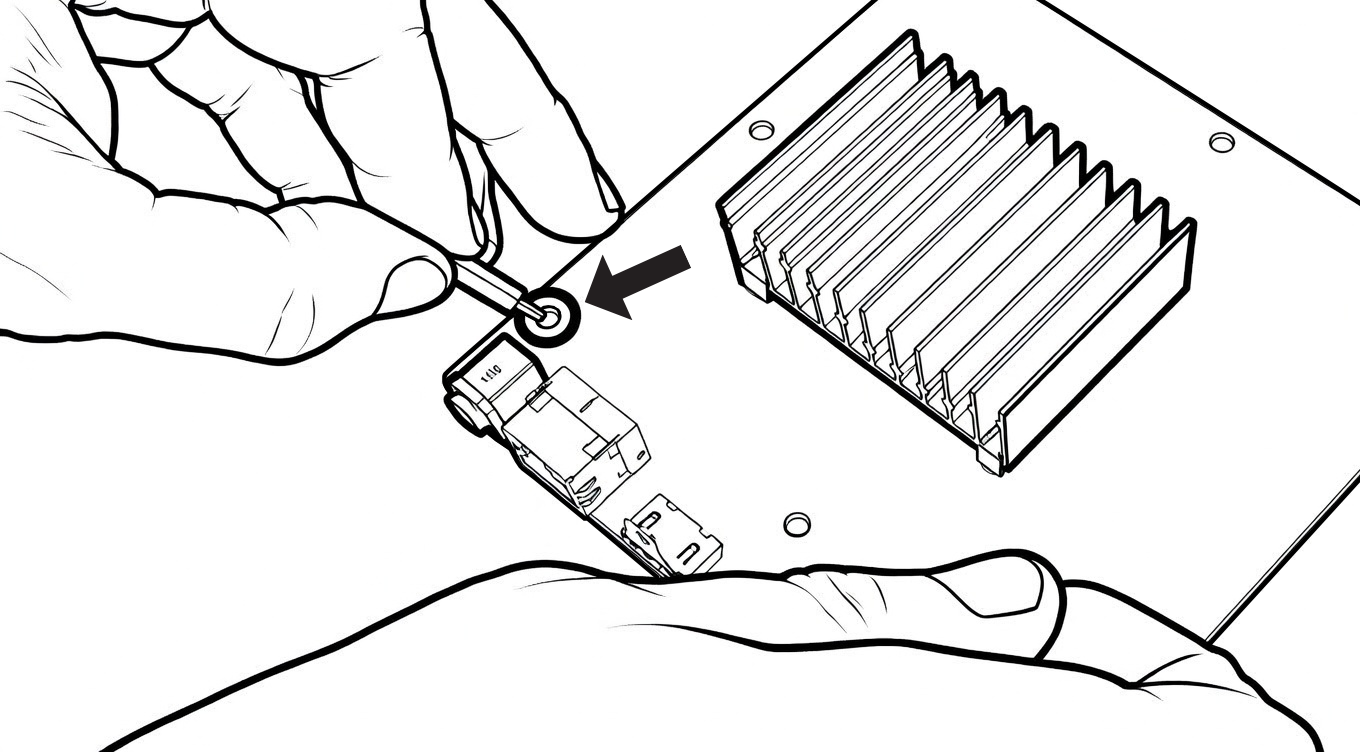
Next, retrieve the motherboard from the Sony player along with the spacer and the nut from bag number 5. Then, insert the spacer into the hole as shown in the diagram above.
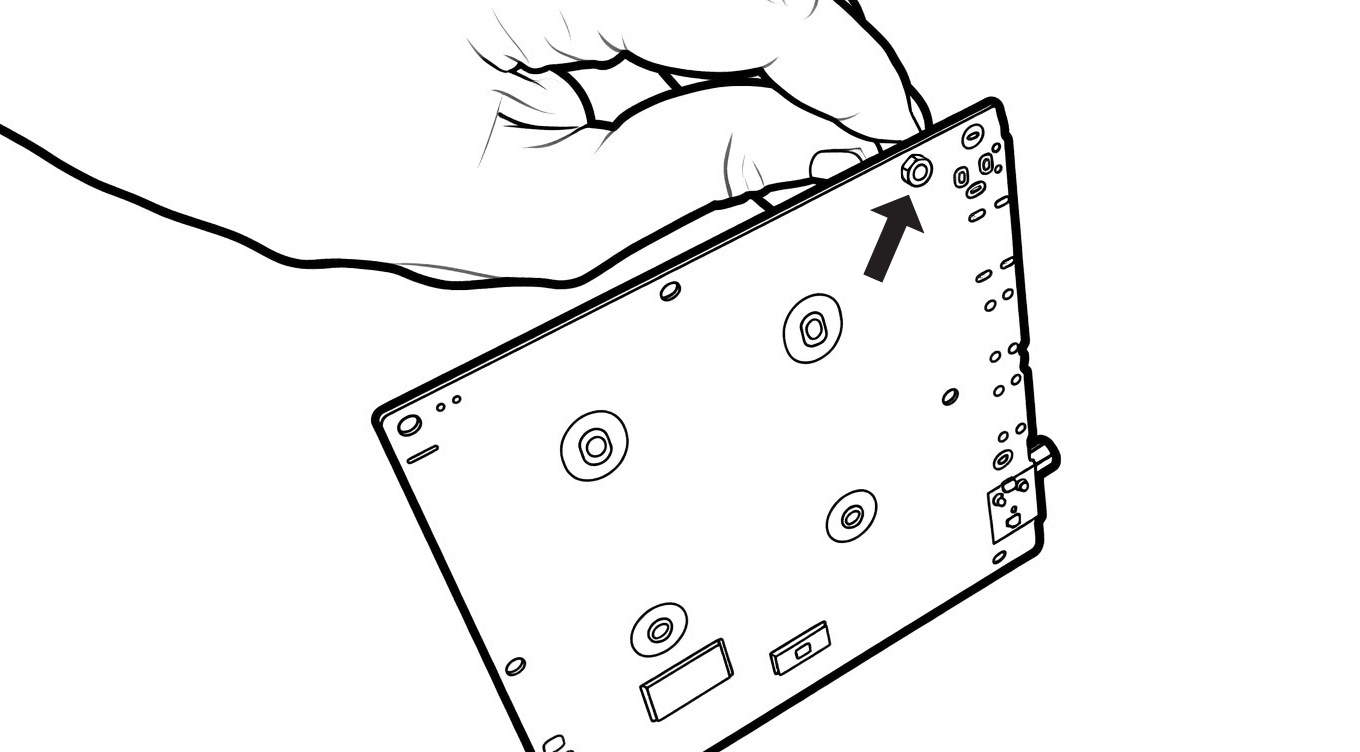
Then, turn the card over and screw the nut onto the spacer.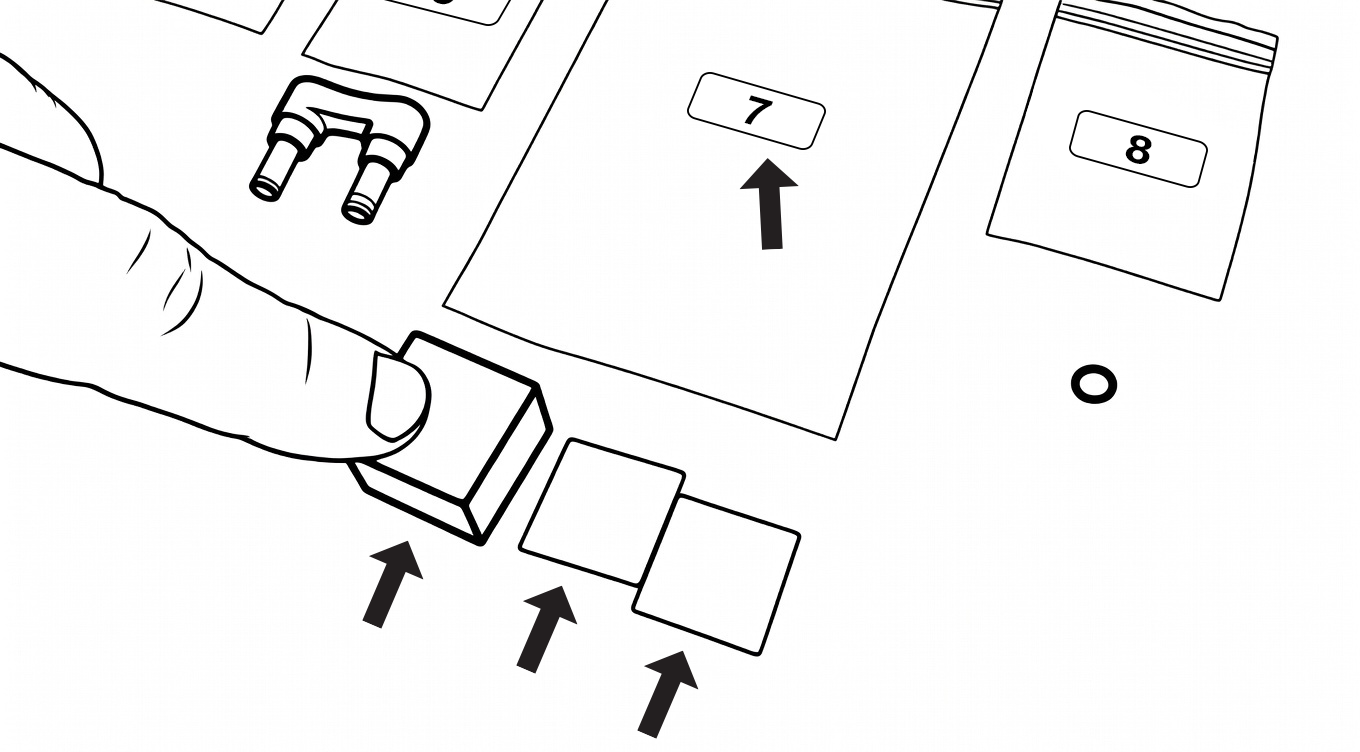
When this is done, take the items from bag number 7:
- 1 black cube
- 2 white thermal pastes
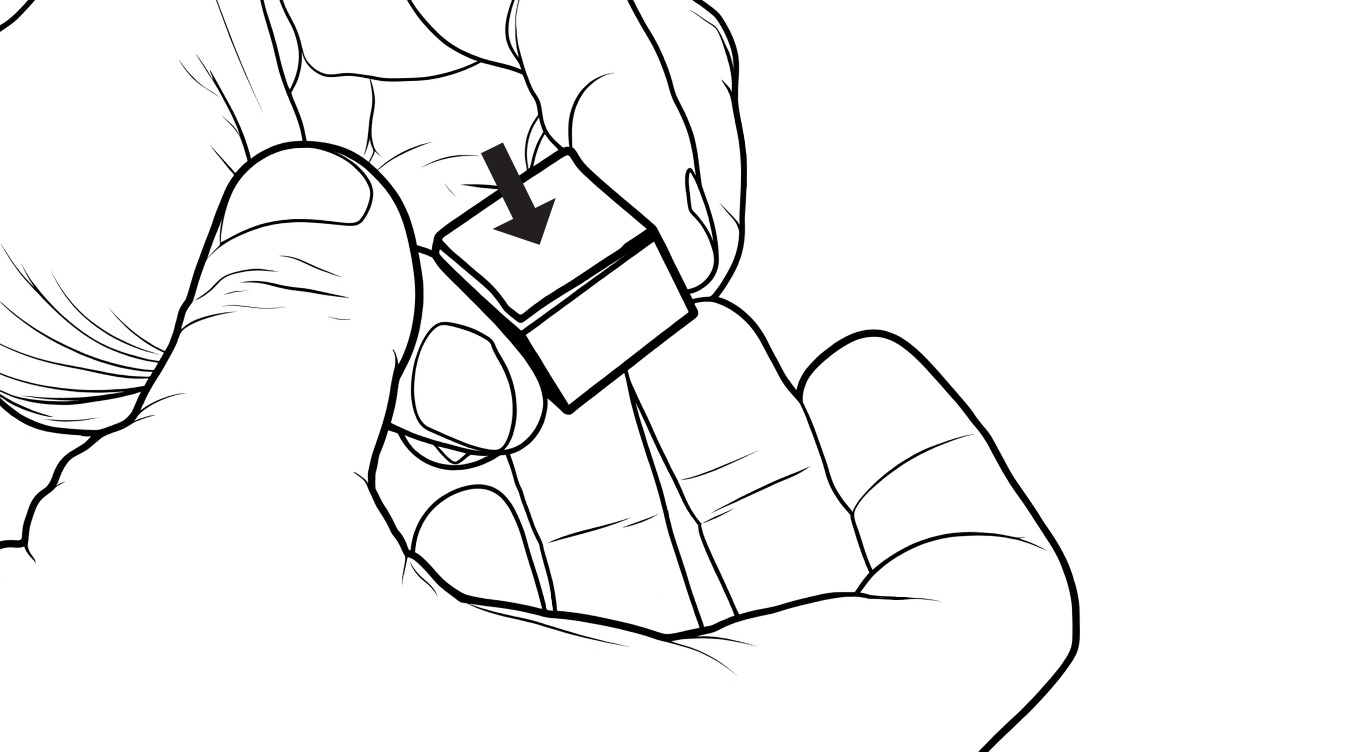
Take the cube and place the first thermal paste on one of the faces.
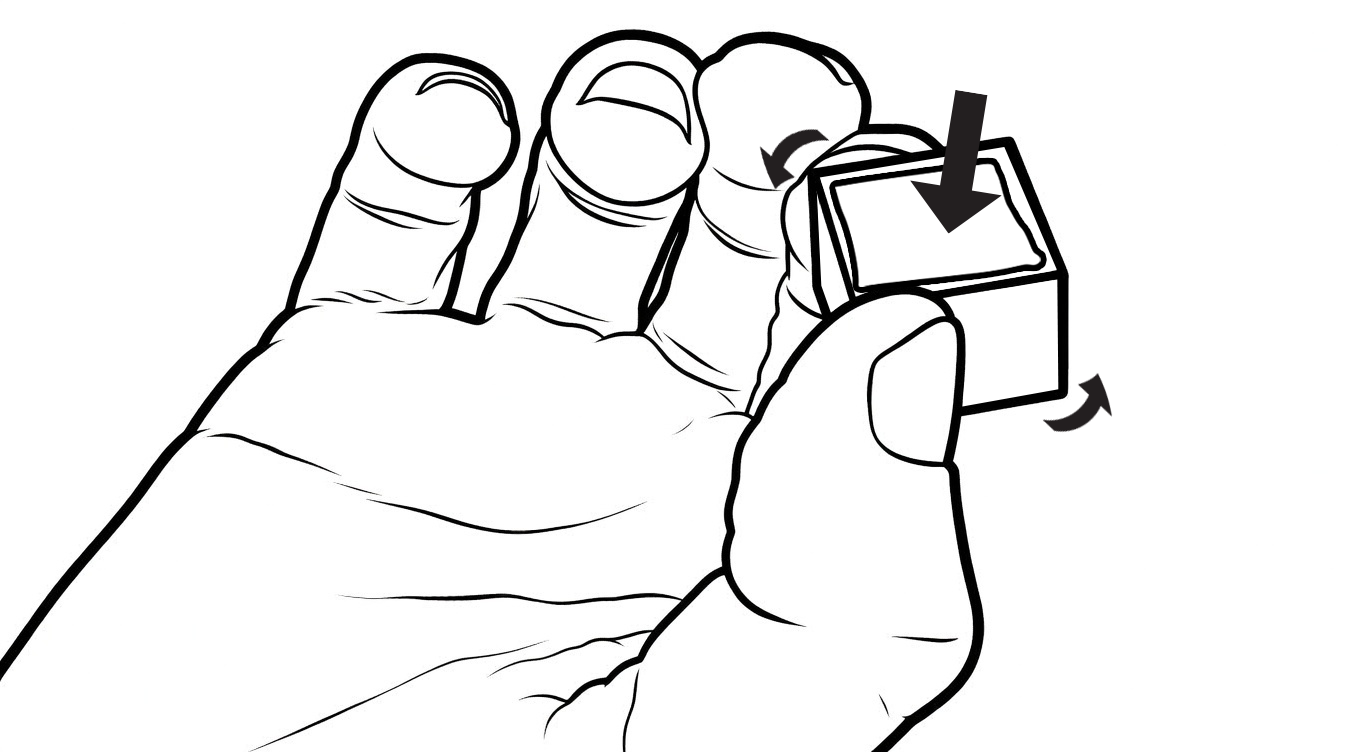
Then, turn the cube 180 degrees, and place the second thermal paste on the face opposite the first one.
In the end, you will have thermal paste on two opposite faces of the black cube.
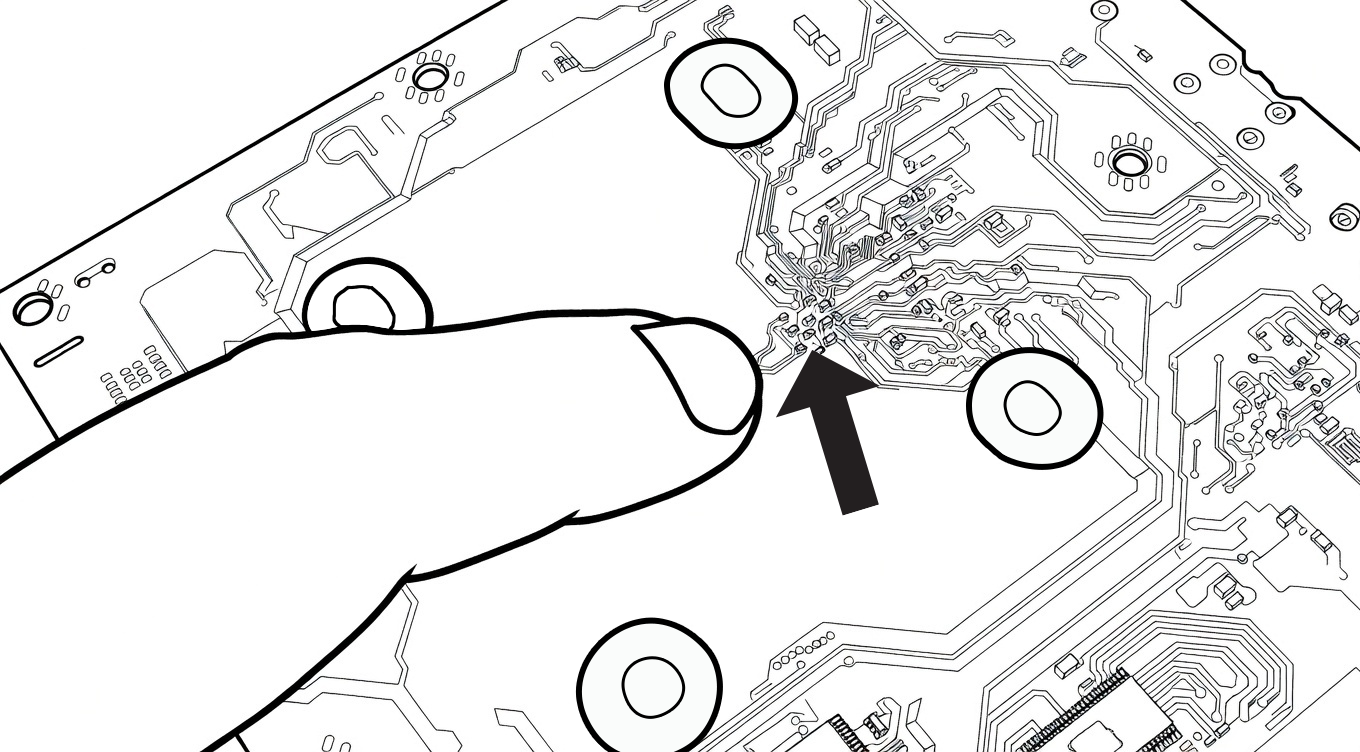
Locate the semiconductor group situated between the 4 large solder joints.
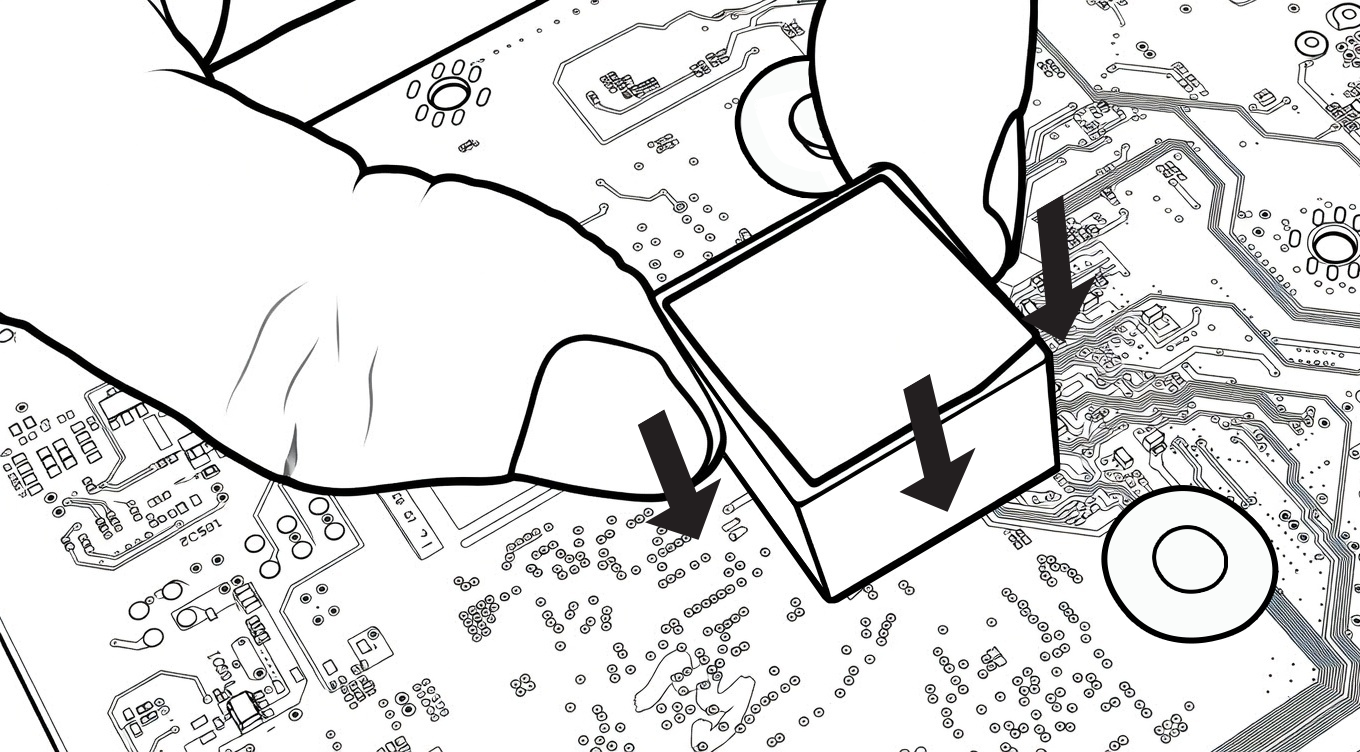
Then, place the cube there, thermal paste side down, and press firmly.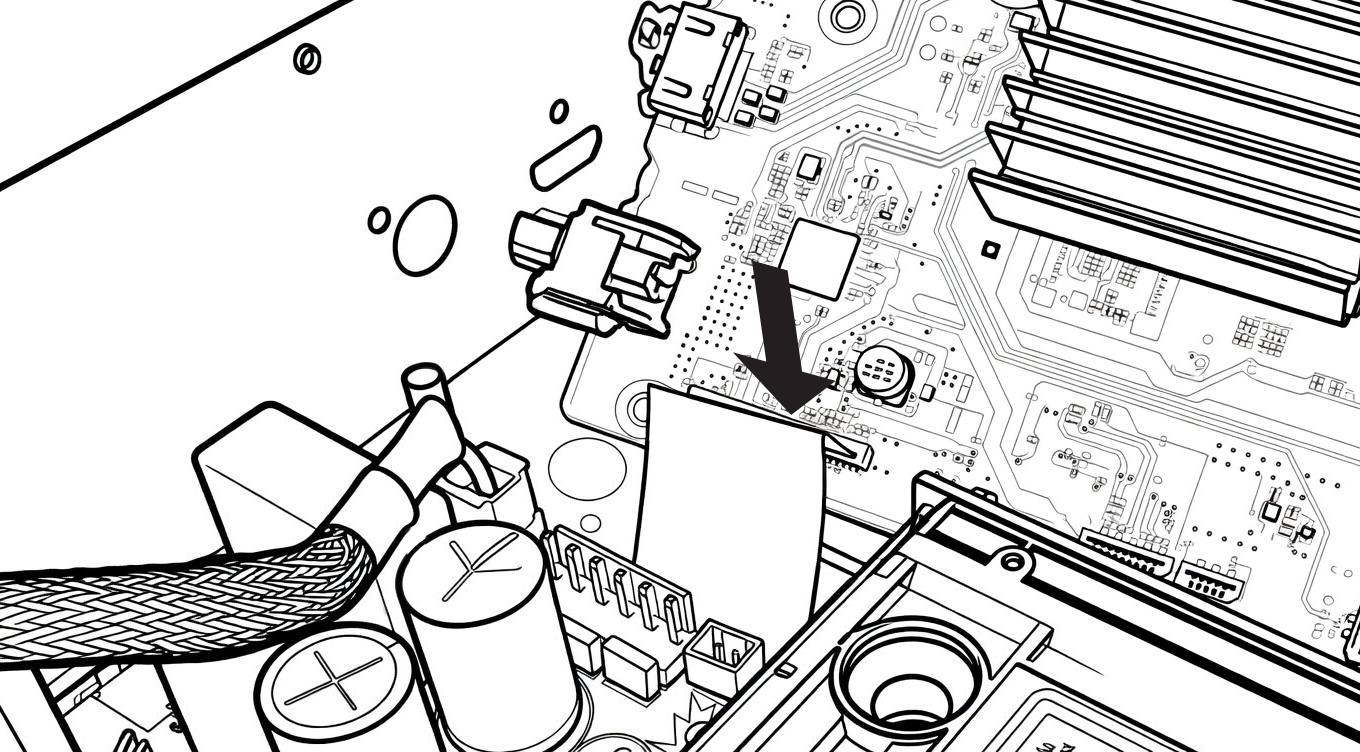
Turn the motherboard over and place it in the R_volution chassis, then connect the cable coming from the optical drive that passes under the electronic board.
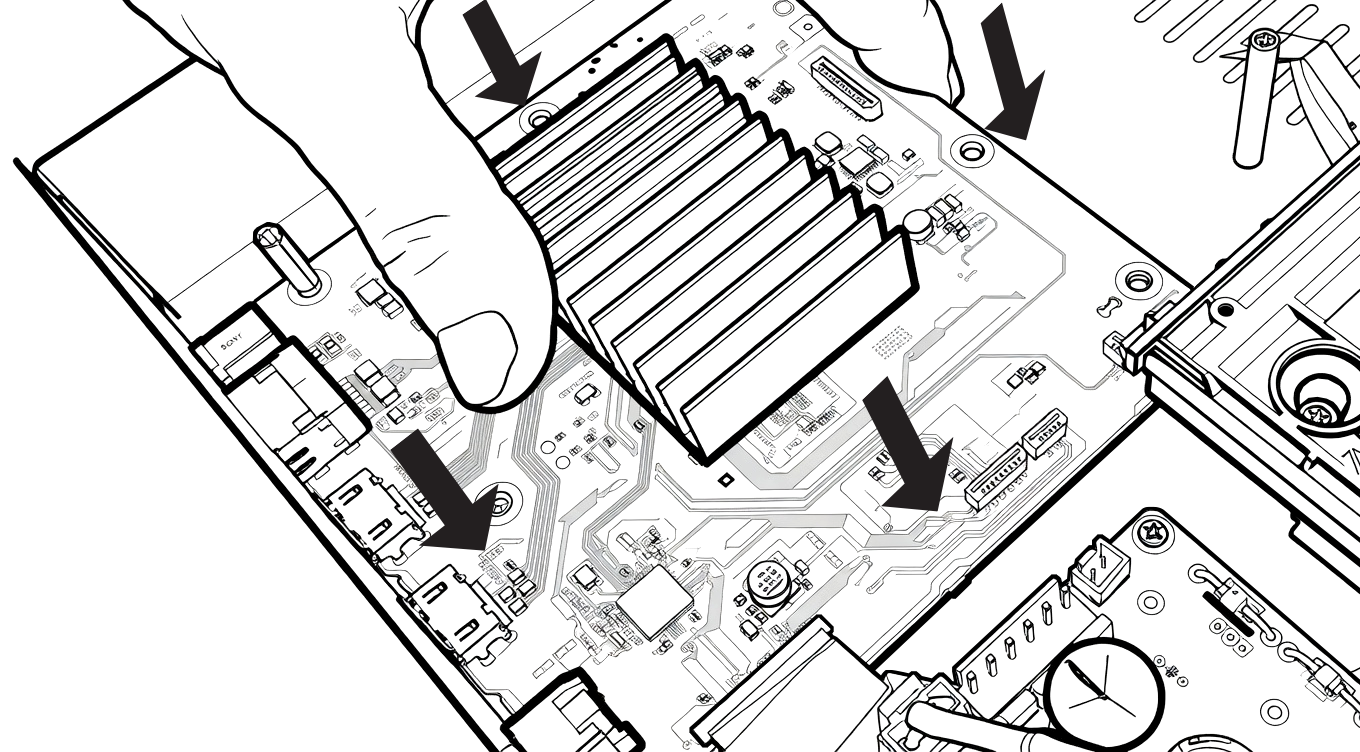
Then, place the motherboard in its slot, making sure to position the HDMI connectors in the dedicated holes on the rear of the R_volution chassis.
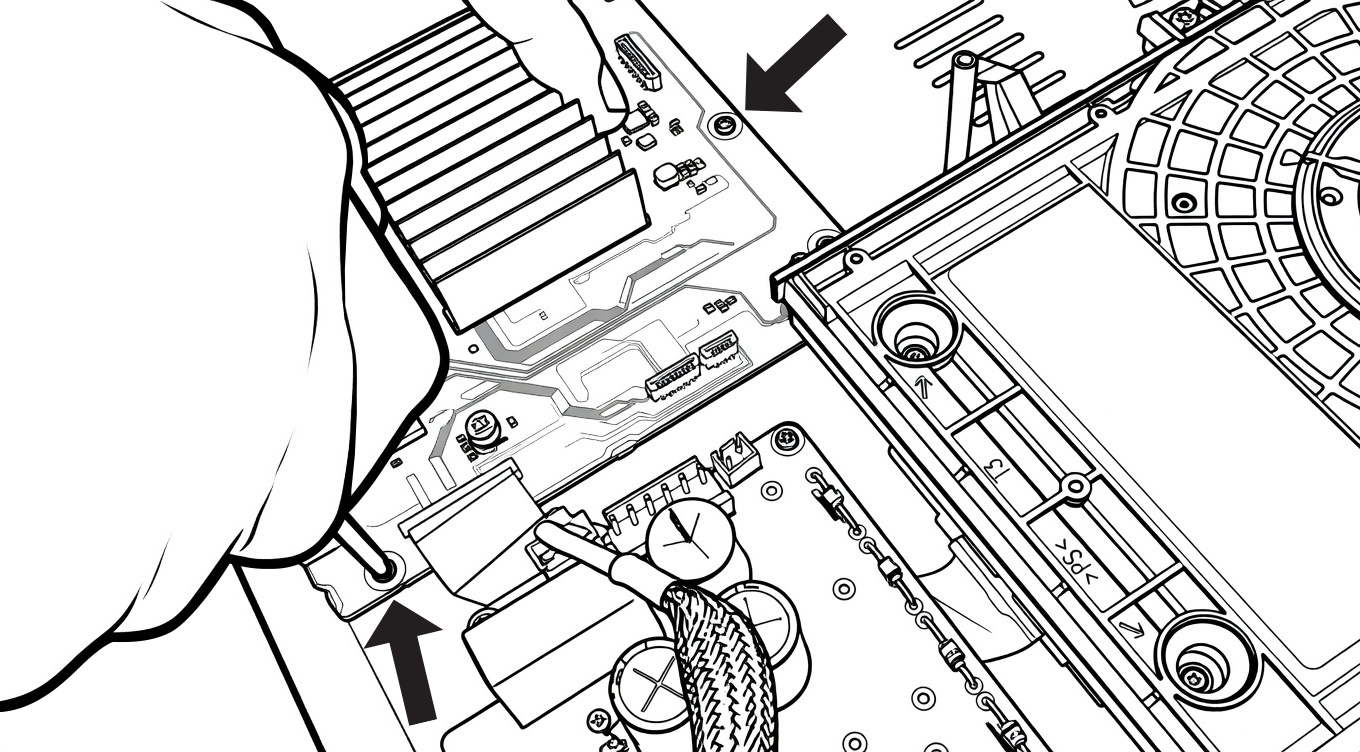
Once the motherboard is in place, there are 2 screws to put in. Use the screws from bag number 1 and screw them in using the Phillips screwdriver.
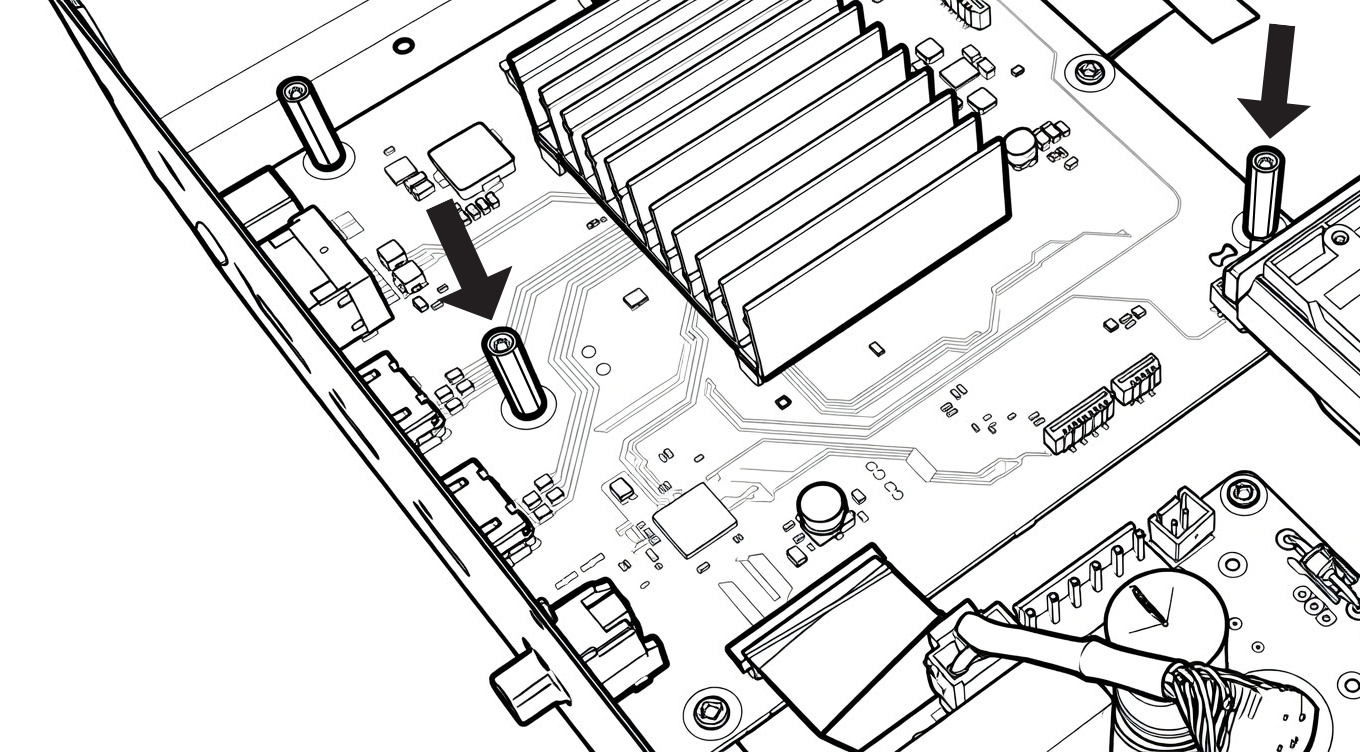
Then, screw in the two spacers that were removed previously at the locations indicated by the arrows on the diagram above.
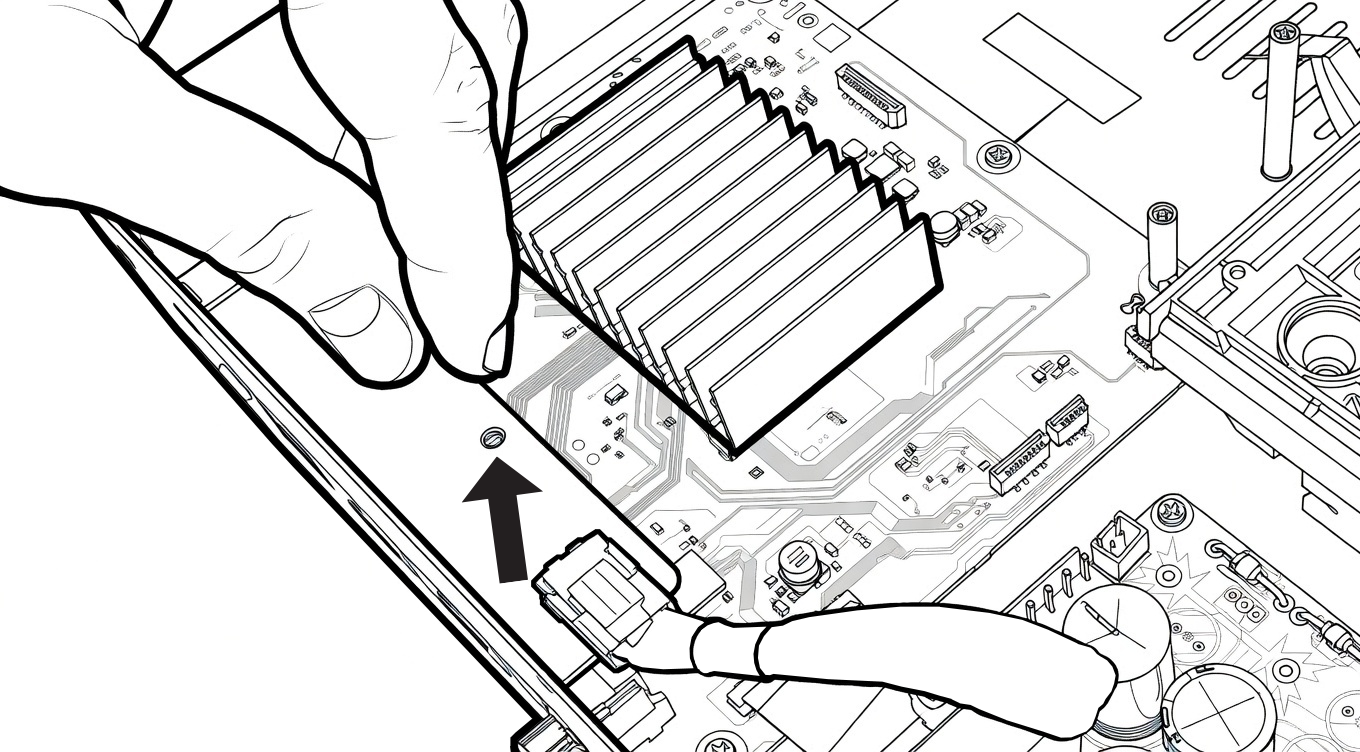
Next, place the electronic board lengthwise, which we had set aside earlier. Position it over the spacers located near the back of the R_volution chassis.
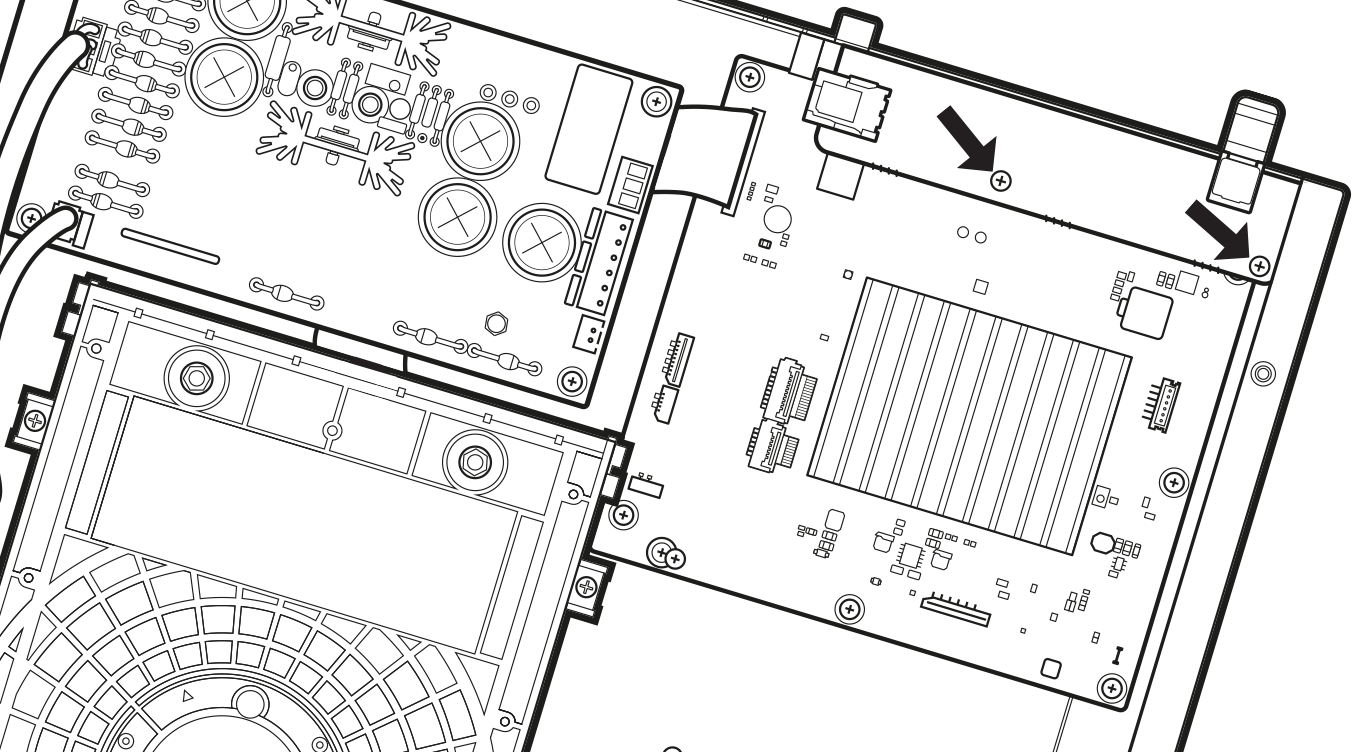
Then, take 2 screws from bag number 1 and screw them onto the circuit board lengthwise at the location indicated by the arrow in the diagram above using the Phillips screwdriver.
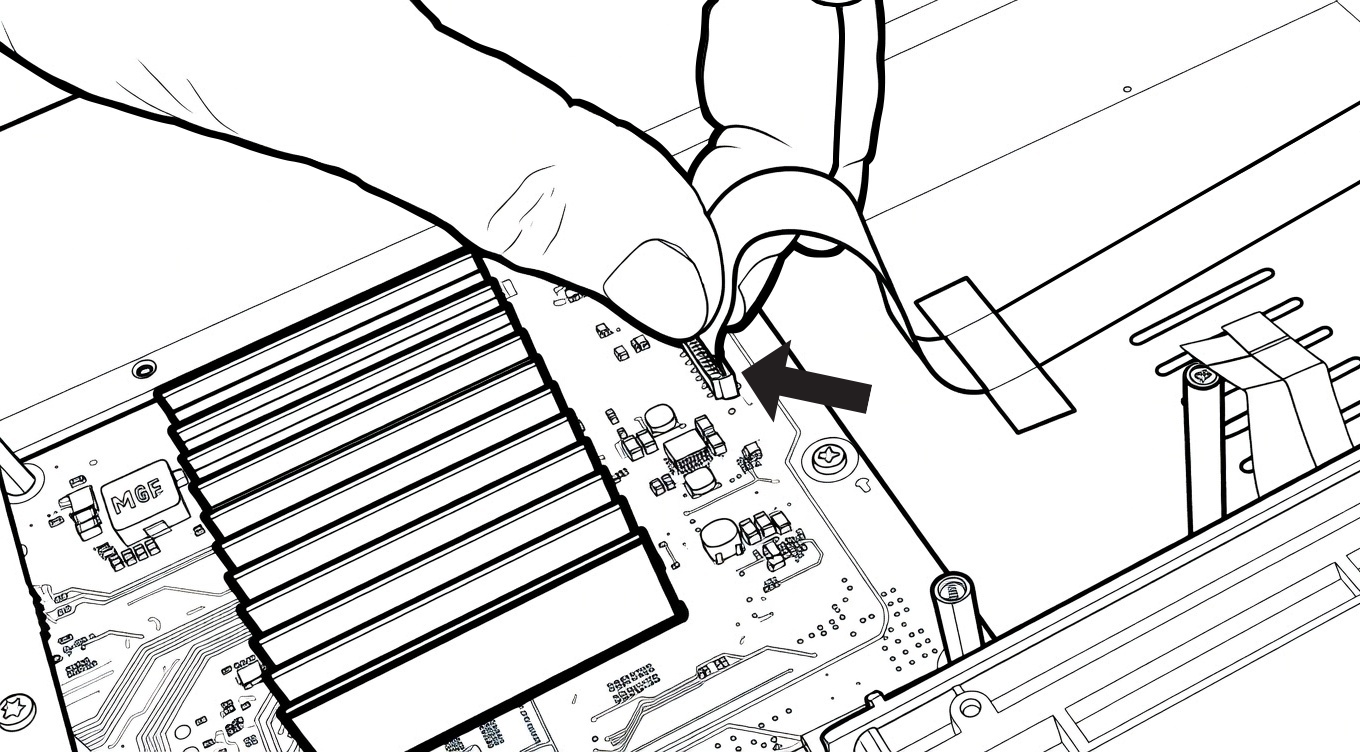
Then, there are two ribbon cables to connect to the motherboard. Start by connecting the widest ribbon cable to the connector indicated by the arrow in the diagram above.
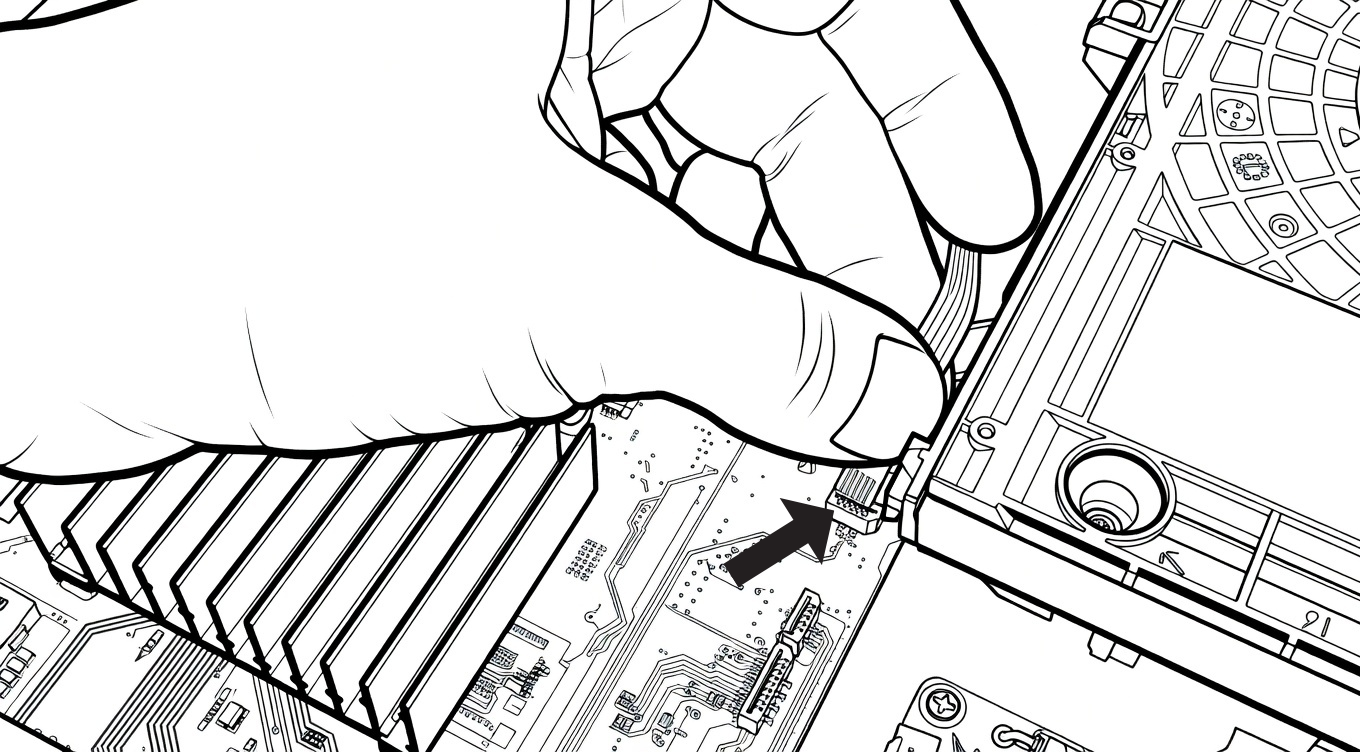
Then, connect the small ribbon cable that is located near the optical block.
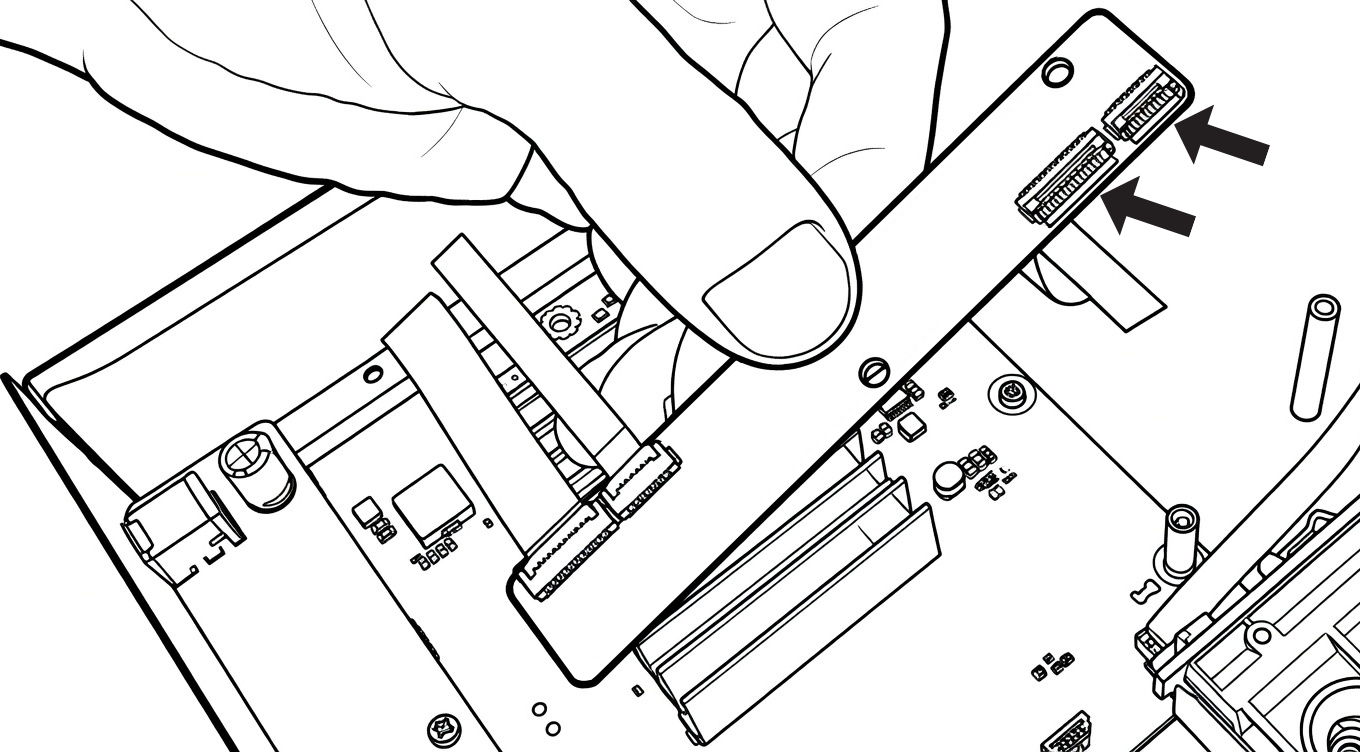
Then, take the small card lengthwise with the two empty ribbon connectors. On each of the two connectors, lift the latch that prevents the insertion of the ribbons.
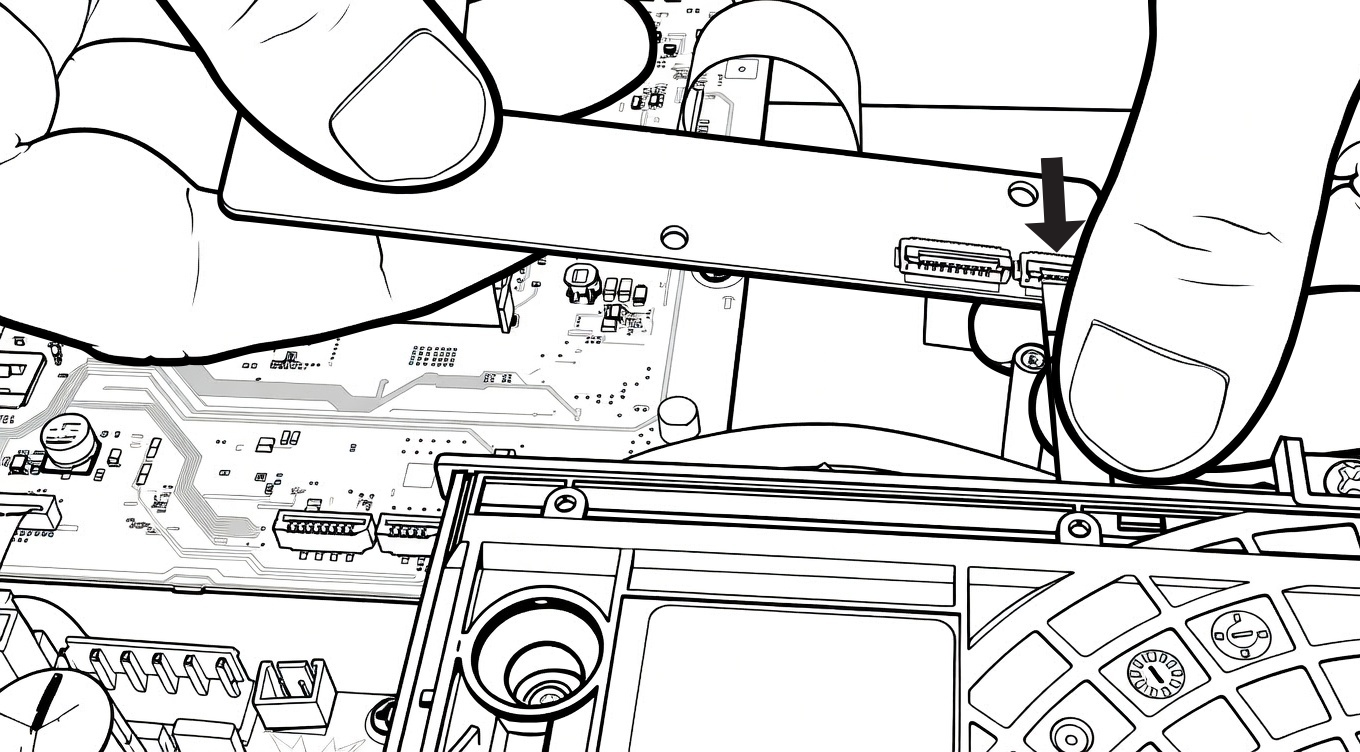
Then, insert the small ribbon cable into the small connector and close the flap.
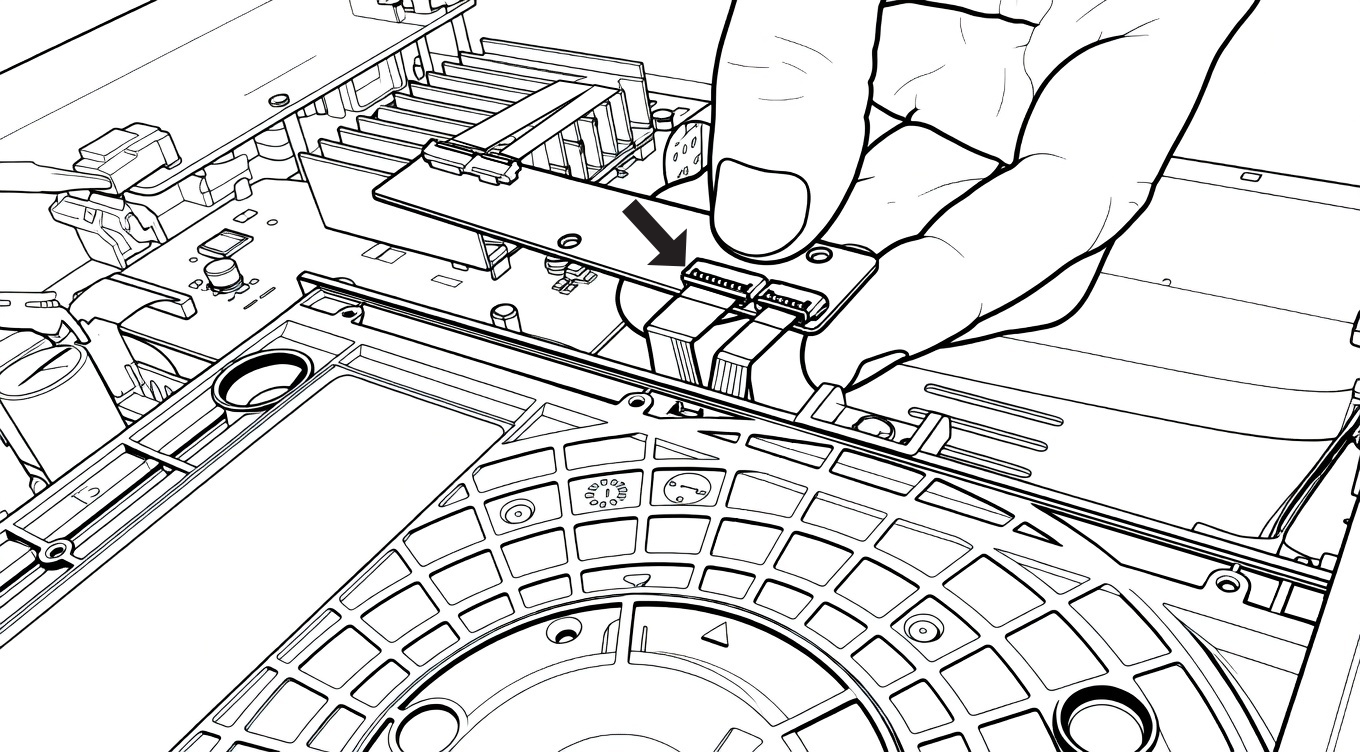
Proceed in the same way for the large ribbon cable that connects the optical block to the small electronic board in length. Insert the ribbon cable into the large connector and close the flap.
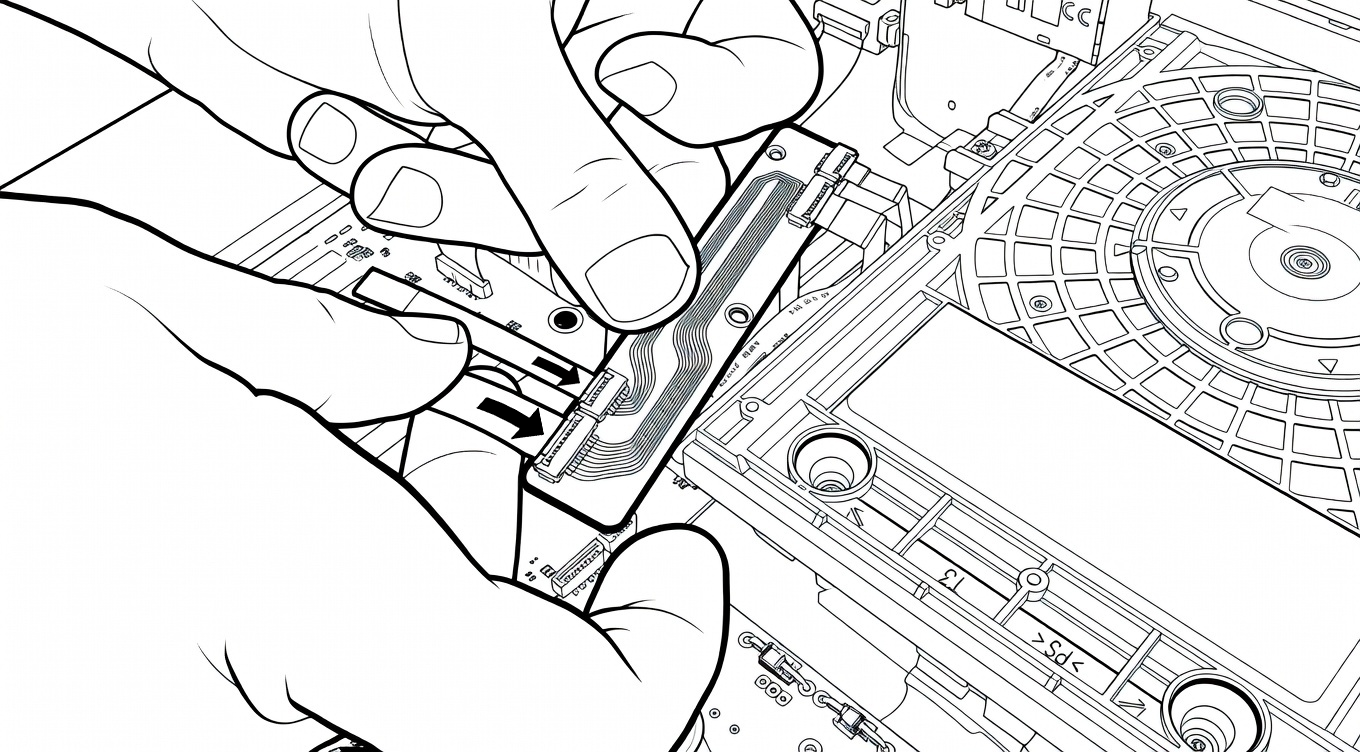
There remain the two ribbons of the electronic board to connect, indicated by the arrows on the diagram above.
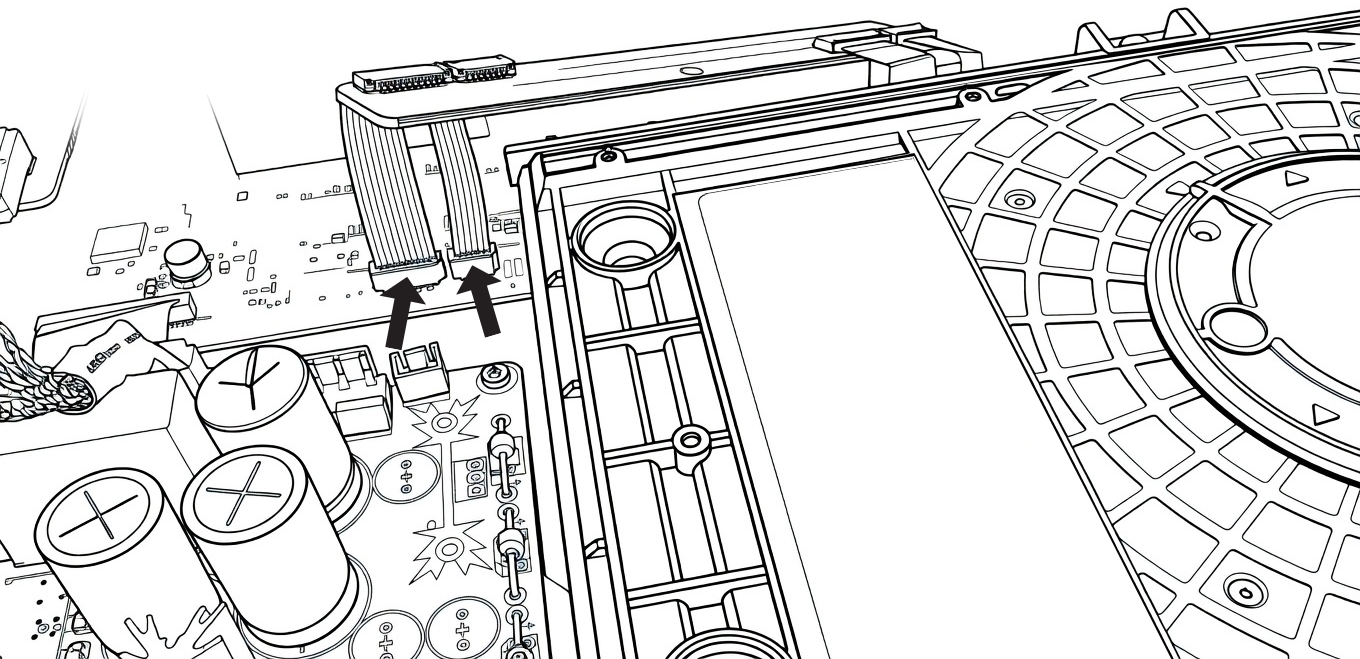
Connect the two ribbons in the dedicated slots on the motherboard located just below.
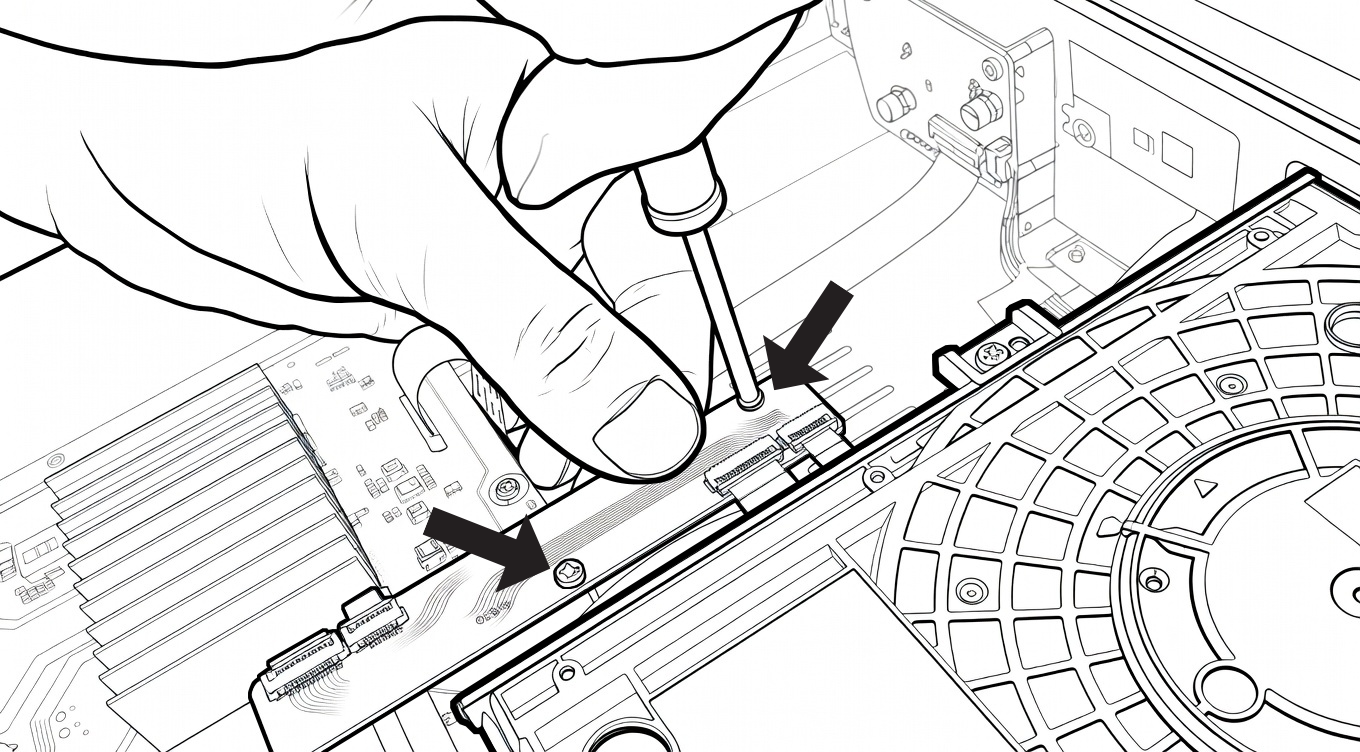
Next, take 2 screws from bag number 1 and screw the electronic board lengthwise with the 2 screws using the Phillips screwdriver.
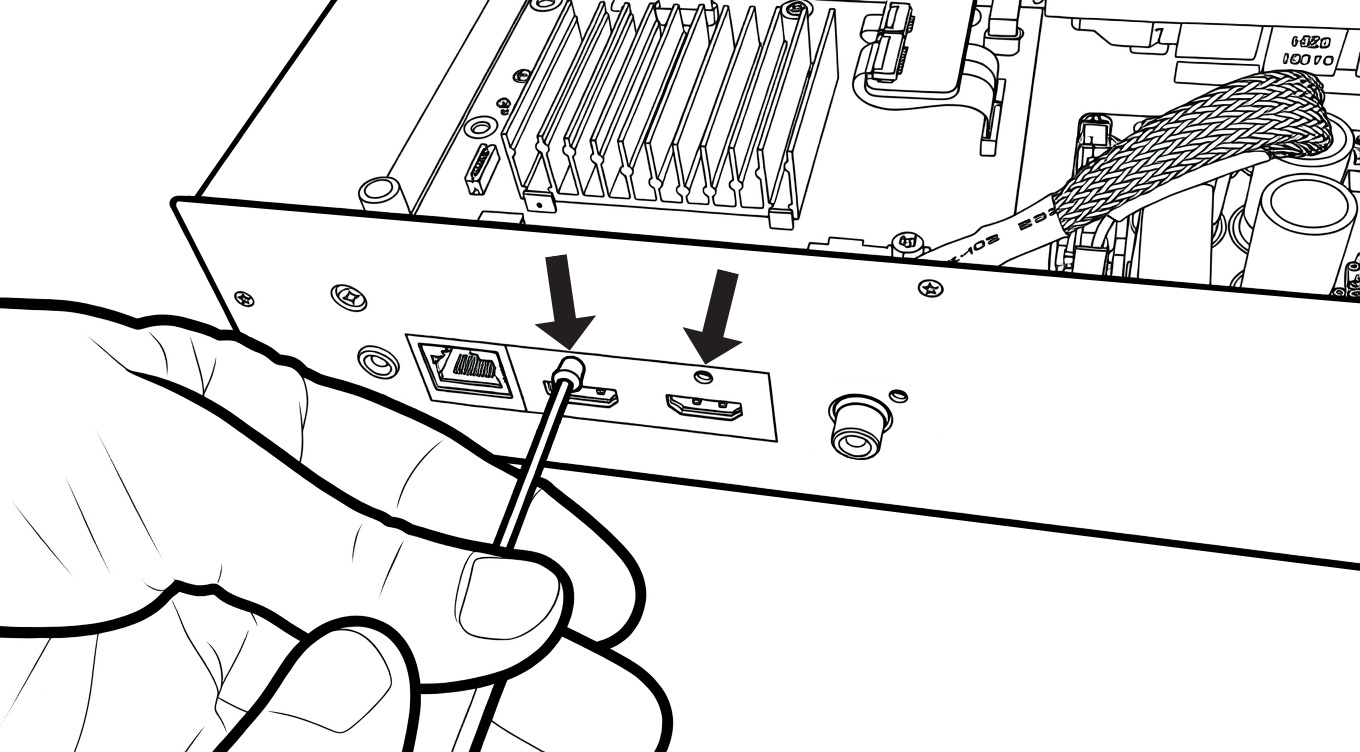
The HDMI connectors still need to be attached. For this, take the screws from bag number 3 and use the provided Allen screwdriver to screw them in.
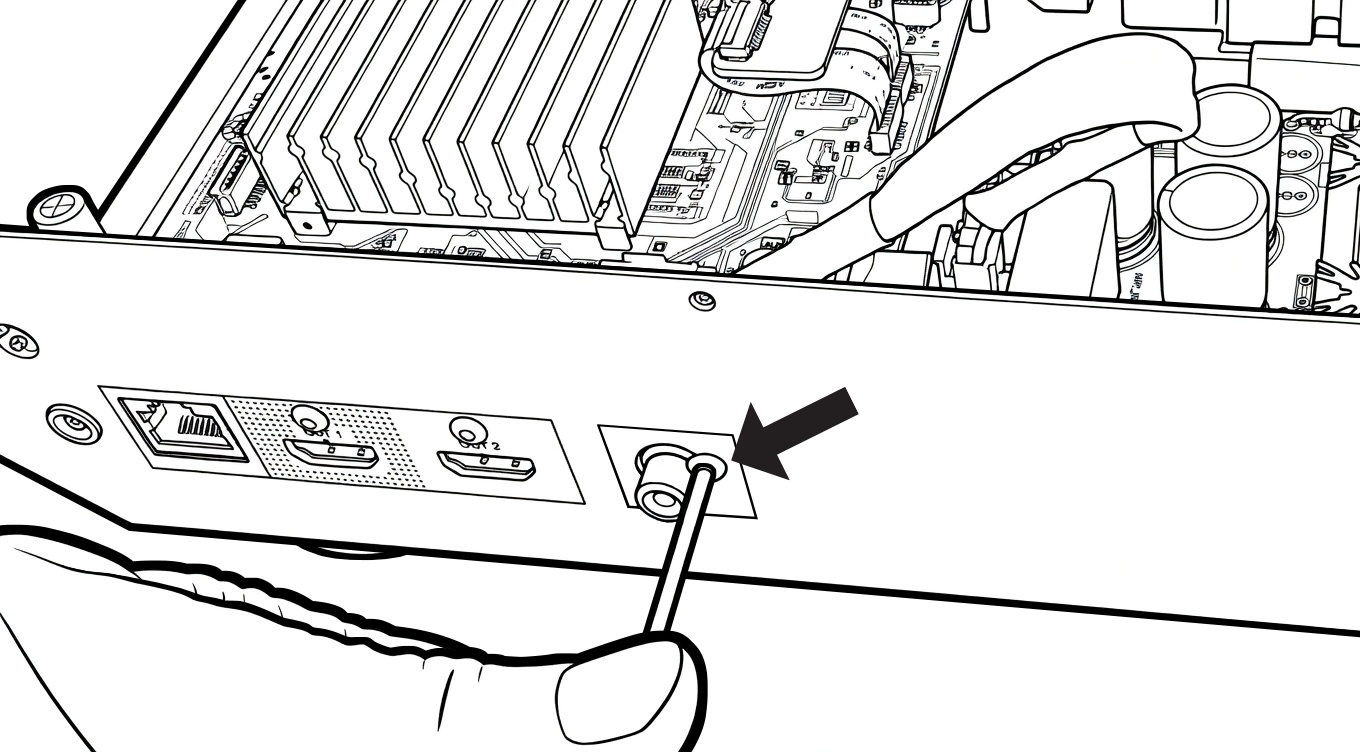
Do the same for the coaxial connector. Use a screw from bag number 3 and screw it in using the supplied Allen screwdriver.
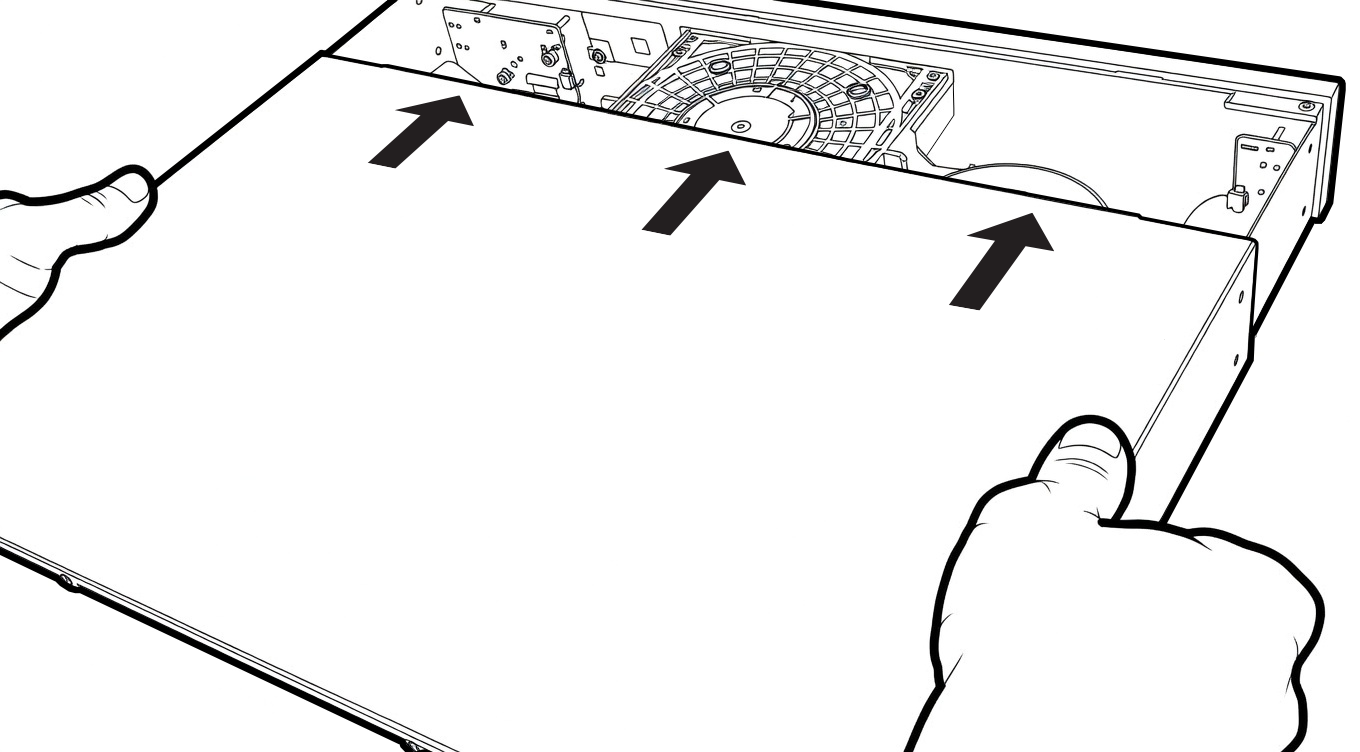
Then, take the chassis cover and slide it over starting from the back of the device.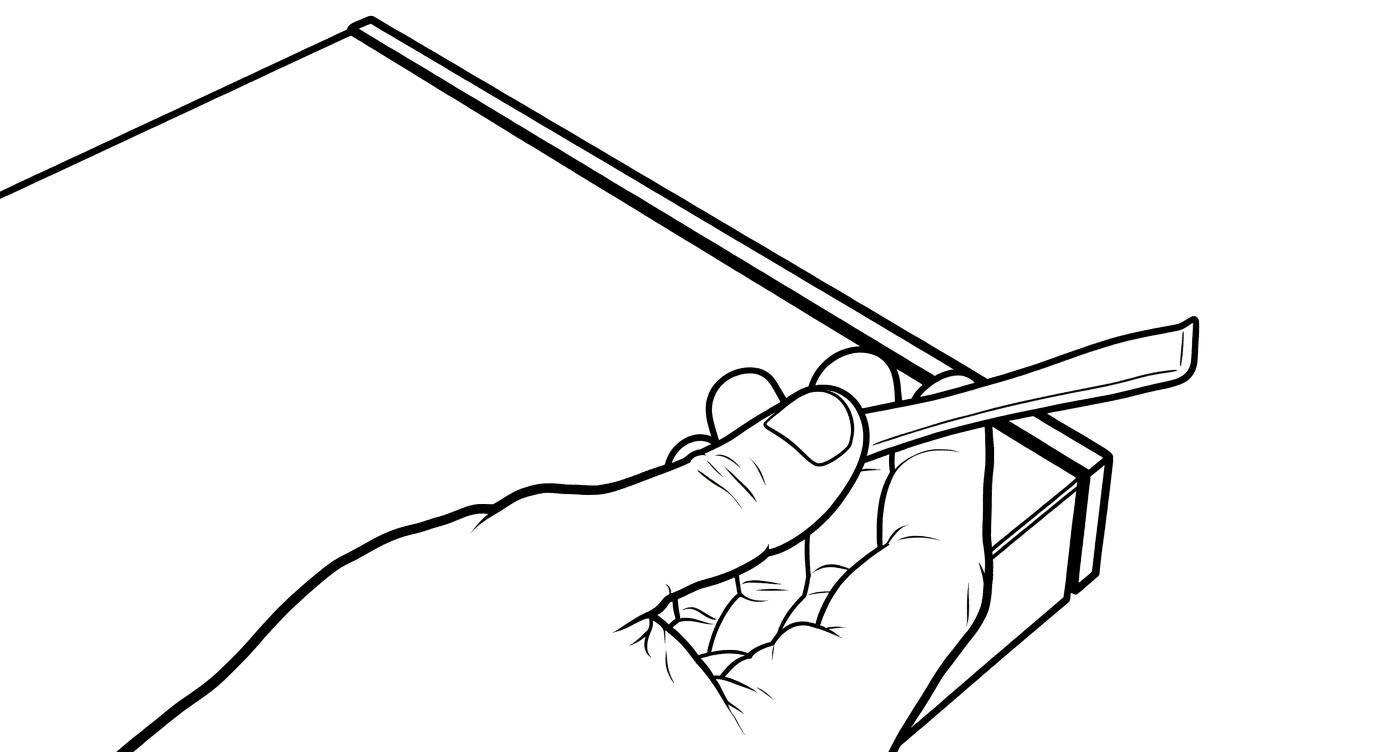
If you have difficulty closing the hood, use the provided tool to slightly lift the hood, which can then complete its closure.
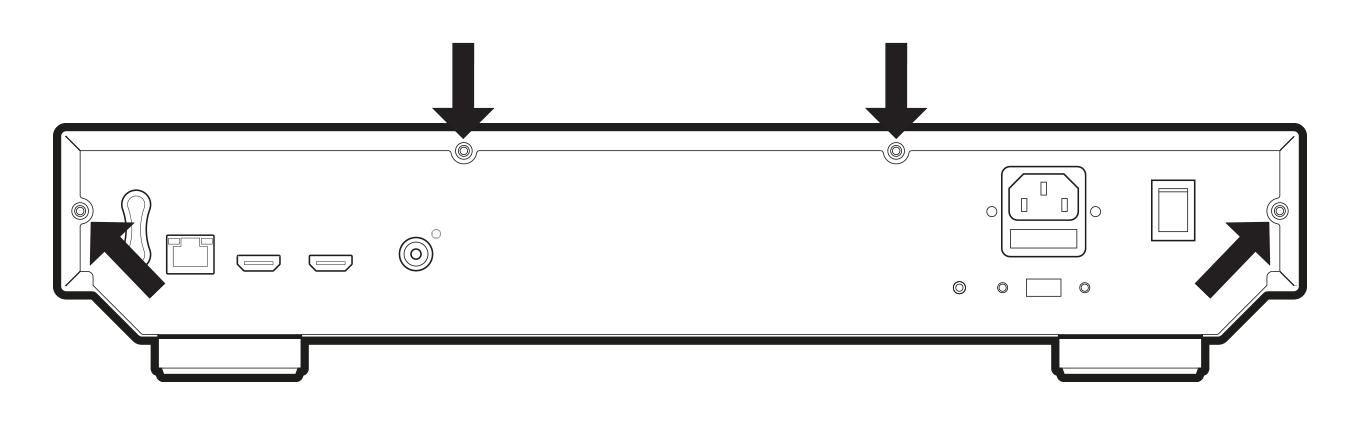
Take 4 screws from bag number 2 and screw them into the locations indicated by the arrows on the diagram above to secure the cover. Use the Allen screwdriver.
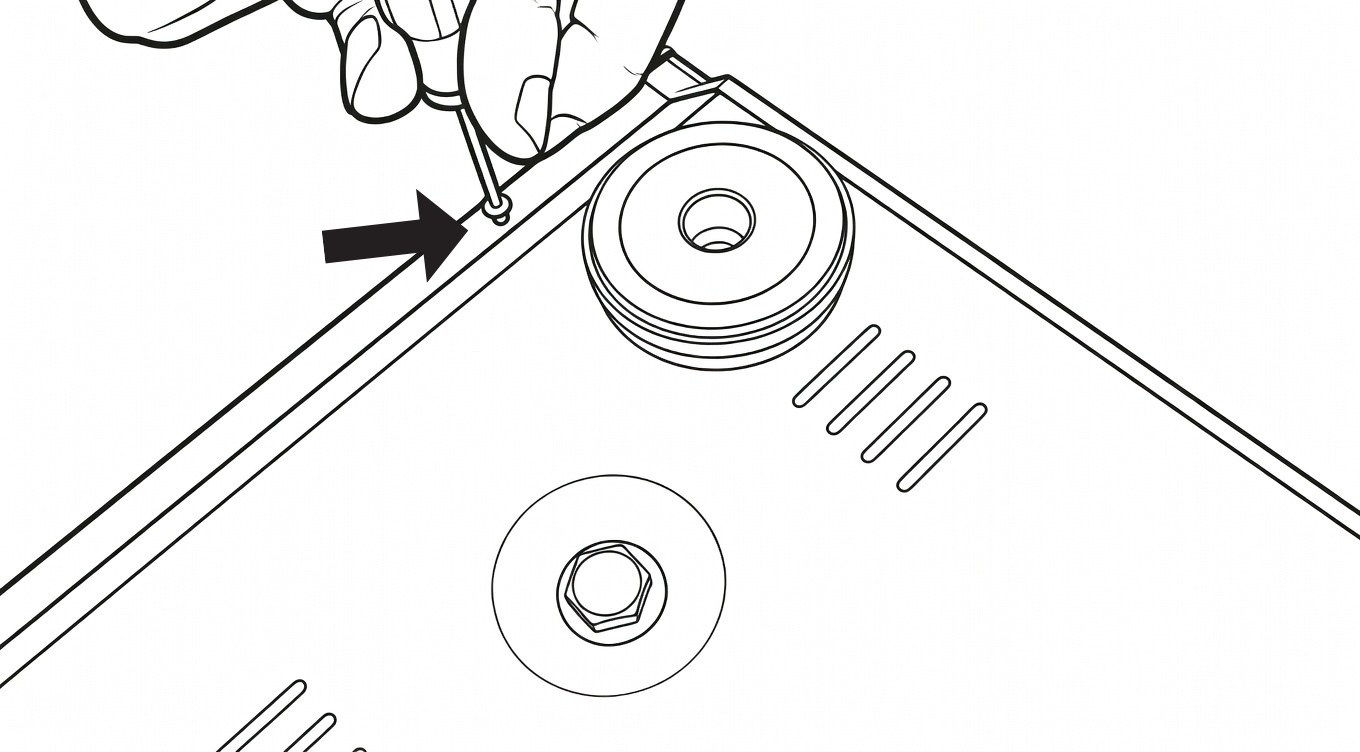
Finally, there are 4 screws left to screw under the chassis. Turn the chassis over. Then, still using the screws from bag number 2, screw 4 screws into the holes located on the sides of the bottom, near the feet.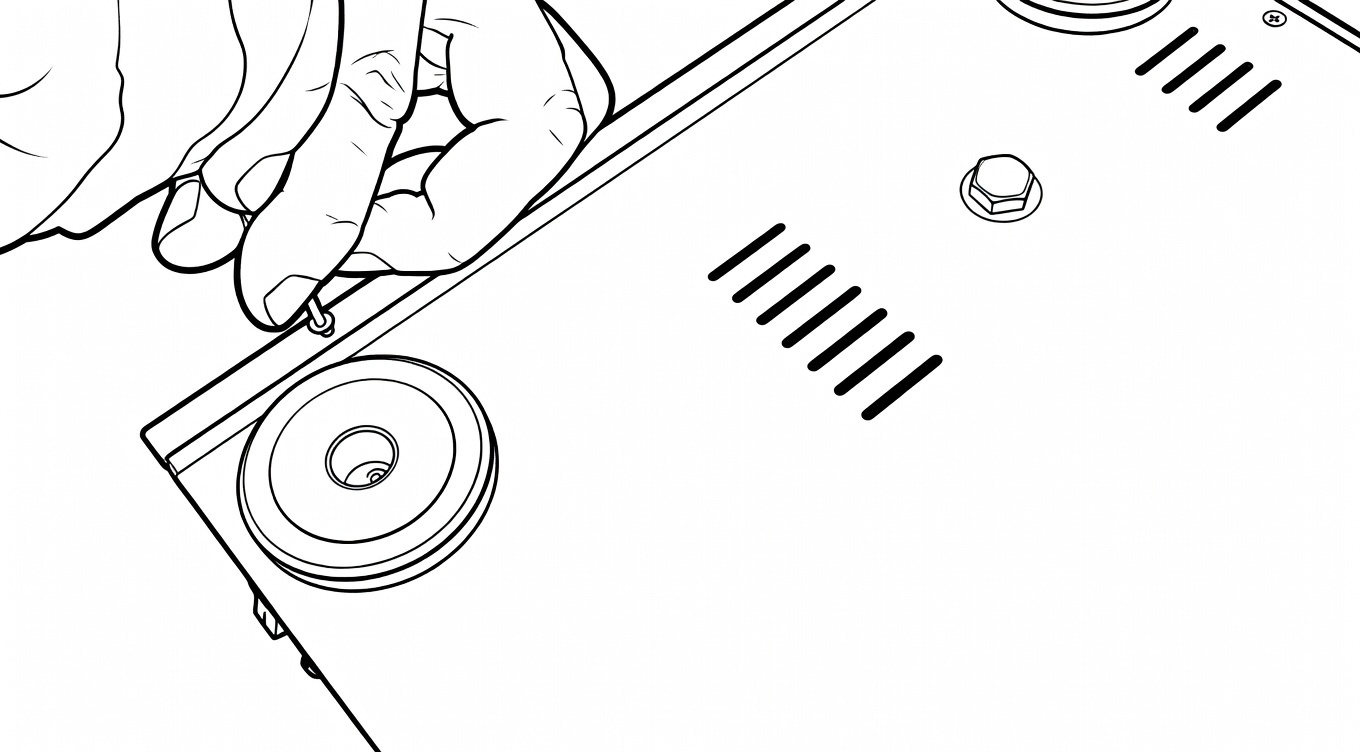
Screw the second screw into the hole located near the left rear foot.
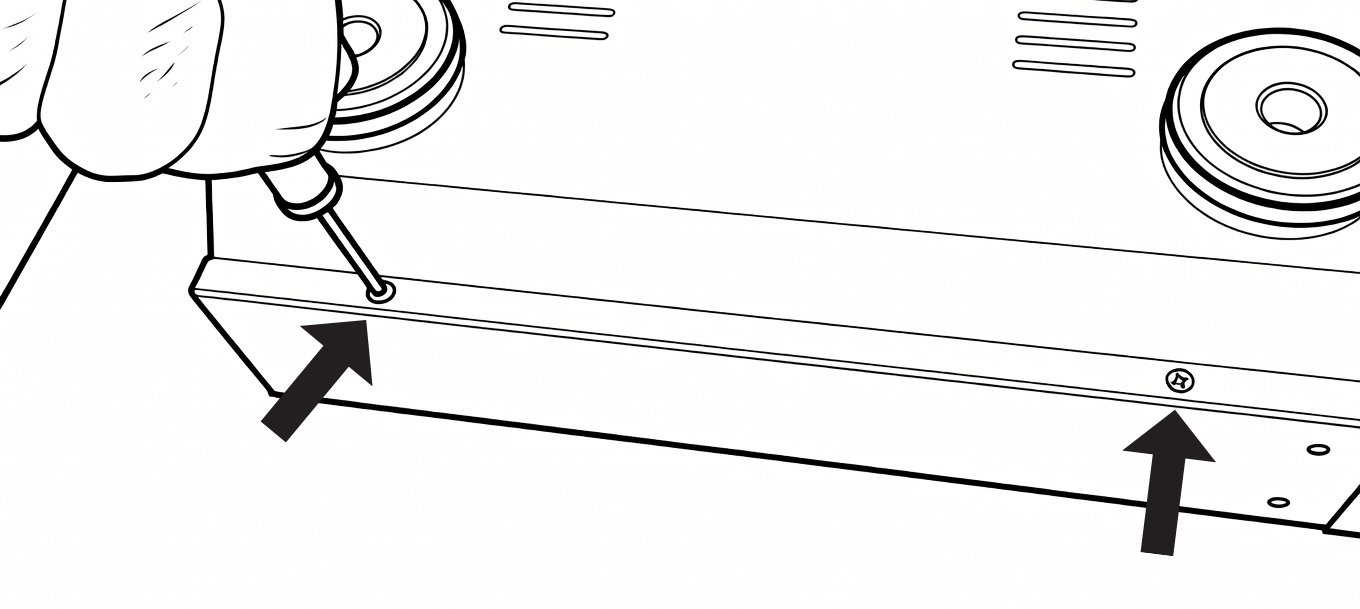 Do the same for the other two holes located on the opposite side.
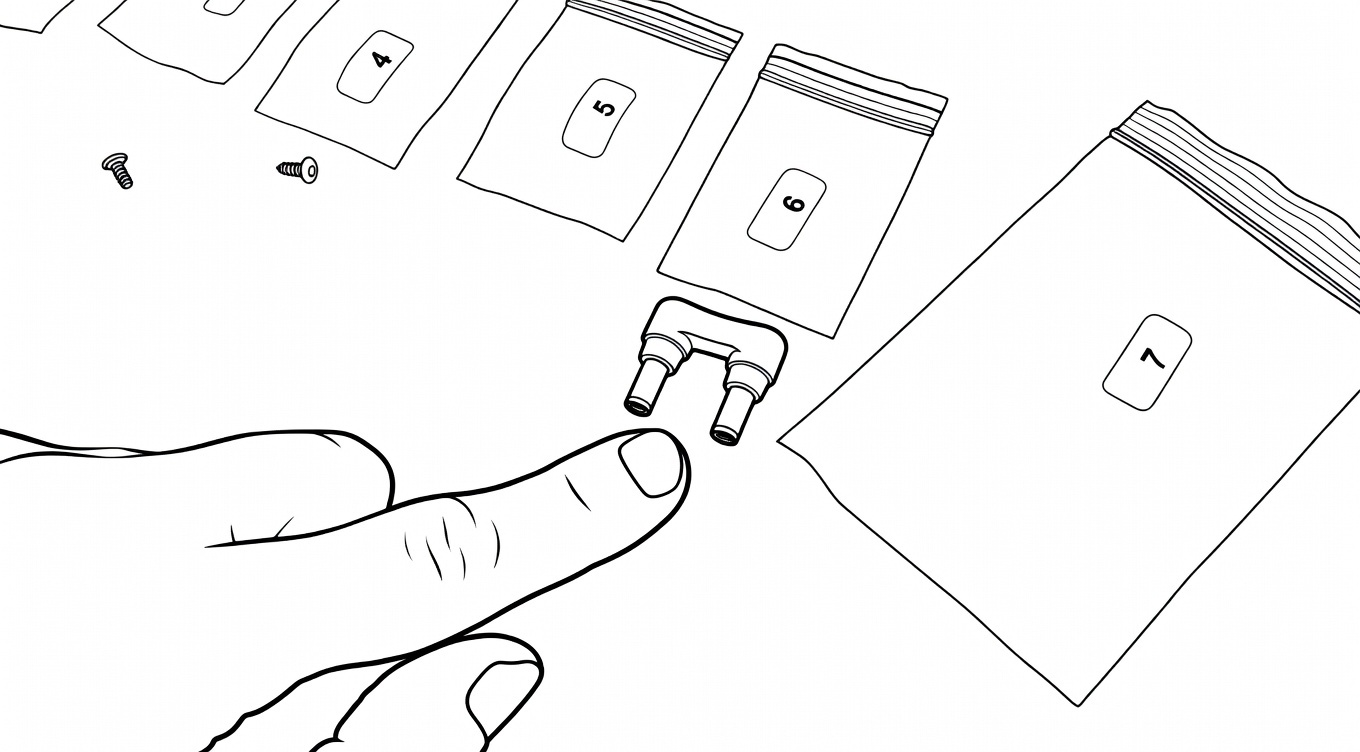
In bag number 6, retrieve the U-shaped adapter and connect it to the designated slot on the left side of the back of the device. This adapter allows the motherboard to connect to the R_volution linear power supply.
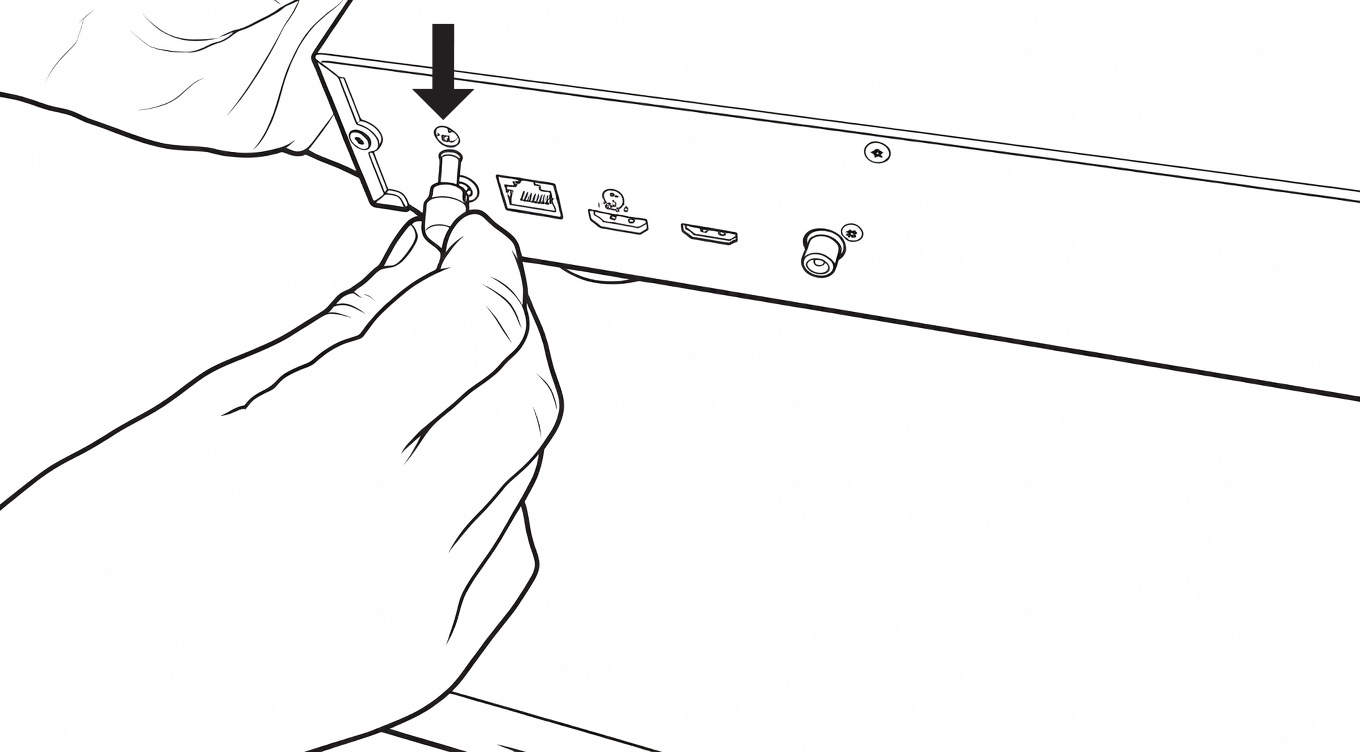
The adapter is equipped with a keying feature. This way, you will not be able to insert it the wrong way when you connect it.
And there you go! Your player is ready to use!
Was this article helpful?
That’s Great!
Thank you for your feedback
Sorry! We couldn't be helpful
Thank you for your feedback
Feedback sent
We appreciate your effort and will try to fix the article