To enable parental control in R_video, follow these steps:
1. Launch R_video then go to Menu > Settings.
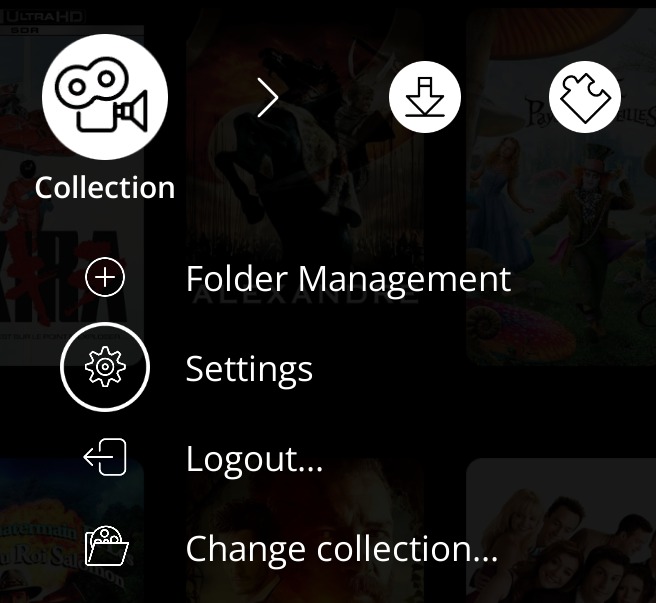
2. Click on the “Advanced options” icon in the left bar.

3. In the “Advanced options” panel, go to the very bottom and click on the “Enable parental controls” option located in the Parental controls section.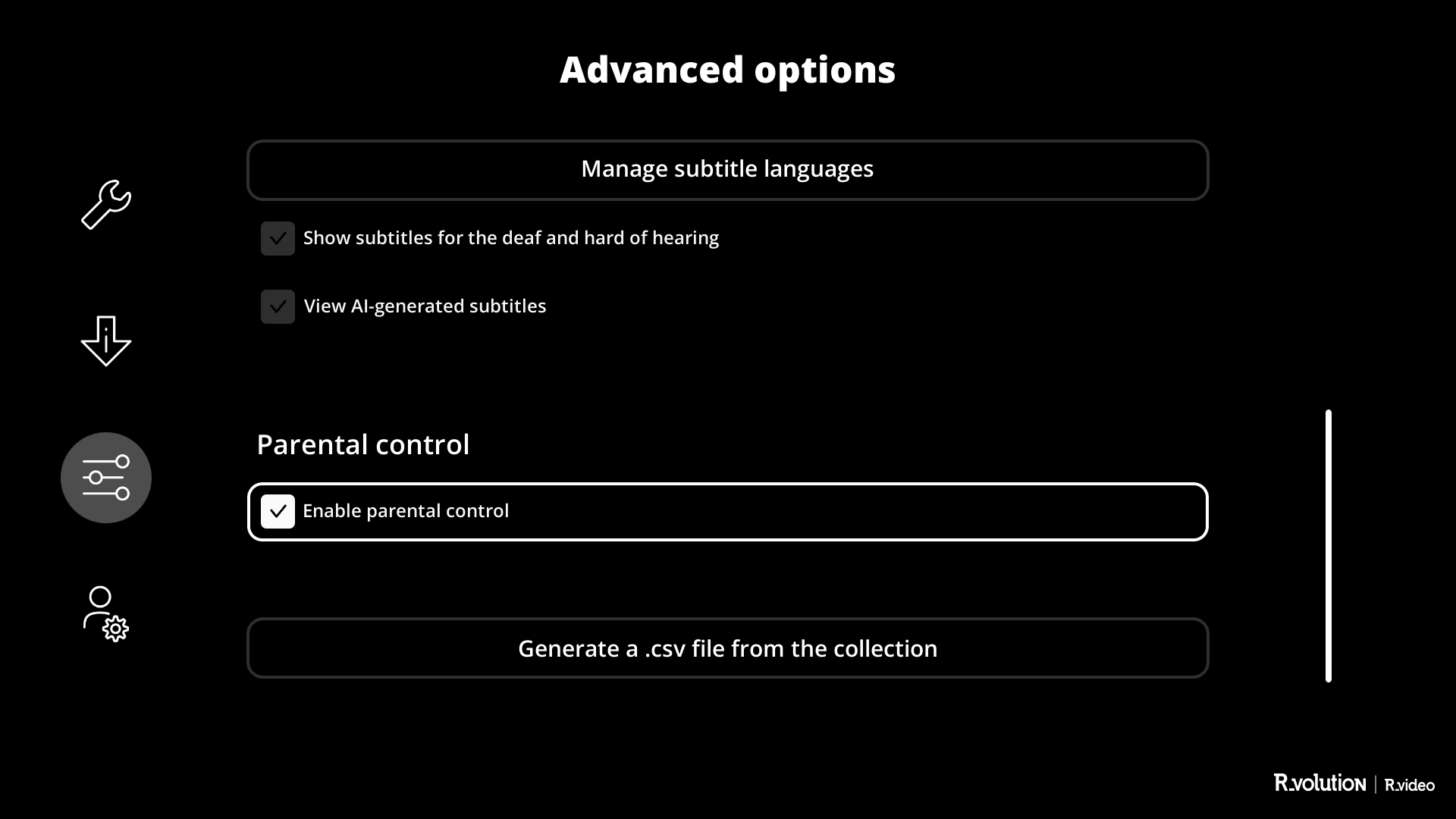
4. Enter a 4-number PIN (avoid 1234 or 0000 for security reasons). Make a note of this number somewhere because it will be essential for you to deactivate parental controls later.
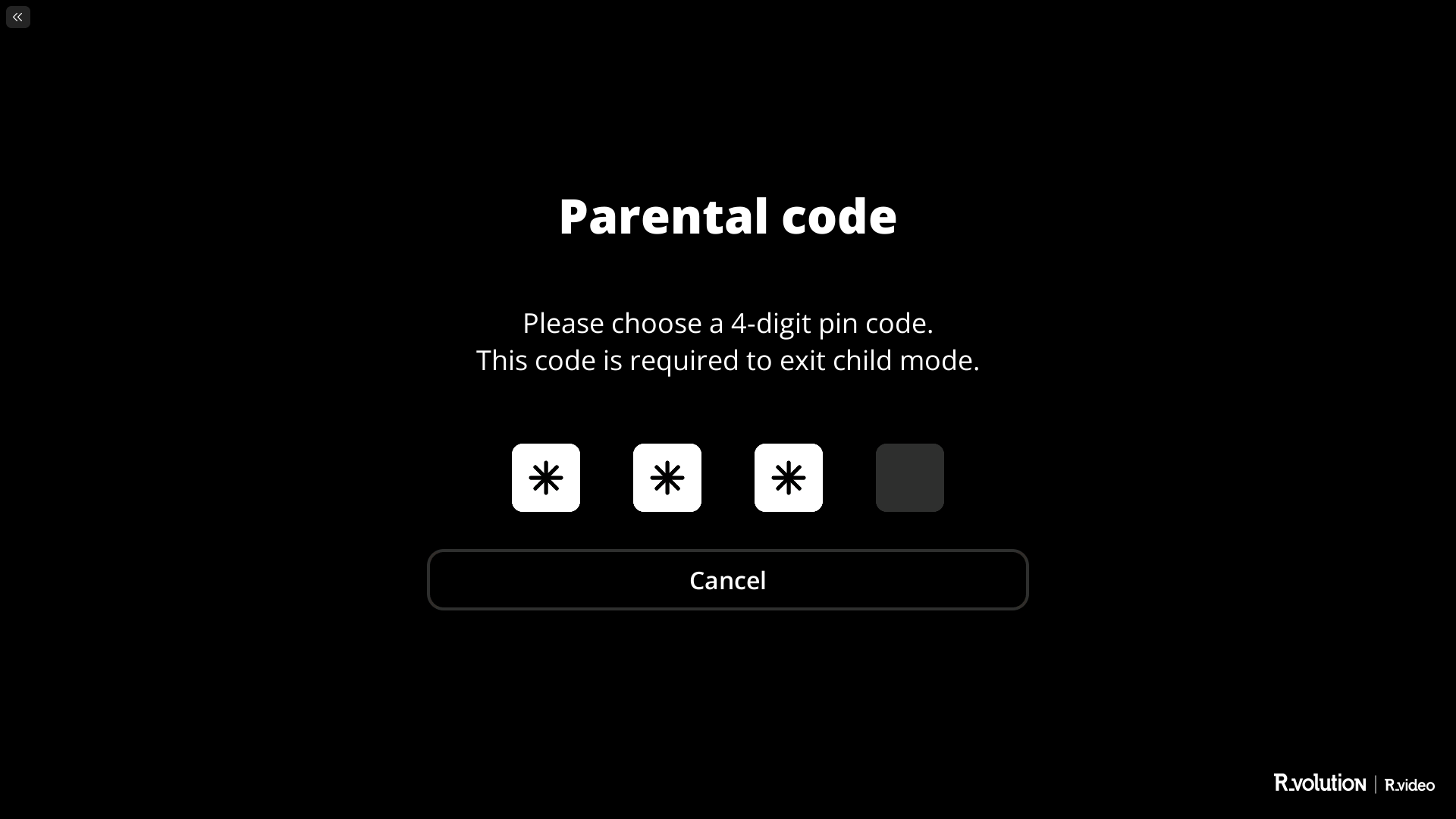
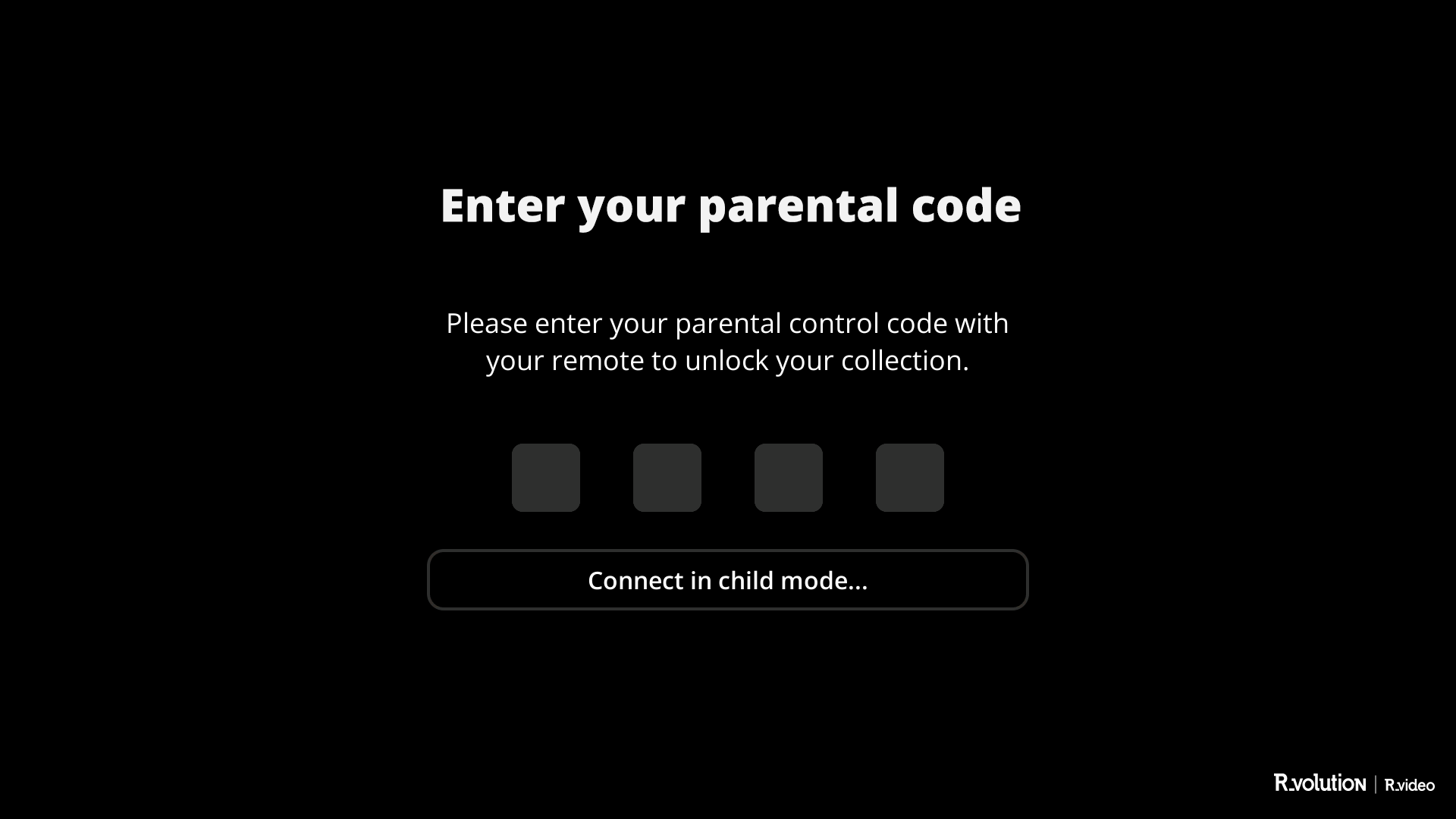
5. Once the code is entered, restart R_video. You will be asked to enter the PIN code. You will have 5 seconds to enter it. Once entered, you will see all the films appear, including those marked as children's movies.
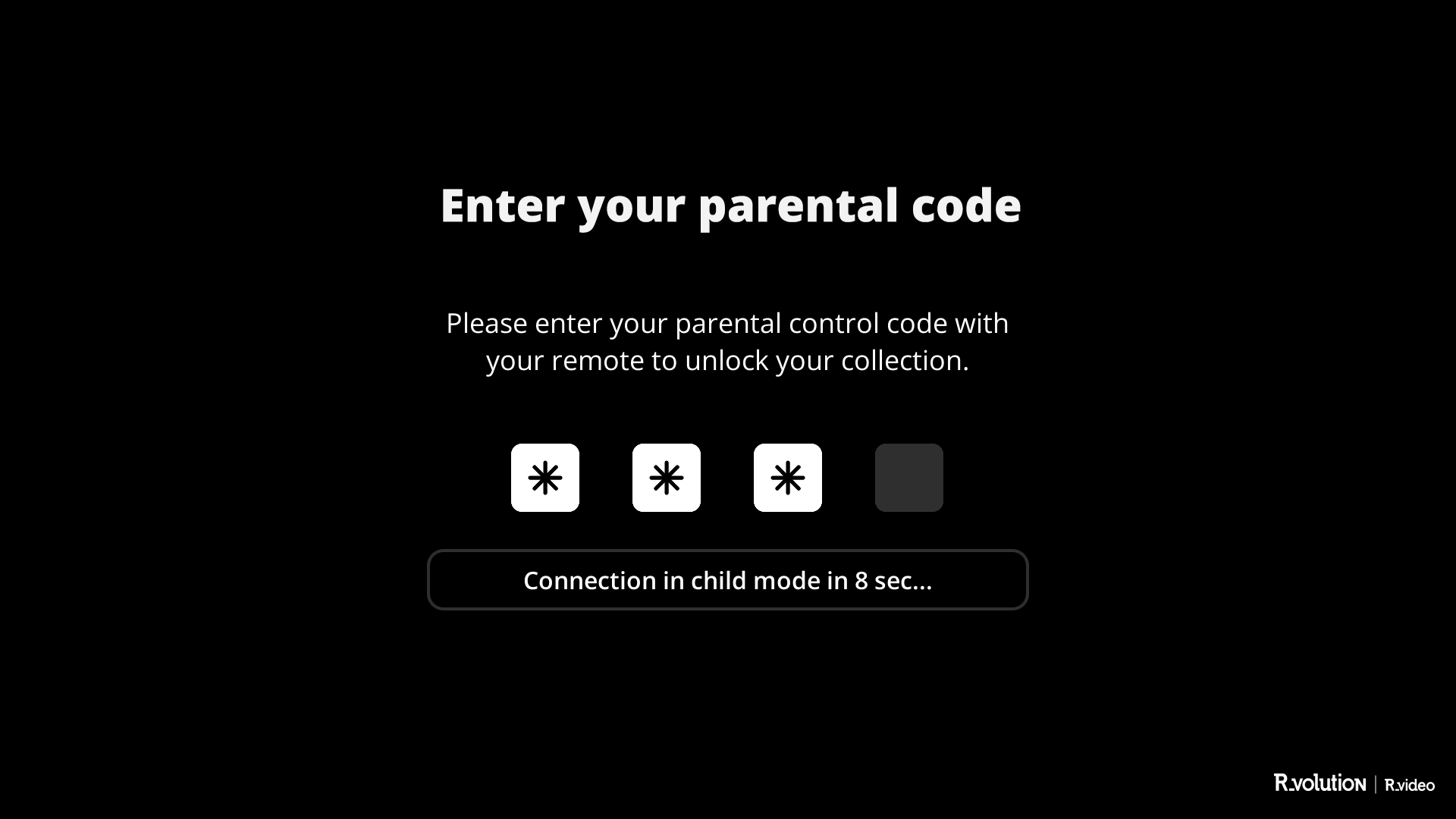
6. After 5 seconds, if the PIN code is not entered, a button appears, allowing you to connect in child mode and only films defined as children's films will be visible.
7. In order to mark movies as "Children's Movies", follow these steps:
- Move the cursor to the film you want to mark as "children's movie".
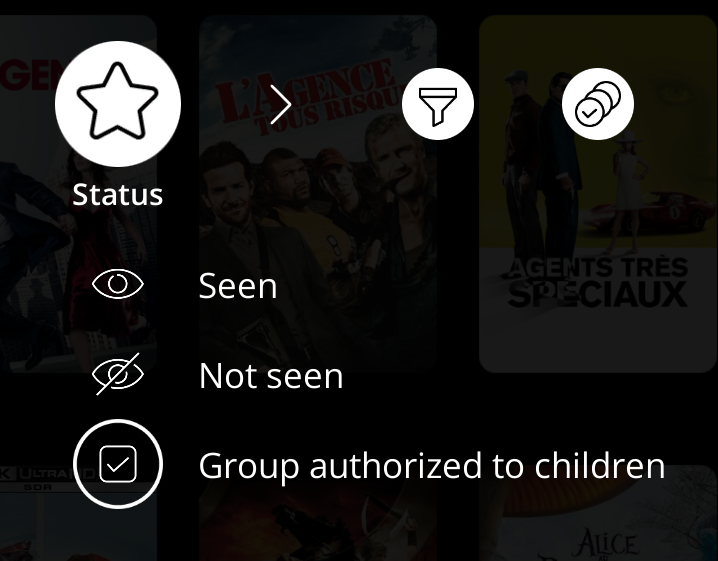
- Go to Menu > Status > then check the “Movie allowed for children” box.

A dedicated icon will appear at the bottom right of the poster (it can be deactivated in Menu > Information > Cover appearance).

Note: It is possible to mark an entire group of films as a “Children Allowed Group”.
8. To disable parental controls, go to Menu > Configuration > Advanced options > Parental controls and uncheck the dedicated box.
9. To switch to child mode when you are in normal mode, go to Menu > Collection > Switch to child mode. You can also simply restart the application.
Was this article helpful?
That’s Great!
Thank you for your feedback
Sorry! We couldn't be helpful
Thank you for your feedback
Feedback sent
We appreciate your effort and will try to fix the article